How to Set Up CI/CD for Automatic Deployment to a Cloud Server
Deploying a web application manually every time code changes can be time-consuming and may lead to errors. Developers often need to connect to a server, pull…
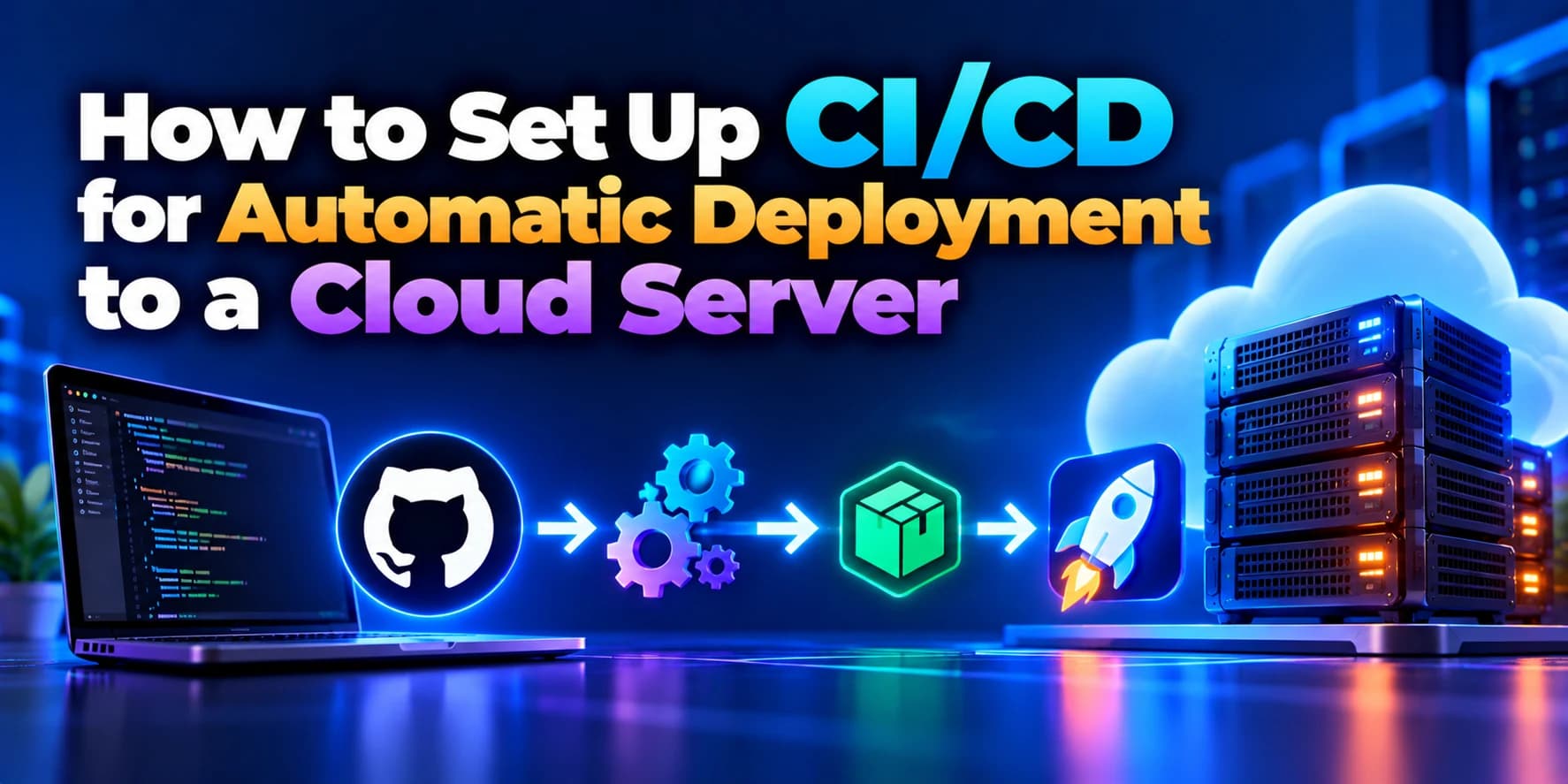
Deploying a web application manually every time code changes can be time-consuming and may lead to errors. Developers often need to connect to a server, pull the latest code, install dependencies, restart the application, and verify that everything works correctly.
Continuous Integration and Continuous Deployment (CI/CD) help automate this process. With a properly configured CI/CD pipeline, developers can push code to a Git repository and automatically deploy approved changes to a cloud server.
In this guide, we will explain how to set up CI/CD for automatic deployment using GitHub Actions, a cloud server, SSH, and a Node.js application.
What Is CI/CD?
CI/CD is a development practice that automates code testing, integration, and deployment.
Continuous Integration (CI): Automatically checks code changes by running tests and validation steps.
Continuous Delivery: Prepares tested code for release, with production deployment potentially requiring approval.
Continuous Deployment: Automatically releases qualifying changes to production after all required checks pass.
For example, when a developer pushes code to GitHub, a CI/CD pipeline can run tests, connect to the cloud server, update the application, install dependencies, and restart the service.
Why Use CI/CD for Cloud Server Deployment?
Setting up CI/CD offers several benefits for development teams and businesses.
Faster deployments: Release application updates without repeating manual server commands.
Fewer human errors: Automate repetitive deployment steps.
Consistent releases: Follow the same deployment process for every update.
Improved collaboration: Allow developers to work on code while deployments follow a defined workflow.
Better reliability: Run automated tests before releasing changes.
Reduced downtime: Use appropriate restart strategies and health checks to minimize service interruptions.
CI/CD is useful for startups, SaaS products, e-commerce platforms, business applications, and websites that receive frequent updates.
Tools Required for Automatic Deployment
You can build a CI/CD pipeline using several tools. For this example, we will use GitHub Actions to deploy a Node.js application to a Linux cloud server.
Tool | Purpose |
|---|---|
GitHub | Stores application code |
GitHub Actions | Runs automated workflows |
Cloud server | Hosts the application |
SSH | Provides secure server access |
Node.js and npm | Run the application and manage dependencies |
PM2 | Keeps the Node.js process running |
Nginx | Routes web traffic to the application |
The same general approach can be adapted to cloud providers such as AWS, Microsoft Azure, or other Linux VPS hosting services.
Step 1: Prepare Your Cloud Server
First, create a Linux cloud server, such as an Ubuntu virtual machine, and configure secure SSH access.
Install Node.js, npm, Git, and PM2 according to the requirements of your application. For example, on a server where Node.js and npm are already installed, you can install PM2 using:
sudo npm install -g pm2Clone your application repository onto the server and install its dependencies:
git clone YOUR_REPOSITORY_URL
cd YOUR_PROJECT_DIRECTORY
npm ci
Replace the placeholders with your actual repository URL and project directory.
Configure the application's environment variables securely, then test that it starts successfully. If the application uses a database, confirm that the server can connect to it.
Step 2: Configure the Application to Run With PM2
PM2 manages Node.js application processes and can restart them if they fail.
For an application that starts with npm start, run:
pm2 start npm --name my-app -- start
pm2 status
To configure the application to return after a server reboot, run:
pm2 startup
pm2 save
Follow the additional command printed by pm2 startup before saving the process list. This ensures PM2's startup configuration is installed for the appropriate user.
Step 3: Configure SSH Access for GitHub Actions
GitHub Actions needs a secure way to access your cloud server.
Create a dedicated deployment SSH key pair. Store the private key as a GitHub Actions secret and add the corresponding public key to the deployment user's ~/.ssh/authorized_keys file on the server.
In your GitHub repository, open:
Settings → Secrets and variables → Actions
Create these repository secrets:
SERVER_HOST— your server's IP address or hostname.SERVER_USER— the dedicated deployment username.SERVER_SSH_KEY— the private SSH key for deployment.
Use a dedicated, least-privileged deployment account, restrict network access where practical, and verify the server's SSH host key. Never commit private keys, passwords, or production environment files to your repository.
Step 4: Create a GitHub Actions Workflow
Inside your project repository, create this file:
.github/workflows/deploy.yml
Add the following example workflow:
name: Deploy Node.js Application

on:
  push:
    branches:
      - main

permissions:
  contents: read

jobs:
  deploy:
    runs-on: ubuntu-latest

    steps:
      - name: Checkout repository
        uses: actions/checkout@v4

      - name: Set up Node.js
        uses: actions/setup-node@v4
        with:
          node-version: '22'

      - name: Install dependencies
        run: npm ci

      - name: Run tests
        run: npm test --if-present

      - name: Configure SSH
        env:
          SERVER_SSH_KEY: ${{ secrets.SERVER_SSH_KEY }}
        run: |
          install -m 700 -d ~/.ssh
          printf '%s\n' "$SERVER_SSH_KEY" > ~/.ssh/deploy_key
          chmod 600 ~/.ssh/deploy_key

      - name: Deploy to cloud server
        env:
          SERVER_HOST: ${{ secrets.SERVER_HOST }}
          SERVER_USER: ${{ secrets.SERVER_USER }}
        run: |
          ssh -i ~/.ssh/deploy_key \
            -o StrictHostKeyChecking=yes \
            "$SERVER_USER@$SERVER_HOST" \
            'cd /var/www/my-app &&
             git fetch origin &&
             git reset --hard origin/main &&
             npm ci --omit=dev &&
             pm2 reload my-app --update-env'
This is a starting example, not a universal production-ready workflow. Before using it, configure a trusted SSH host key in the runner's known_hosts file, replace /var/www/my-app with the actual deployment directory, and confirm that the deployment user has the necessary permissions.
The workflow also assumes that the server has a Git checkout of the repository, the correct Node.js version, and a PM2 process named my-app. If your project builds frontend assets or uses TypeScript, add the appropriate build step and ensure the generated files are deployed.
For production systems, consider deploying to a new release directory and switching to it only after the deployment succeeds. This makes rollback easier than overwriting the currently running release.
Step 5: Trigger Automatic Deployment
Commit the workflow file and push it to the main branch:
git add .github/workflows/deploy.yml
git commit -m "Configure automatic deployment"
git push origin main
GitHub Actions detects the push and runs the workflow. It installs dependencies, executes available tests, and connects to your server to update the application.
You can monitor the deployment from the Actions tab in your GitHub repository. A successful workflow indicates that its configured steps completed; it does not automatically guarantee that the website is healthy, so check the application after deployment.
Step 6: Verify the Deployment
After the workflow finishes, connect to your cloud server and verify the application:
pm2 status
pm2 logs my-app
You can also check the application's health endpoint, if one is configured, or open the website in a browser.
For a more reliable deployment process, add an automated health check that confirms the application responds correctly after the restart. If the check fails, the pipeline should report a failure and trigger an appropriate recovery or rollback procedure.
Best Practices for Secure and Reliable CI/CD
Follow these practices when setting up automatic deployment for a production application:
Run tests before deployment: Prevent known code issues from reaching production.
Protect the production branch: Require code reviews and successful checks before merging.
Store secrets securely: Use GitHub Actions secrets or an appropriate secret manager.
Use least-privilege access: Give deployment credentials only the permissions they require.
Avoid unverified SSH hosts: Pin or verify the server's host key instead of disabling SSH host-key checking.
Keep dependencies controlled: Use a lockfile and deploy with
npm ci.Back up important data: Ensure databases and critical files have suitable recovery procedures.
Monitor deployments: Check application logs, health endpoints, and server resources.
Prepare rollback procedures: Keep previous working releases available.
Separate environments: Use different configurations and credentials for development, staging, and production.
For applications that require compilation, database migrations, or zero-downtime releases, the pipeline should include additional build, migration, verification, and rollback steps.
Common CI/CD Deployment Problems
SSH permission denied: Check the deployment username, private key secret, public key configuration, and server permissions.
Host key verification failed: Configure the correct server host key in the workflow's known_hosts file.
Application does not restart: Confirm the PM2 process name, runtime configuration, and application logs.
Deployment succeeds but the website fails: Check environment variables, database connectivity, application ports, reverse-proxy configuration, and health checks.
Build or dependency installation fails: Verify the Node.js version, lockfile, required environment variables, and test output.
Conclusion
Setting up CI/CD for automatic deployment to a cloud server helps development teams release updates faster and reduce repetitive manual work. With GitHub Actions, SSH, and PM2, you can create a workflow that tests code and deploys changes whenever approved code is pushed to the production branch.
For business-critical applications, strengthen the basic workflow with secure credentials, health checks, release-based deployments, monitoring, and rollback support.
Need help automating your application deployment? Dotcube Technologies helps businesses build, deploy, and maintain web applications with reliable cloud infrastructure and CI/CD workflows tailored to their requirements.