How to Set Up Automated Server Backups and Disaster Recovery
Server failures, accidental file deletion, cyberattacks, and database corruption can cause serious problems for a business. Without reliable backups,…
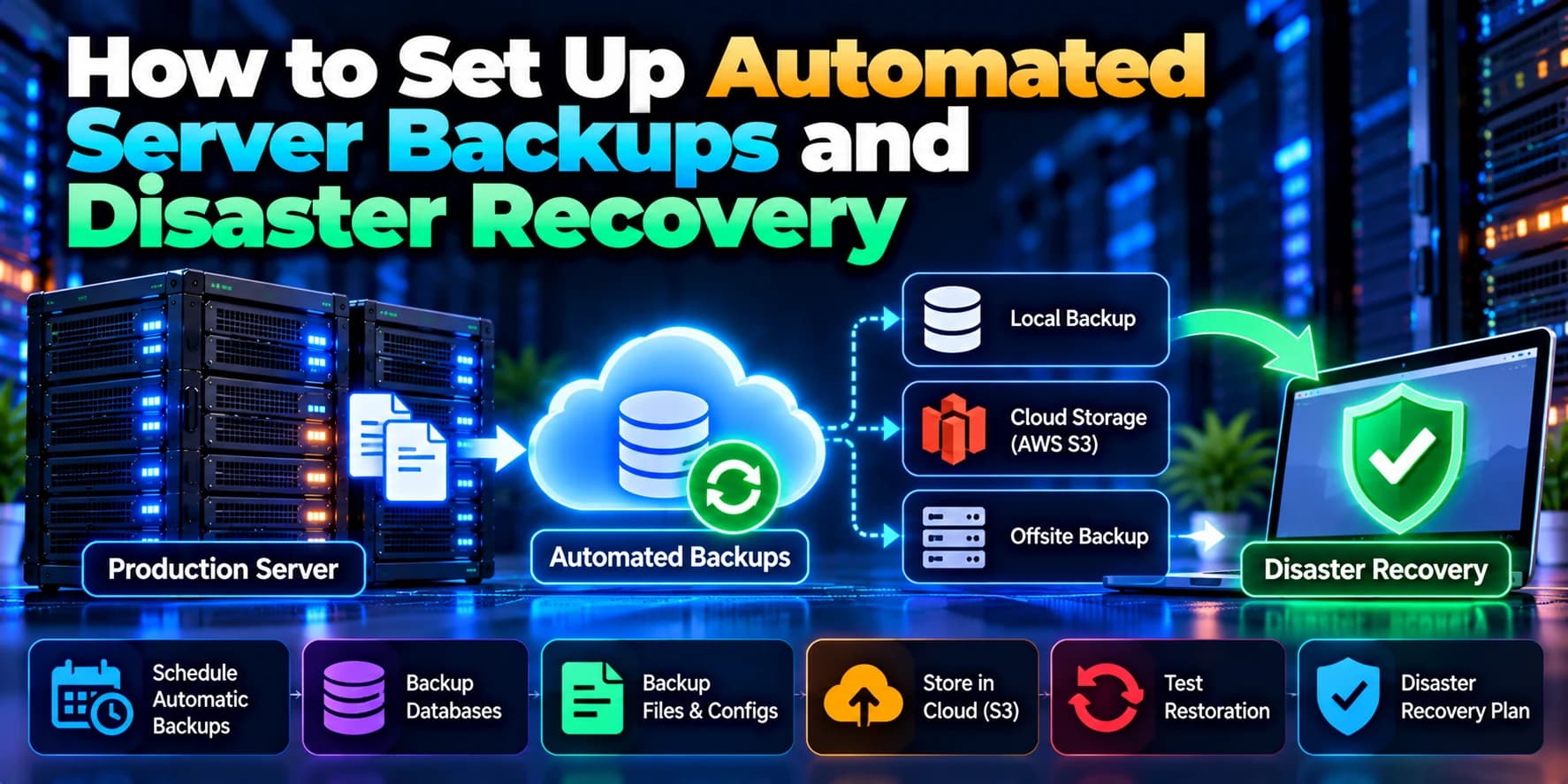
Server failures, accidental file deletion, cyberattacks, and database corruption can cause serious problems for a business. Without reliable backups, recovering a website or application may take hours or even days, leading to downtime and potential data loss.
Setting up automated server backups and a disaster recovery plan helps businesses protect important data and restore services when something goes wrong. Whether you run a website on AWS, Azure, a VPS, or a dedicated server, a well-planned backup strategy can improve reliability and reduce recovery time.
In this guide, we will explain how to automate server backups, protect databases, store backup copies securely, and prepare for disaster recovery.
1. Identify What Needs to Be Backed Up
Before configuring automated backups, identify the files and services required to restore your application.
Your backup plan may include:
Website source code and application files.
Databases such as MySQL, PostgreSQL, or MongoDB.
User-uploaded images and documents.
Application configuration files and environment settings.
Server configuration files, including Nginx or Apache settings.
SSL certificate configuration and deployment information.
Important system and application logs.
Do not assume that backing up your application code is enough. Databases, uploads, and configuration files may contain information that cannot easily be recreated.
Store credentials and secrets securely rather than exposing them inside backup scripts or publicly accessible backup folders.
2. Choose the Right Backup Strategy
Different backup methods provide different levels of protection.
Full Backup
A full backup copies all selected files and data. It provides a straightforward recovery point but may require more storage and time.
Incremental Backup
An incremental backup stores changes made since the most recent backup. It can reduce storage requirements, although restoration may depend on multiple backup sets.
Differential Backup
A differential backup stores changes made since the last full backup. It can simplify restoration compared with a long chain of incremental backups, but backup sizes may grow over time.
Snapshot Backup
A snapshot captures the state of a supported disk, virtual machine, or storage volume at a particular point in time. Snapshots are useful for recovery, but they should not automatically be treated as independent, long-term backups.
For many production environments, a combination of database backups, file backups, and infrastructure snapshots provides better protection than relying on a single method.
3. Set Backup Frequency and Retention Policies
Your backup schedule should depend on how frequently your data changes and how much data your business can afford to lose.
For example, you might configure:
Database backups every few hours for frequently updated applications.
Daily backups of application files and uploaded content.
Weekly recovery points retained for longer periods.
Monthly backups for longer-term retention where required.
Define two important recovery targets:
Recovery Point Objective (RPO): The maximum acceptable amount of data loss measured in time.
Recovery Time Objective (RTO): The target time required to restore services after an incident.
For example, an RPO of one hour means the business aims to lose no more than approximately one hour of data. An RTO of four hours means the target is to restore the service within four hours.
These are planning targets, not guarantees. Test your backup and recovery process to determine whether the targets are realistic.
4. Automate Linux Server Backups Using Cron
On Linux servers, cron can schedule backup scripts to run automatically at specific times.
For example, create a backup directory:
mkdir -p ~/backupsFor a MySQL database, a simple backup command is:
mysqldump -u username -p database_name > ~/backups/database.sqlFor automated production backups, avoid putting database passwords directly into scripts or command-line arguments. Use a securely configured credentials file, an appropriate secret manager, or another supported authentication method.
You can then create a script that performs the backup and writes a timestamped file.
Example:
#!/bin/bash

set -euo pipefail

BACKUP_DIR="$HOME/backups"
TIMESTAMP=$(date +"%Y-%m-%d_%H-%M-%S")

mkdir -p "$BACKUP_DIR"

mysqldump \
  --defaults-extra-file="$HOME/.my.cnf" \
  database_name \
  > "$BACKUP_DIR/database_$TIMESTAMP.sql"

find "$BACKUP_DIR" \
  -type f -name "database_*.sql" -mtime +7 -delete
This example assumes that database credentials are securely configured in ~/.my.cnf. Protect that file with restrictive permissions, such as chmod 600 ~/.my.cnf, and ensure the database account has only the permissions it needs.
The script retains local database backups for approximately seven days based on file modification time. Adapt the retention policy to your business requirements.
Make the script executable:
chmod 700 ~/backup.shOpen the cron configuration:
crontab -eTo run the script every day at 2:00 AM, add:
0 2 * * * /home/username/backup.shReplace the example path with the actual absolute path to your script.
Important: A local backup protects against some failures, but it will not protect your data if the server disk fails or the entire server is compromised. Copy backups to separate storage and monitor each scheduled job.
5. Automate Website File Backups
Web applications often store important files outside the database, including uploaded documents, images, and configuration files.
You can use tools such as tar or rsync to back up selected directories.
For example, create a compressed archive:
tar -czf website-backup.tar.gz /var/www/websiteBefore using this command in production, select the correct directories and exclude temporary files, caches, credentials that should not be archived, and other unnecessary data where appropriate.
For large websites, rsync can copy files efficiently to a separate backup server or mounted storage location.
Remember that files changing during a backup may produce an inconsistent copy. For applications with frequent uploads or database activity, coordinate backups with the application or use storage tools that support consistent snapshots.
6. Store Backups in Cloud Storage
Keeping backups on the same server as your application creates a single point of failure. If the server is damaged or compromised, both the application and its backups may be lost.
Consider storing backup copies in a separate cloud account or storage environment.
Common options include:
Amazon S3: Object storage for database dumps, website archives, and long-term backup retention.
Amazon EBS snapshots: Point-in-time backups of supported AWS block storage volumes.
Azure Backup: Backup and recovery capabilities for supported Azure workloads.
Google Cloud Storage: Object storage for backup files and archival data.
Dedicated backup servers: Separate infrastructure for storing and restoring important files.
Configure access controls, encryption, lifecycle policies, and retention settings. For critical workloads, consider immutable backups or retention locks that help prevent attackers from deleting backup copies.
Do not expose backup files through a public website or give every application process unrestricted access to backup storage.
7. Set Up Automated Backups on AWS
If your application runs on AWS, you can combine several AWS services to create a more reliable backup strategy.
For example:
Use AWS Backup where supported to schedule and manage backups for eligible resources.
Configure Amazon EBS snapshots for appropriate server volumes.
Back up database data using database-specific backup tools or managed database backup features.
Store application uploads in Amazon S3 when suitable for your architecture.
Apply retention policies and access controls.
Monitor backup jobs and configure alerts for failures.
Test restoring backups into a separate environment.
For an Amazon EC2 application, a disk snapshot alone may not capture a consistent database state if writes are occurring during the snapshot. Use application-aware procedures or database-native backups when required.
Also document the steps needed to recreate the server, network configuration, permissions, application services, and environment variables. A backup is useful only if you can restore the complete service.
8. Create a Disaster Recovery Plan
Automated backups protect your data, while disaster recovery defines how you restore the business service after a serious incident.
A practical disaster recovery plan should specify:
Which systems and data must be restored first.
Who is responsible for recovery decisions.
Where backup copies are stored.
How to provision replacement infrastructure.
How to restore databases and application files.
How to configure DNS, networking, and security.
How to verify application functionality before reopening traffic.
How to communicate service interruptions to users and stakeholders.
Depending on business requirements, you might restore onto a replacement server, use infrastructure-as-code to rebuild the environment, or maintain a standby environment for faster recovery.
Choose the approach based on your recovery targets and budget. A warm or hot standby can reduce recovery time, but it costs more to operate than a backup-and-restore approach.
9. Monitor Backup Jobs and Send Alerts
A backup process can fail because of insufficient disk space, expired credentials, network problems, permission errors, or database issues.
Do not assume that backups are working just because a scheduled script exists.
Monitor:
Backup job success and failure.
Backup file size and completion time.
Available storage capacity.
Upload status for off-site copies.
Backup age and retention policy compliance.
Restore test results.
You can use monitoring tools such as AWS CloudWatch, Prometheus, Grafana, or supported backup-service alerts.
Configure notifications through your team's established alerting system. A failed backup should generate an actionable alert so that the problem can be fixed before the next recovery incident.
10. Test Your Backup Restoration Process
A backup is not reliable until you have successfully restored it.
Schedule regular recovery tests in a separate environment. During each test:
Select a recent backup.
Restore the database and application files.
Recreate required services and configuration.
Verify user records, uploaded files, and important workflows.
Measure the time required to restore service.
Document problems and update the recovery instructions.
For critical applications, test scenarios such as server failure, database corruption, accidental deletion, and loss of access to the primary hosting environment.
Ensure that the recovery process does not overwrite production data or expose sensitive information.
Common Backup and Disaster Recovery Mistakes
Avoid these mistakes when setting up automated server backups:
Storing all backups on the same server.
Backing up application files but forgetting the database.
Using insecure scripts that expose database credentials.
Deleting older backups without verifying newer copies.
Ignoring backup failures and storage limits.
Assuming a disk snapshot is always database-consistent.
Keeping backups accessible to compromised production credentials.
Never testing the restoration process.
Failing to document recovery steps and responsibilities.
Choosing backup schedules without defining RPO and RTO.
Conclusion
Automated server backups and disaster recovery are essential for protecting business applications against data loss, server failures, accidental deletion, and security incidents. A strong strategy combines scheduled database and file backups, off-site storage, secure retention policies, monitoring, and regular restoration tests.
Start by identifying critical data and setting realistic recovery targets. Then automate your backups, store copies separately from production, and document how to rebuild your application environment.
Need help securing your server infrastructure? Dotcube Technologies helps businesses build, deploy, and maintain reliable web applications with appropriate cloud infrastructure, backup automation, and recovery planning. Contact our team to discuss a backup and disaster recovery strategy for your business.