How to Migrate a Website From One Hosting Provider to Another
Migrating a website from one hosting provider to another can improve website performance, reduce hosting costs, and provide better scalability. However, moving…
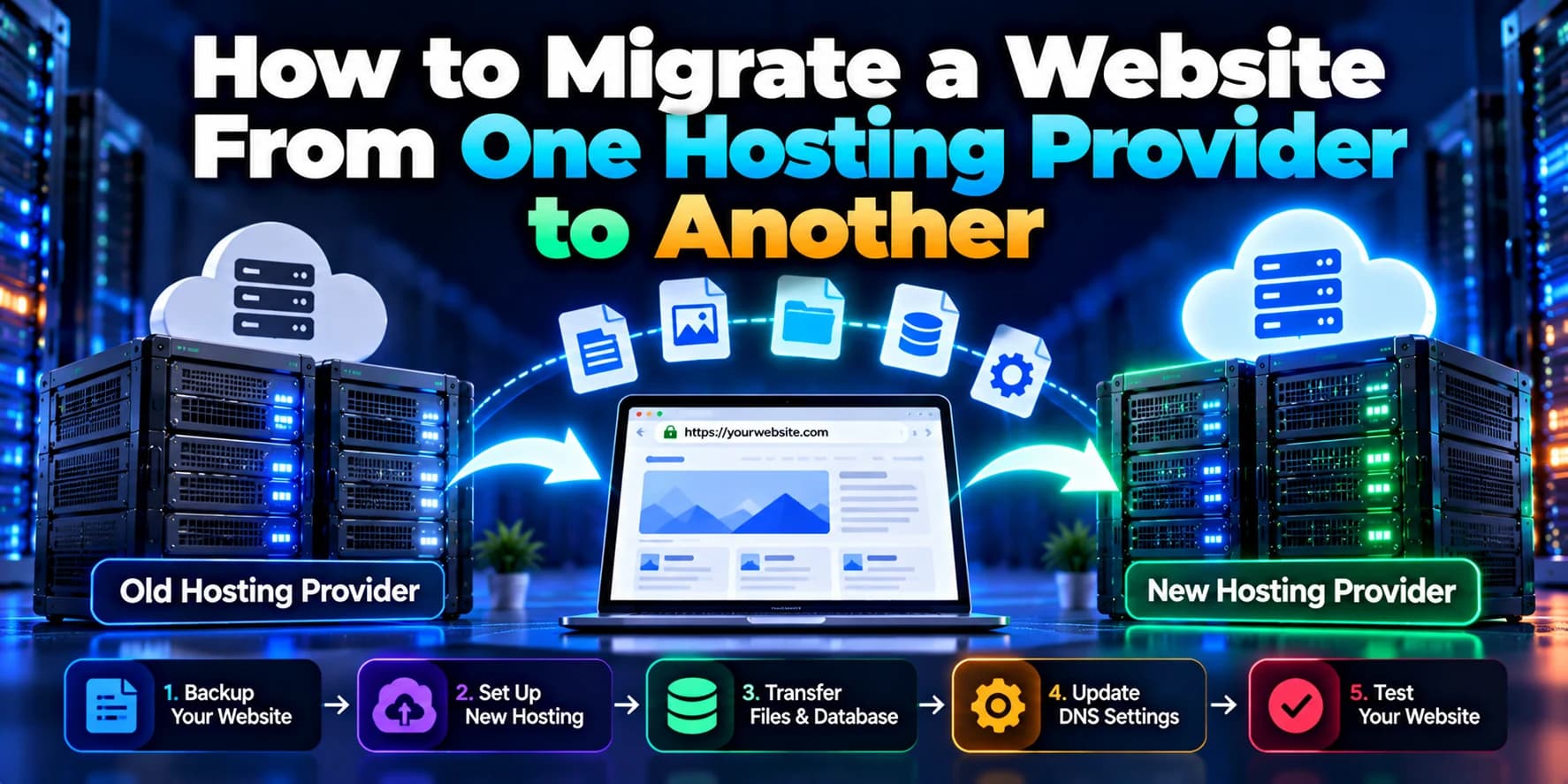
Migrating a website from one hosting provider to another can improve website performance, reduce hosting costs, and provide better scalability. However, moving a website without proper planning can cause downtime, broken links, missing files, database errors, or SEO ranking issues.
Whether you are moving from shared hosting to a VPS, migrating to AWS, or switching between cloud hosting providers, following a structured process can help make the transition smooth and reliable.
In this guide, we will explain how to migrate a website from one hosting provider to another while protecting your website data, functionality, and search engine visibility.
1. Evaluate Your New Hosting Provider
Before starting the migration, choose a hosting provider that meets your website's technical and business requirements.
Consider the following factors:
Performance: Check CPU, RAM, storage, and bandwidth limits.
Scalability: Ensure the hosting environment can handle future traffic growth.
Security: Look for SSL support, firewalls, backups, and access controls.
Compatibility: Verify support for your programming language, database, and required software.
Cost: Compare monthly hosting charges, bandwidth fees, storage costs, and additional services.
Support: Check the availability of technical assistance during migration and after launch.
For example, a small business website may work well on shared hosting, while a dynamic web application may need VPS or cloud infrastructure.
2. Back Up Your Website Files and Database
Before making any changes, create a complete backup of your existing website.
Your backup should include:
Website source code and configuration files.
Images, documents, and other uploaded files.
Database exports.
Environment variables and application settings.
SSL and DNS configuration details, where applicable.
For a MySQL database, you can create a backup using:
mysqldump -u username -p database_name > backup.sqlKeep the backup in a secure location outside the current hosting environment. Confirm that the files and database export are complete before proceeding.
Important: Never begin a production migration without a verified recovery plan.
3. Set Up the New Hosting Environment
Prepare the destination server before moving your website.
Depending on your application, this may involve:
Installing the required runtime, such as Node.js or PHP.
Configuring the web server, such as Nginx or Apache.
Creating the destination database and database user.
Installing application dependencies.
Configuring file permissions and directory ownership.
Setting up environment variables and secrets.
Configuring firewall rules and required ports.
For a Node.js application, you may also need a process manager such as PM2 to keep the application running.
Make sure the new environment uses compatible software versions. Differences in runtime versions, database settings, or server configuration can cause errors after migration.
4. Transfer Website Files to the New Server
Once the new hosting environment is ready, transfer your website files.
Common transfer methods include:
SFTP: Securely transfer files between servers.
SSH and rsync: Efficiently synchronize files on supported Linux servers.
Hosting control panel: Use backup and restore features when available.
Git deployment: Deploy application code from a repository.
Cloud storage: Transfer large file collections through an appropriate storage service.
For example, you can use rsync over SSH to copy files to a destination server:
rsync -avz ./website/ user@new-server:/var/www/website/Adjust the source and destination paths to match your environment. Verify that file ownership, permissions, uploads, and hidden configuration files are handled correctly.
5. Migrate the Website Database
If your website uses a database, migrate its data to the destination environment.
A typical database migration involves:
Creating the destination database.
Creating a database user with appropriate permissions.
Exporting the existing database.
Importing the database into the new environment.
Updating the application's database connection settings.
Testing important queries and application features.
For MySQL, you can import a previously created SQL backup using:
mysql -u username -p new_database < backup.sqlFor large or frequently updated databases, plan the migration carefully to minimize data loss. You may need a final database synchronization or a brief write-freeze during cutover.
Also verify character encoding, database versions, time zones, and permissions.
6. Configure Your Website on the New Server
After transferring the files and database, configure your website to run on the destination server.
For an Nginx-based deployment, configure the correct domain name, document root or reverse proxy, and SSL settings.
If you are migrating a Node.js application, check that:
The application starts successfully.
Environment variables are loaded correctly.
The correct port is configured.
PM2 or another process manager is configured where needed.
Nginx forwards requests to the correct application port.
Application and server logs do not show critical errors.
Test the website before switching your domain's DNS records.
7. Test the Website Before Changing DNS
Testing the new hosting environment helps identify problems before visitors are directed to it.
Check the following:
Homepage and important landing pages.
Login, registration, and password recovery.
Forms, search, and API requests.
Database operations and user accounts.
Image uploads and file downloads.
Payment integrations and other third-party services.
Mobile responsiveness and page loading speed.
SSL certificates and HTTPS redirects.
Error pages, redirects, and application logs.
You can test the new server using a temporary URL or a local hosts-file override, where appropriate.
Do not rely only on the homepage. Test the website's most important business workflows before proceeding.
8. Update DNS Records and Point Your Domain to the New Server
Once testing is complete, update the required DNS records to direct traffic to the new hosting provider.
Common records include:
A record: Points a domain or subdomain to an IPv4 address.
AAAA record: Points a domain or subdomain to an IPv6 address.
CNAME record: Points a hostname to another hostname.
MX records: Direct email delivery to the appropriate mail servers.
Before changing DNS, review all existing records. If your email is hosted separately, preserve its MX and related records.
Reducing the DNS TTL ahead of the migration can help changes propagate more quickly, although resolver caching means the change will not be instantaneous for every visitor.
Keep the old hosting environment available while DNS changes propagate and traffic is verified on the new server.
9. Protect SEO Rankings During Migration
A hosting migration does not necessarily require changing your domain or URL structure. If URLs remain unchanged and the migration is technically sound, SEO disruption can often be minimized.
Follow these practices:
Keep existing URLs unchanged wherever possible.
Preserve page titles, meta descriptions, canonical tags, and structured data.
Maintain the existing robots.txt and XML sitemap configuration.
Avoid accidental
noindexdirectives or crawl blocks.Verify HTTPS certificates and redirects.
Check internal links and important landing pages.
Monitor Google Search Console for indexing and crawl issues.
Fix broken links and unexpected 404 errors.
If you are also changing domain names or URL paths, create and test appropriate permanent redirects, typically HTTP 301 redirects, from old URLs to their relevant new destinations.
10. Monitor the Website After Migration
After the DNS cutover, monitor your website closely to confirm that the new hosting environment is stable.
Track:
Website availability and response times.
HTTP 4xx and 5xx errors.
CPU, memory, disk, and network utilization.
Database connections and slow queries.
Application logs and background jobs.
SSL certificate status.
Traffic patterns and search engine indexing.
Keep the previous hosting account active until you have verified the new environment and confirmed that all required data and services are working correctly.
Do not cancel the old hosting plan immediately. Retaining it temporarily gives you more options if unexpected issues arise.
Common Website Migration Mistakes to Avoid
Avoid these frequent mistakes when moving a website to a new hosting provider:
Migrating without a complete and verified backup.
Forgetting uploaded files or database records.
Using incompatible runtime or database versions.
Missing environment variables or API credentials.
Changing DNS before testing the new environment.
Accidentally removing email-related DNS records.
Ignoring SSL certificates and HTTPS redirects.
Failing to preserve important URLs and SEO settings.
Closing the old hosting account too early.
Forgetting to configure monitoring and automated backups.
Conclusion
Migrating a website from one hosting provider to another requires careful preparation, secure data transfer, environment configuration, thorough testing, and a controlled DNS cutover. Following these steps can help reduce downtime, protect website data, and maintain search engine visibility.
For business-critical websites, plan the migration around traffic patterns, define a rollback strategy, and verify the new hosting environment before retiring the old one.
Need help migrating your website? Dotcube Technologies helps businesses migrate websites and web applications between hosting providers, configure cloud infrastructure, and improve application performance. Contact our team to discuss a reliable migration plan for your project.