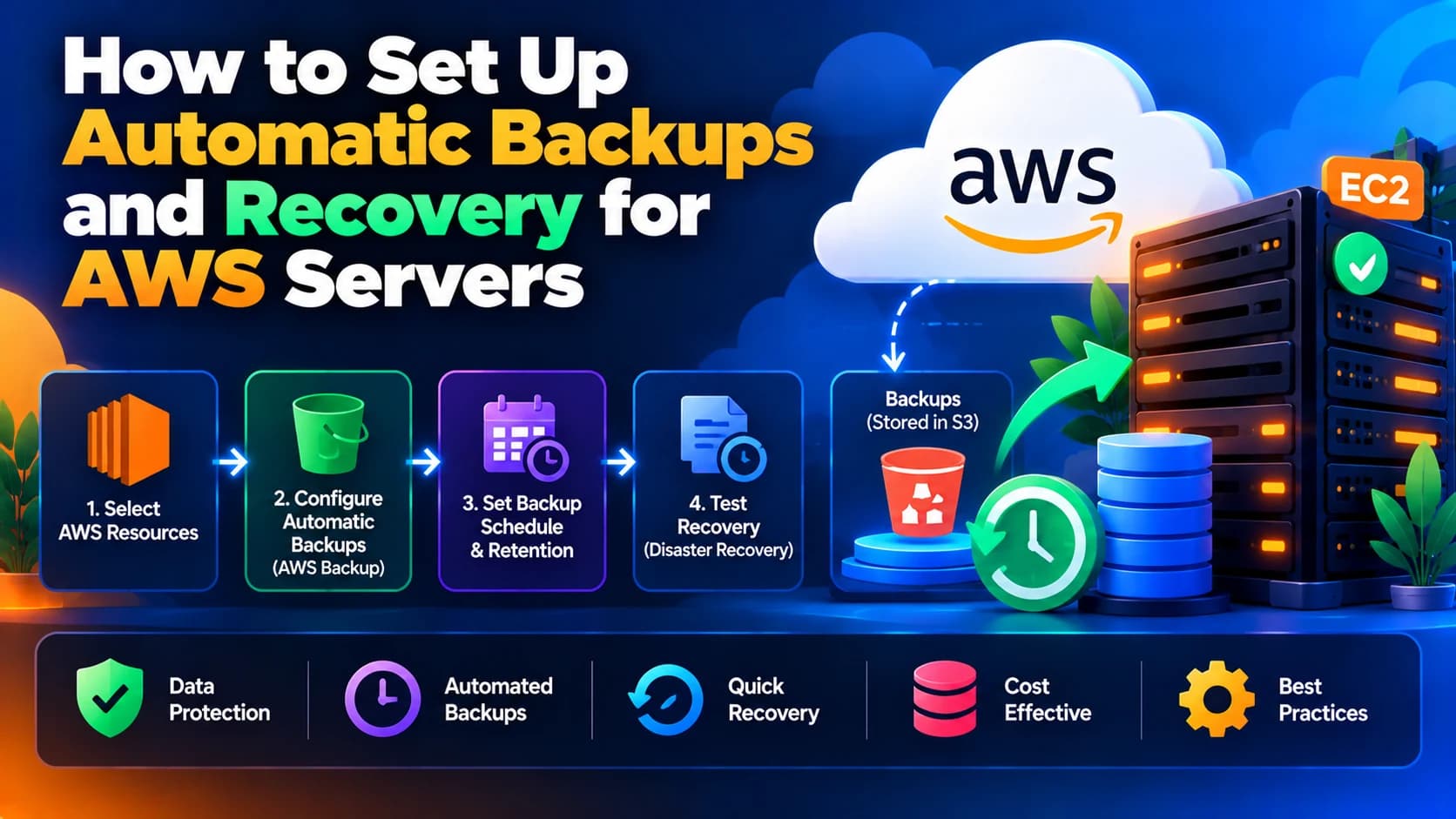
How to Set Up Automatic Backups and Recovery for AWS Servers
IntroductionRunning a website or web application on Amazon Web Services (AWS) gives businesses flexibility, scalability, and control over their infrastructure.…
Introduction
Running a website or web application on Amazon Web Services (AWS) gives businesses flexibility, scalability, and control over their infrastructure. However, server failures, accidental file deletion, application errors, cyberattacks, and database corruption can still cause data loss and service interruptions.
Without a reliable backup and recovery strategy, restoring a website or application after an unexpected incident can take hours or even days.
Automatic backups help protect critical data, while a well-tested recovery process helps restore servers and applications when something goes wrong.
AWS provides several services for backup automation, including Amazon EC2 snapshots, AWS Backup, Amazon RDS automated backups, and Amazon S3 versioning. Choosing the right combination depends on your application architecture, recovery requirements, and budget.
In this guide, we will explain how to set up automatic backups and recovery for AWS servers, configure backup schedules, protect important data, and test your recovery process.
1. Understand What Needs to Be Backed Up
Before configuring automatic backups, identify the resources required to restore your application.
Backing up only the server's operating system may not be enough. A complete recovery plan should consider application files, databases, uploaded documents, configuration files, and other dependencies.
Common resources to protect include:
Amazon EC2 instances and their attached storage volumes.
Application code and configuration files.
Databases such as MySQL, PostgreSQL, and MariaDB.
User-uploaded images and documents.
Environment configuration and deployment files.
Important application logs and business records.
DNS settings and infrastructure configuration.
Encryption keys and secrets, where applicable and securely managed.
For example, a Node.js application running on EC2 may require the application code, environment configuration, database, uploaded files, and process-management configuration to restore the service correctly.
Create an inventory of these resources and determine which ones are essential for business operations.
2. Choose the Right AWS Backup Strategy
AWS offers several backup options. The right choice depends on whether you need to protect entire servers, individual storage volumes, databases, or application files.
AWS service or feature | Primary purpose |
|---|---|
AWS Backup | Centralized backup policies, scheduling, retention, and supported-resource management |
Amazon EBS snapshots | Point-in-time backups of EBS volumes |
Amazon Machine Images (AMIs) | Capture an EC2 server configuration and associated selected EBS volumes for launching replacement instances |
Amazon RDS automated backups | Protect supported managed databases and support point-in-time recovery |
Amazon S3 Versioning | Preserve multiple versions of objects |
AWS Elastic Disaster Recovery | Support recovery of compatible servers into AWS during a disaster |
These options can work together. For example, a web application might use AWS Backup for EC2 storage, RDS automated backups for its database, and S3 versioning for uploaded files.
Remember that backup coverage differs by service and configuration. Verify which resources are included, which are excluded, and how recovery works before relying on a policy.
3. Configure Automatic Backups With AWS Backup
AWS Backup is a managed service that helps centralize backup management for supported AWS resources.
Instead of manually creating snapshots for every server, you can configure backup plans that define when backups run, how long recovery points are retained, and which resources should be protected.
Step 1: Open AWS Backup
Sign in to the AWS Management Console.
Search for AWS Backup.
Open the service in the AWS Region containing your resources.
Review the available protected resources and backup configuration.
Make sure you are working in the correct account and Region. Backup resources, vaults, and policies may differ across Regions and accounts.
Step 2: Create a Backup Vault
A backup vault stores and organizes supported backup recovery points.
To create a vault:
Open the Backup vaults section.
Select the option to create a backup vault.
Enter a descriptive name, such as
production-backup-vault.Configure encryption and access controls.
Create the vault.
Use a suitable encryption key and restrict who can view, delete, or change backup resources.
For important production systems, consider whether a separate backup account or additional isolation is appropriate. Cross-account backups and logically or physically isolated backup options have specific service and configuration requirements.
Step 3: Create a Backup Plan
A backup plan defines the schedule and retention rules for backups.
Open Backup plans.
Create a new plan or start with a suitable template.
Give the plan a descriptive name, such as
production-daily-backups.Configure the backup schedule.
Select the backup vault.
Set retention rules.
Review the configuration and save the plan.
An illustrative backup schedule might be:
Setting | Example |
|---|---|
Backup frequency | Daily |
Backup time | 02:00 UTC |
Retention period | 30 days |
Backup vault | Production backup vault |
Target resources | Tagged production resources |
These are example values, not universal recommendations. Choose the schedule and retention period based on data-change frequency, compliance requirements, recovery objectives, and cost.
Step 4: Assign Resources to the Backup Plan
You can use resource assignments to identify which resources the plan should protect.
For example, apply tags such as:
Environment = ProductionBackup = DailyApplication = CustomerPortal
Then configure the backup plan to select the appropriate tagged resources, where supported.
Check that the assignment includes all required production resources. A correctly configured plan can still leave important data unprotected if the relevant resources are not assigned.
Step 5: Verify Backup Jobs
After the plan is active, review its backup jobs and recovery points.
Confirm that:
Backup jobs complete successfully.
The expected resources are protected.
Recovery points are available.
Retention rules are working.
Failed jobs trigger appropriate notifications or alerts.
Do not consider backup automation complete until you have verified successful backups.
4. Set Up Amazon EBS Snapshots for EC2 Servers
Amazon Elastic Block Store (EBS) provides persistent block storage for EC2 instances. EBS snapshots capture a point-in-time view of a volume and can be used to create new volumes for recovery.
Snapshots are particularly useful when you need to restore server data or recreate a server's storage after a failure.
How to create an EBS snapshot manually
Open the EC2 console.
Navigate to Volumes under Elastic Block Store.
Select the volume you want to protect.
Choose the option to create a snapshot.
Enter a descriptive name and useful tags.
Create the snapshot.
Verify that the snapshot completes successfully.
For ongoing protection, automate snapshots using AWS Backup or another supported scheduling mechanism rather than depending on manual operations.
Important considerations
EBS snapshots are generally incremental, meaning subsequent snapshots store changed blocks rather than repeatedly storing every unchanged block.
However, a snapshot of a volume is not automatically a fully application-consistent backup of everything running on the server.
For applications that write data frequently, coordinate backups with the application or database. Depending on the workload, you may need to quiesce writes, flush data to disk, or use application-aware backup procedures.
If an EC2 instance has multiple EBS volumes, make sure the backup strategy captures all required volumes and accounts for consistency between them.
5. Create AMIs for Faster EC2 Server Recovery
An Amazon Machine Image (AMI) can be used to launch a replacement EC2 instance with a captured operating system and server configuration.
This is useful when a server becomes corrupted, an operating system update fails, or a replacement instance needs to be created quickly.
Steps to create an AMI
Open the EC2 console.
Select the EC2 instance you want to protect.
Open the Actions menu.
Choose the image creation option.
Enter a descriptive image name.
Review the attached EBS volume settings.
Create the image.
Monitor the image creation process until it is ready.
You can automate image creation and retention with suitable AWS backup or lifecycle-management workflows.
An AMI is not a replacement for every other backup. It may not capture external databases, S3 files, secrets stored elsewhere, or changes made after the image was created.
For frequently updated applications, combine server-image backups with separate database and file protection.
6. Enable Automatic Backups for Amazon RDS Databases
If your application uses Amazon RDS, configure database backups independently of your EC2 server backups.
RDS automated backups support database recovery and, for supported configurations, point-in-time recovery within the available backup retention window.
How to configure RDS backups
Open the Amazon RDS console.
Select your database instance.
Choose the modification option.
Review the backup retention period.
Configure the preferred backup window, where available.
Apply the change according to your operational requirements.
The exact settings depend on the database engine and deployment type.
For example, a production application might retain automated backups for 14 days, while a development database may need a shorter retention period. Select a period that meets your recovery and compliance requirements.
Additional database protection
For important databases, consider:
Testing point-in-time recovery.
Creating manual snapshots before major changes.
Monitoring backup status and retention.
Protecting backups against unauthorized deletion.
Evaluating cross-Region backup requirements.
Documenting database credentials and connection configuration securely.
A backup is useful only if the restored database can connect to the application and contains the required data.
7. Protect Files Stored in Amazon S3
Many web applications store user uploads, product images, reports, and documents in Amazon S3.
If these objects are important to business operations, include them in your recovery strategy.
Enable S3 Versioning
S3 Versioning preserves multiple versions of an object when it is overwritten or deleted. This can help recover from accidental changes and certain types of data loss.
To enable it:
Open the Amazon S3 console.
Select the relevant bucket.
Open the Properties tab.
Find Bucket Versioning.
Enable versioning.
Test how object recovery works before relying on it in production.
Versioning can increase storage costs because previous versions may continue to consume storage. Use lifecycle rules where appropriate, while preserving versions needed for recovery or compliance.
Consider additional safeguards
Depending on your risk requirements, evaluate S3 Object Lock, appropriate bucket policies, replication, and separate backup copies.
These features have different purposes. Versioning alone does not guarantee protection against every threat, especially if an attacker or administrator has permission to delete versions or modify backup controls.
8. Configure Backup Retention and Lifecycle Policies
Keeping every backup indefinitely can increase storage costs. Deleting backups too quickly, however, can leave you without a recovery point from before an issue was discovered.
Create a retention policy that balances recovery needs and storage expenses.
For example:
Daily backups retained for 14–30 days.
Weekly recovery points retained for several months.
Monthly recovery points retained longer when required.
This is an illustrative policy, not a default for every business.
Consider the following factors:
How quickly data changes.
How long it may take to discover data corruption.
Legal or regulatory retention requirements.
Recovery time and recovery point objectives.
Backup storage costs.
Whether copies are stored in another account or Region.
Use supported AWS Backup lifecycle settings and S3 lifecycle rules where suitable. Check the minimum storage duration and transition or retrieval costs for the storage class you choose.
9. Set Up Cross-Region and Cross-Account Backup Protection
Keeping all backups in the same account and Region can leave them exposed to some regional outages, account compromise, or accidental administrative actions.
For critical applications, consider storing additional recovery points in a separate AWS Region or account.
Cross-Region and cross-account protection can help when you need to recover from:
A major regional service disruption.
Accidental deletion of resources.
Compromised production credentials.
Malicious or unauthorized changes.
Regional infrastructure failures.
AWS Backup supports cross-Region and cross-account backup capabilities for eligible resources and configurations.
Before implementing them, verify service support, encryption-key access, backup-vault policies, and recovery procedures. Cross-Region copies can introduce additional storage, transfer, and operational costs.
For stronger protection, separate backup administration from everyday production access and restrict permissions that allow backup deletion.
10. Create a Server Recovery Plan
Automatic backups protect recovery points, but a recovery plan defines how to restore your application when a server fails.
Your plan should explain which resources to restore, in what order, and how to verify that the application is working.
A typical EC2 recovery process includes:
Identify the failure and assess the affected resources.
Select a known-good recovery point.
Restore the necessary EBS volumes or launch a replacement EC2 instance from a suitable AMI.
Restore or reconnect the database.
Restore application files and configuration.
Reconfigure networking, security groups, and required IAM permissions.
Attach or associate the appropriate static IP address or load balancer configuration.
Validate application functionality.
Route traffic to the recovered environment.
Monitor the system for errors and data inconsistencies.
If your application uses a load balancer, Auto Scaling, infrastructure as code, or managed services, your recovery procedure may be different.
Document the dependencies required to recreate the application, including DNS records, certificates, secrets, background workers, and external integrations.
11. Automate Recovery Workflows Where Appropriate
For critical systems, recovery can be partially automated to reduce manual work during an incident.
Depending on the architecture, you may use:
AWS Backup for scheduled backups and supported restore operations.
Infrastructure as Code to recreate infrastructure consistently.
EC2 Auto Scaling to replace unhealthy instances.
Amazon CloudWatch alarms to detect infrastructure problems.
AWS Systems Manager automation for supported operational tasks.
AWS Elastic Disaster Recovery for compatible server recovery scenarios.
Automatic instance replacement is not the same as full disaster recovery. A new instance may still require a healthy database, application configuration, files, network access, and correct routing.
Design recovery automation carefully and test it in a non-production environment before using it during a real incident.
12. Monitor Backup Failures With Alerts
A backup plan can fail because of permissions, resource configuration changes, encryption issues, service limits, or other operational problems.
Configure monitoring so your team knows when a backup or recovery task fails.
Useful practices include:
Reviewing AWS Backup job status.
Configuring supported backup-event notifications.
Using Amazon EventBridge to route relevant events.
Sending notifications through an approved notification channel.
Monitoring backup coverage and recovery-point age.
Periodically reviewing failed jobs and correcting their causes.
Do not rely solely on an alert that a job has started. Monitor whether the job completed successfully and whether the recovery point is available.
13. Test Your Backups and Recovery Procedures
One of the biggest mistakes businesses make is assuming that successful backups guarantee successful recovery.
A backup can exist but still be incomplete, outdated, inaccessible, or difficult to restore under pressure.
Schedule recovery tests based on the importance of the application.
During a test, verify that:
The backup can be restored.
The server boots successfully.
The application starts correctly.
The database contains the expected records.
Uploaded files are available.
Networking and permissions are correct.
Users can complete important workflows.
Recovery meets your required time and data-loss limits.
Restore backups into an isolated test environment whenever practical. Avoid overwriting production data during recovery tests.
Document the results, identify problems, and update your recovery plan after every test.
14. Define RPO and RTO for Your Application
Two useful measurements help determine whether your backup strategy meets business requirements.
Recovery Point Objective (RPO): The maximum acceptable amount of data loss, measured in time.
Recovery Time Objective (RTO): The target time within which the application should be restored after a disruption.
For example, if an application has an RPO of one hour, its recovery strategy should aim to limit data loss to no more than the changes made during the previous hour.
If its RTO is four hours, the recovery process should aim to restore service within that period.
These are example targets. Your actual requirements should reflect the impact of downtime and data loss on your business.
A daily backup may be sufficient for a low-priority internal application, but it may not meet the requirements of a payment platform that receives transactions continuously.
Common Mistakes to Avoid
1. Backing up the server but not the database
An EC2 snapshot alone may not protect data stored in an external database or managed database service. Back up each critical component.
2. Keeping every backup in the same failure domain
A separate Region or account may be necessary to protect against certain regional or account-level incidents.
3. Retaining backups without checking costs
Large numbers of snapshots, database backups, and object versions can increase storage expenses. Review retention and lifecycle settings regularly.
4. Giving too many users backup deletion permissions
Restrict access to backup vaults, snapshots, encryption keys, and retention policies. Consider additional protection against accidental or malicious deletion.
5. Never testing a restore
A backup that has never been restored is an unverified recovery method. Schedule practical recovery tests.
6. Confusing high availability with backups
Load balancing and Auto Scaling can help maintain service availability, but they do not replace historical backups. They may replicate unwanted changes or corrupted data if no separate backup strategy exists.
Conclusion
Setting up automatic backups and recovery for AWS servers is essential for protecting business data and maintaining application availability.
A reliable strategy combines appropriate backup scheduling, secure retention, database and file protection, monitoring, and a documented recovery process. Services such as AWS Backup, EBS snapshots, EC2 AMIs, RDS automated backups, and S3 Versioning can help protect different parts of your infrastructure.
However, simply enabling automatic backups is not enough. You should regularly verify backup jobs, test restores, protect recovery points, and confirm that your recovery process meets your application's RPO and RTO.
At Dotcube Technologies, businesses can get support with AWS infrastructure setup, backup automation, cloud migration, disaster recovery planning, and web application maintenance. A carefully designed backup strategy can help reduce the impact of unexpected failures and protect your business as it grows.
Frequently Asked Questions
1. How do I enable automatic backups for an AWS EC2 server?
You can use AWS Backup to create a backup plan, define a schedule and retention policy, and assign eligible EC2 resources. You can also use EBS snapshots and suitable automation for specific backup requirements.
2. How often should AWS servers be backed up?
Backup frequency depends on how frequently data changes and how much data loss your business can tolerate. Daily backups may suit some websites, while transactional applications may require more frequent backups or continuous database recovery capabilities.
3. Can I restore a deleted AWS EC2 server?
Depending on what was backed up, you may be able to launch a replacement instance from an AMI or restore its data from EBS snapshots. You may also need to recreate networking, permissions, IP associations, and external dependencies.
4. Does AWS automatically back up EC2 instances?
Do not assume that every EC2 instance has a complete, application-consistent backup configured automatically. Set up and verify an appropriate backup plan for your resources.
5. What is the difference between an EC2 snapshot and an AMI?
An EBS snapshot captures the state of an EBS volume at a point in time. An AMI provides a template for launching an EC2 instance and can include snapshots of associated EBS volumes selected during image creation.
6. Are AWS backups stored in the same Region?
Backup storage depends on the service and configuration. If you need protection against a regional outage, configure supported cross-Region backup copies and verify that they can be restored.
7. How can I reduce AWS backup costs?
Review backup retention, remove recovery points that are no longer required, apply suitable lifecycle policies, and evaluate lower-cost storage options where supported. Always preserve enough recovery points to meet your business and compliance requirements.