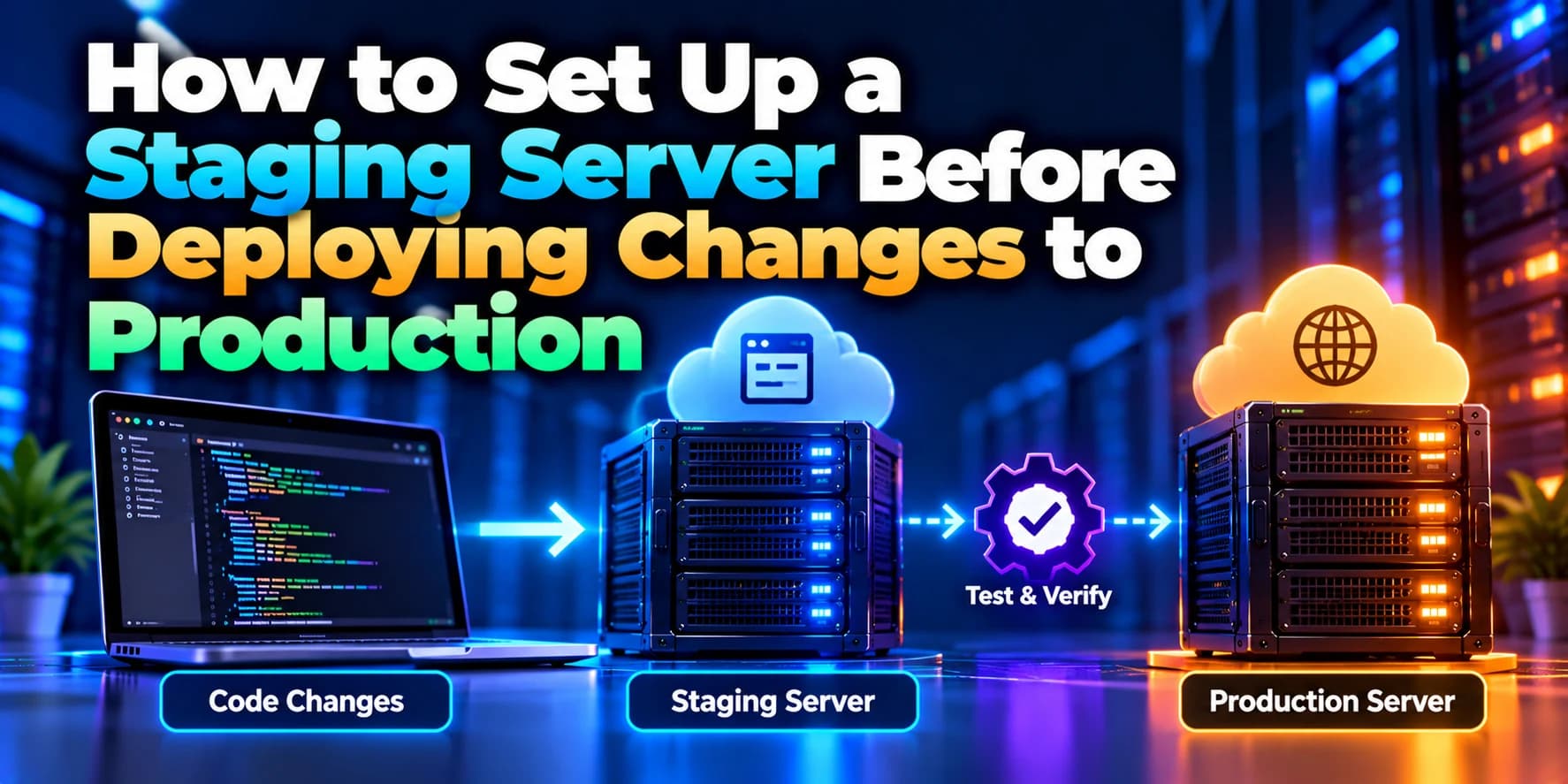
How to Set Up a Staging Server Before Deploying Changes to Production
Deploying new features or code changes directly to a live website can introduce unexpected bugs, downtime, and performance issues. Even a small update can…
Deploying new features or code changes directly to a live website can introduce unexpected bugs, downtime, and performance issues. Even a small update can affect users if it has not been tested properly.
A staging server provides a separate environment where developers can test application updates before releasing them to production. It helps teams identify problems early, verify new features, and reduce the risk of disrupting business operations.
In this guide, we will explain how to set up a staging server, configure the application environment, test changes, and prepare for a safe production deployment.
What Is a Staging Server?
A staging server is a testing environment designed to closely resemble the production environment. Developers use it to verify application changes before making them available to real users.
For example, if you operate an e-commerce website, you can test a new checkout process on the staging server before deploying it to your live website.
A typical deployment workflow looks like this:
Developers make changes to the application.
The changes are pushed to a Git repository.
The application is deployed to the staging server.
The team tests functionality, performance, and integrations.
Approved changes are deployed to production.
This process helps reduce deployment risks and improves application reliability.
Why Do You Need a Staging Server?
A staging environment is useful for businesses that regularly update websites, mobile app backends, APIs, or other web applications.
Key benefits include:
Early bug detection: Identify problems before they affect real users.
Safer deployments: Test new features before releasing them to production.
Production-like testing: Verify behavior using similar server configurations and dependencies.
Team collaboration: Allow developers, testers, and stakeholders to review changes.
Integration testing: Check database connections, third-party APIs, payment gateways, and other services.
Reduced downtime: Identify deployment issues before updating the live application.
A staging server cannot eliminate every production issue, but it can significantly improve the deployment process when configured and used correctly.
Step 1: Choose a Hosting Environment
First, decide where to host your staging server. You can use the same cloud provider as your production environment or choose another suitable hosting platform.
Common options include:
AWS EC2: Suitable for applications requiring control over server configuration.
Microsoft Azure: Useful for applications running within Azure infrastructure.
Virtual Private Server (VPS): A practical option for small and medium-sized applications.
Render: Provides managed application hosting with deployment workflows.
Other cloud platforms: Choose a provider that supports your application's runtime and infrastructure requirements.
For the most reliable testing, use the same operating system, runtime version, web server, and essential dependencies as production.
You do not always need an equally powerful staging server. However, if you need to test performance or scaling behavior, the staging environment must have sufficient resources to make the results meaningful.
Step 2: Create a Separate Staging Server
Create a new server or application environment dedicated to staging.
For example, you might use:
Production domain:
example.comStaging domain:
staging.example.com
Configure the staging domain's DNS record to point to the staging server. Install the required runtime, web server, and application dependencies.
For a Node.js application running on Ubuntu, you might install Git, Node.js, npm, Nginx, and PM2, depending on the production setup.
Keep the staging and production environments separate. Avoid using production credentials or unrestricted access to production infrastructure unless there is a specific, controlled requirement.
Step 3: Configure Environment Variables
Applications often require different settings for staging and production, including database connections, API endpoints, authentication secrets, and payment gateway credentials.
For example, a staging environment might use:
NODE_ENV=staging
PORT=3000
DATABASE_URL=your_staging_database_url
API_BASE_URL=https://staging-api.example.com
These are illustrative values; configure them according to your application's requirements.
Store environment variables in the server's secure configuration or your hosting platform's environment settings. Do not commit real credentials to Git.
Important: Use a separate staging database whenever possible. If testing requires production-like data, use appropriately sanitized or anonymized copies and follow applicable privacy and security requirements.
Step 4: Deploy the Application to Staging
Once the server is ready, deploy your application to the staging environment.
For a Git-based Node.js project, the basic process might look like this:
git clone YOUR_REPOSITORY_URL
cd YOUR_PROJECT_DIRECTORY
npm ci
npm run build --if-present
Replace the placeholders with your actual repository URL and directory. Configure the staging environment variables before starting the application.
If your application runs through PM2, you can start it with a staging-specific process name:
pm2 start npm --name my-app-staging -- start
pm2 status
Ensure the staging application uses its own port and configuration so that it does not conflict with production services.
For an existing deployment workflow, you can also automate staging deployments using GitHub Actions, GitLab CI/CD, or another CI/CD tool.
Step 5: Configure a Staging Domain and HTTPS
A staging environment should be accessible to authorized testers through a separate URL.
For example:
https://staging.example.com
Configure your DNS records, reverse proxy, and SSL certificate to support HTTPS. You can use a trusted certificate authority, such as Let's Encrypt, where appropriate.
Because staging sites may expose unfinished features or test data, restrict access using suitable controls, such as:
Authentication for authorized testers.
VPN or IP allowlisting where practical.
Firewall rules and limited administrative access.
Search engine indexing restrictions.
A noindex directive can discourage search engines from indexing staging pages, but it is not an access control mechanism. Use authentication or network restrictions to protect the environment.
Step 6: Test Changes Before Production Deployment
Once the application is running on staging, test the changes that will be released.
Important testing activities include:
Functional testing: Verify that new features, forms, navigation, and business workflows work correctly.
Integration testing: Check database connections, APIs, authentication providers, payment integrations, and other external services.
Regression testing: Confirm that existing features continue to work after the update.
Performance testing: Check response times, resource consumption, and application behavior under expected workloads.
Security testing: Review authentication, authorization, dependency vulnerabilities, and sensitive-data handling.
User acceptance testing: Allow relevant stakeholders to confirm that the changes meet business requirements.
Record any issues, fix them, and redeploy the updated version to staging before approving production release.
Step 7: Automate Staging Deployment With CI/CD
Manual deployment can become repetitive as your application grows. A CI/CD pipeline can automatically deploy code changes to staging whenever a development or staging branch is updated.
A typical workflow is:
A developer pushes code to the repository.
The CI/CD pipeline runs tests and code checks.
The application is deployed to staging.
Automated tests and health checks run.
The team reviews and approves the release.
The approved version is deployed to production.
For example, GitHub Actions can automate testing and deployment, while hosting platforms may offer their own preview or staging deployment features.
Keep production deployment permissions separate from staging deployment permissions. For critical applications, require an approval step before production releases.
Step 8: Deploy Approved Changes to Production
After testing is complete, deploy the same verified code version or build artifact to production.
Avoid making additional untested changes between staging approval and production deployment. Using a consistent release artifact reduces the possibility of differences between the tested and deployed versions.
Before deployment:
Confirm that automated tests have passed.
Back up critical data where necessary.
Review database migration requirements.
Verify production environment variables.
Prepare a rollback plan.
Monitor application health after release.
If the release causes an issue, use your rollback procedure to restore the previous working version. Database changes may require a separate recovery strategy, so plan migrations carefully.
Best Practices for Managing Staging Servers
Follow these practices to keep your staging environment reliable and secure:
Mirror important production settings: Keep runtime versions, server configuration, and dependencies aligned.
Use separate databases: Prevent staging tests from changing live customer data.
Protect credentials: Store secrets securely and limit access.
Restrict access: Make staging available only to authorized users when appropriate.
Automate deployments: Reduce manual work and configuration mistakes.
Test database migrations: Verify schema changes before production release.
Keep staging updated: Regularly synchronize its configuration with production.
Monitor logs and errors: Identify issues during testing.
Use a rollback strategy: Prepare to recover from unsuccessful releases.
Clean up unused environments: Remove temporary servers and resources to control cloud costs.
Common Staging Server Problems
Staging works, but production fails: Differences in environment variables, permissions, runtime versions, or infrastructure may cause the issue.
Database errors occur: Verify connection strings, network access, credentials, and schema versions.
Third-party integrations do not work: Check that staging uses the correct sandbox endpoints and test credentials.
The staging site appears in search results: Add appropriate indexing restrictions and protect private environments with authentication.
Deployment fails after a code update: Review build output, application logs, dependency versions, and health-check results.
Conclusion
Setting up a staging server is an important step toward safer and more reliable software releases. By creating a separate environment, configuring staging-specific settings, testing updates, and automating deployment with CI/CD, development teams can identify problems before they affect production users.
For growing businesses, a well-managed staging environment helps improve release quality, reduce deployment risks, and support faster development.
Need help setting up staging and production environments? Dotcube Technologies helps businesses build and deploy web applications, configure cloud infrastructure, and implement reliable CI/CD workflows tailored to their needs.