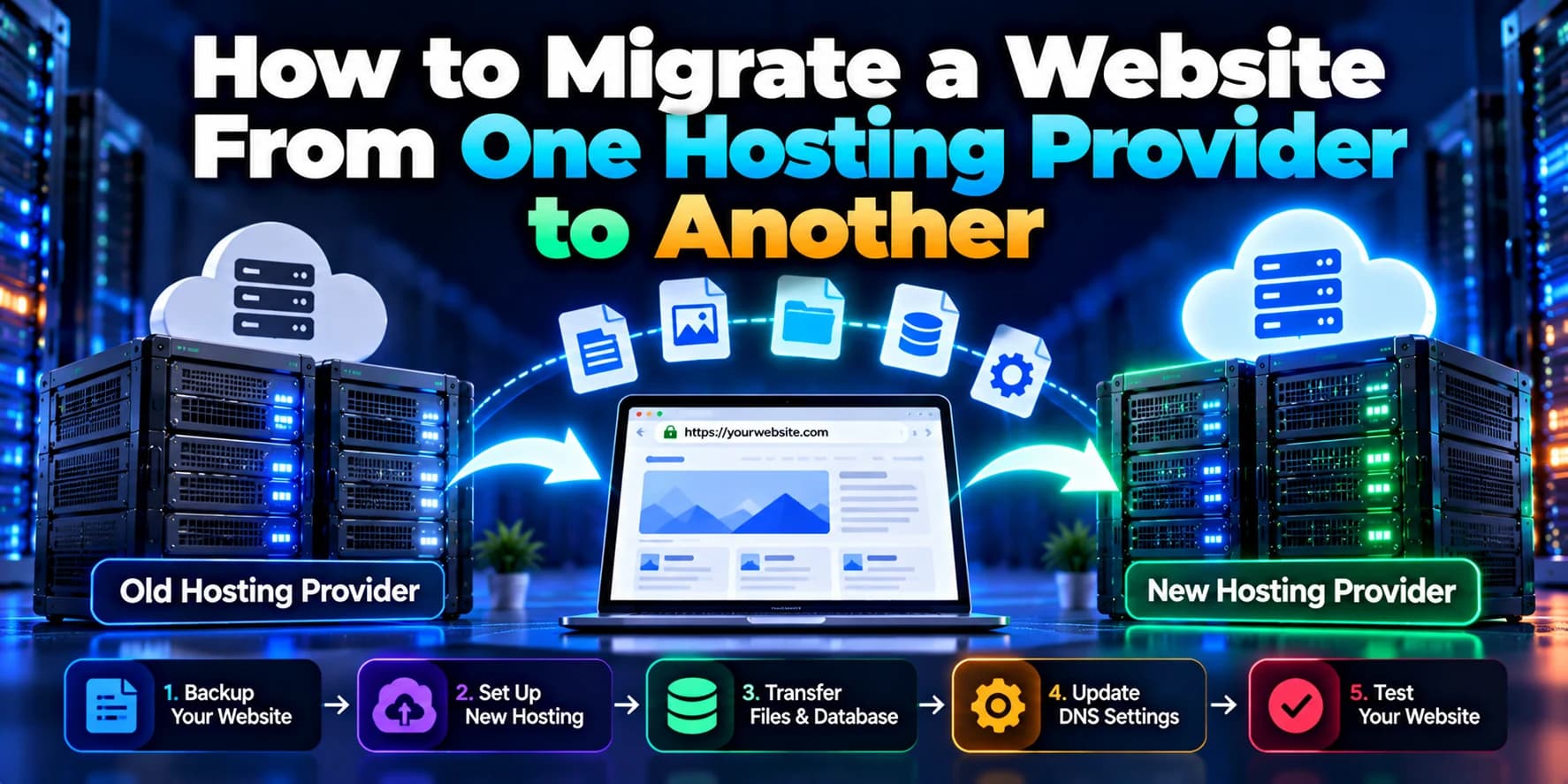
How to Migrate a Website From Shared Hosting to AWS Without Downtime
IntroductionShared hosting is a convenient and affordable option for launching a website. However, as a business grows, the website may experience slower…
Introduction
Shared hosting is a convenient and affordable option for launching a website. However, as a business grows, the website may experience slower loading times, limited server resources, restricted configurations, or difficulty handling increasing traffic.
Migrating to Amazon Web Services (AWS) can help businesses improve performance, scalability, security, and infrastructure flexibility. However, moving a live website requires careful planning. A poorly managed migration can lead to broken pages, database inconsistencies, email delivery problems, or unexpected downtime.
The goal is to prepare the new AWS environment, test it thoroughly, synchronize data, and switch traffic only when the new website is ready.
In this guide, we will explain how to migrate a website from shared hosting to AWS while minimizing downtime and protecting existing website data.
1. Understand Your Existing Hosting Environment
Before starting the migration, review your current shared hosting configuration. Understanding how the website operates will help you choose the right AWS services and avoid compatibility issues.
Identify the following components:
Website technology, such as PHP, WordPress, Laravel, Node.js, or another framework.
Current PHP, Node.js, or other runtime versions.
Database type and version, such as MySQL or MariaDB.
Website files, including images, documents, themes, plugins, and application code.
Domain and DNS configuration.
SSL certificate and HTTPS settings.
Email accounts and email-related DNS records.
Cron jobs, scheduled tasks, APIs, and external integrations.
File permissions, environment variables, and server-specific settings.
For example, a small WordPress website may work well on an appropriately configured EC2 instance. A high-traffic application may benefit from a load balancer, managed database, and additional application servers.
Document the existing environment before changing anything.
2. Choose the Right AWS Services
AWS offers several services for hosting websites and web applications. Select the architecture according to your website's technology, traffic, budget, and availability requirements.
AWS service | Purpose |
|---|---|
Amazon EC2 | Runs website and application code on virtual servers |
Amazon RDS | Provides managed relational database hosting |
Amazon S3 | Stores images, documents, backups, and static assets |
Amazon CloudFront | Delivers content through a content delivery network |
Amazon Route 53 | Manages DNS records and supports traffic routing |
AWS Certificate Manager | Provides SSL/TLS certificates for supported AWS services |
Elastic Load Balancing | Distributes traffic across application servers |
Not every website needs all these services. A small business website might only need EC2, a database, and HTTPS. A larger application may require additional services for reliability and scalability.
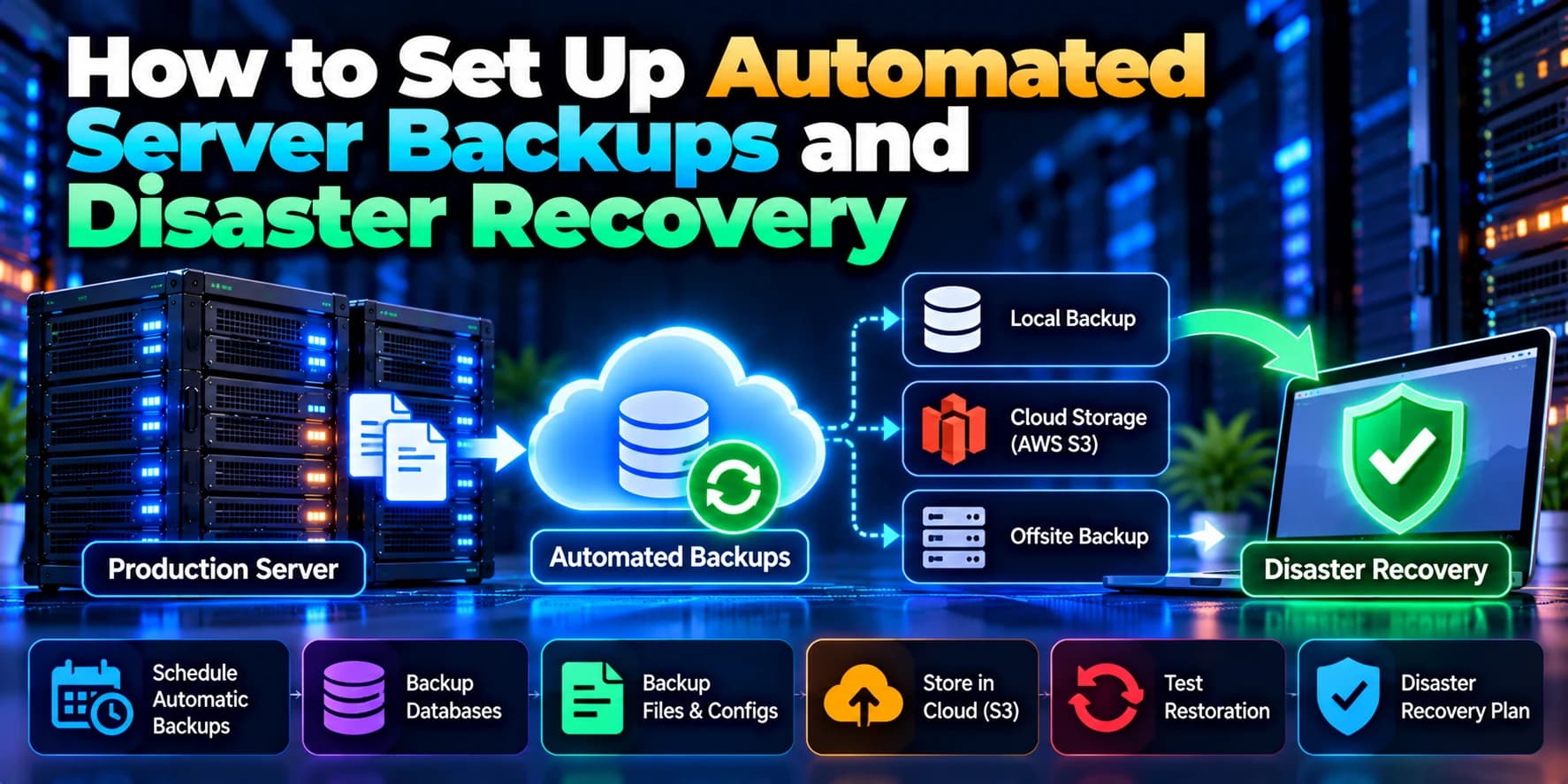
3. Back Up Your Existing Website and Database
Before migration, create a complete backup of your existing website.
Download all website files from your hosting control panel or through SFTP. Export your database using phpMyAdmin, a database command-line tool, or the hosting provider's backup feature.
Your backup should include:
Application source code and configuration files.
Uploaded images and documents.
Database tables, records, and required database routines.
Environment settings and rewrite rules.
DNS records and email configuration details.
For a MySQL-compatible database, you can export data using a command similar to:
mysqldump -u DB_USER -p DB_NAME > website-backup.sqlReplace the placeholders with the appropriate database credentials and database name.
Store the backup in a secure location separate from the original hosting account. Check that the export completed successfully and that the backup files are readable.
Important: Do not assume a backup is usable until you have tested restoring it in a separate environment.
4. Set Up the AWS Hosting Environment
Once the backup is ready, create the required AWS resources.
For an EC2-based deployment:
Create an AWS account or select the existing AWS account for the project.
Choose an appropriate AWS Region.
Launch an EC2 instance with a supported operating system.
Configure a security group to allow only the required network traffic.
Connect to the server using a secure administrative method.
Install the required runtime, web server, and application dependencies.
Configure the application directory and file permissions.
For example, a PHP application may require PHP-FPM and Nginx or Apache. A Node.js application may require Node.js and a reverse proxy such as Nginx.
Avoid opening administrative ports to the entire internet. Use restricted access, secure authentication, regular updates, and appropriate IAM permissions.
If the application requires a managed database, configure Amazon RDS separately and restrict database access to the necessary application resources.
5. Transfer Website Files to AWS
After configuring the server, transfer the website files from shared hosting to the new environment.
You can use SFTP, rsync, or a deployment pipeline, depending on your hosting provider and application setup.
For example, rsync can copy files between compatible systems:
rsync -avz /path/to/website/ user@AWS_SERVER:/var/www/website/This is an illustrative command; the source path, destination, and authentication method must match your environment. You may need to run the transfer from a system that can access both environments.
Check that:
All required files have been copied.
Upload directories and media files are present.
File ownership and permissions are correct.
Configuration files contain the correct settings.
Secrets and credentials are stored securely.
Temporary files, caches, and unnecessary files have been excluded.
If the website contains many large files, use a staged transfer and copy only the changed files during the final synchronization.
6. Migrate the Database Carefully
Database migration is one of the most important parts of moving a dynamic website.
A static website may only require copying files. However, websites with login systems, online stores, booking systems, dashboards, or user-generated content continue to receive database changes while the migration is in progress.
Start by importing a database backup into the target database.
For example:
mysql -u DB_USER -p DB_NAME < website-backup.sqlAfter importing, configure the application to connect to the new database.
Validate the following:
Database tables and record counts.
Database users and permissions.
Character encoding and collation.
Application database credentials.
Queries, stored procedures, and scheduled tasks.
User accounts, orders, bookings, and other critical records.
How to keep database changes synchronized
The initial database export represents a snapshot in time. If users continue placing orders or updating information on the old website, those changes may not exist in the imported database.
To minimize downtime, consider one of these approaches:
Use database replication or a suitable change-data-capture process.
Perform an initial import followed by a supported incremental synchronization.
Schedule a short write-freeze period for the final export and import if the database cannot be synchronized safely.
The right method depends on your database engine, hosting access, database size, and application architecture.
For websites that accept payments or other important transactions, verify that all recent changes have reached the destination before switching traffic.
7. Test the Website on AWS Before Changing DNS
Do not point your public domain to AWS immediately after transferring the files.
First, test the new environment while the existing website continues serving visitors.
You can use a temporary test domain, a staging environment, or a local hosts-file override to test the AWS server with the intended hostname. The method you choose must also account for HTTPS certificates and application redirects.
Test these features:
Homepage, internal pages, and navigation.
Login, registration, and password recovery.
Contact forms and email notifications.
Database operations and search functionality.
File uploads and downloads.
Images, CSS, JavaScript, and other static assets.
Payment gateways and third-party API integrations.
Redirects, canonical URLs, and SEO metadata.
Mobile responsiveness and page performance.
HTTPS, cookies, and session management.
Check application logs and server error logs for problems. If you find an issue, fix it on AWS before routing public traffic to the new server.
8. Lower DNS TTL Before Migration
DNS records determine where visitors are directed when they enter your domain name.
Before the migration, lower the Time to Live (TTL) of the relevant DNS records, such as the root domain's A or ALIAS record and the www record where applicable.
For example, if your current TTL is several hours, you might reduce it to 300 seconds before the planned migration.
Make this change sufficiently in advance. DNS resolvers may continue using previously cached records until their original TTL expires.
A lower TTL can help many visitors pick up the new destination sooner, but it does not guarantee instant global propagation or eliminate downtime by itself.
If you use a third-party DNS provider, you can generally keep that provider and update only the required records. Moving DNS hosting to Route 53 is a separate task and is not always necessary for a website migration.
9. Perform the Final Data Synchronization
Before switching traffic, perform a final synchronization to ensure that recent files and database changes are available on AWS.
A typical process is:
Announce a migration window if needed.
Pause writes or enable a temporary maintenance mode when required.
Synchronize newly uploaded files.
Apply the remaining database changes using the selected migration method.
Verify important records and application settings.
Confirm that the AWS website is healthy and ready for production traffic.
For a static website, this step may be straightforward. For an e-commerce platform or another application with frequent database updates, it requires more careful coordination.
Never allow both the old and new environments to independently accept writes to separate database copies without a deliberate synchronization strategy. Doing so can cause missing orders, inconsistent records, or conflicting updates.
10. Switch Website Traffic to AWS
Once the new environment is tested and synchronized, update your DNS records to direct visitors to AWS.
For a simple EC2 setup, this may involve updating the domain's A record to point to an appropriate static public IP address, such as an Elastic IP, or configuring a supported DNS alias to a load balancer.
For a more advanced setup, Amazon Route 53 can support weighted routing between compatible endpoints. This may allow traffic to be shifted gradually rather than switching every visitor at once.
A controlled cutover may look like this:
Keep the existing hosting environment available.
Direct a small portion of traffic to the new environment, if your architecture supports it.
Monitor errors, response times, and application behavior.
Increase traffic to AWS as confidence grows.
Route all intended traffic to AWS after validation.
Gradual traffic shifting requires an architecture that can safely support it. For example, the old and new application servers must be able to work with the relevant data and dependencies during the transition.
For a simple shared-hosting website, a direct DNS change may be more practical. Keep the old hosting account active during DNS propagation because some visitors may continue reaching the old server for a period of time.
11. Configure SSL and HTTPS
Secure connections are essential for business websites, login pages, forms, and online transactions.
Configure HTTPS on the AWS environment before the public cutover. Depending on your architecture, you might use AWS Certificate Manager with an Application Load Balancer or CloudFront, or configure a certificate directly on a web server.
Check that:
The certificate covers the correct domain names.
HTTP requests redirect to HTTPS when appropriate.
Mixed-content warnings are resolved.
Application cookies use suitable security settings.
API endpoints and callback URLs use the correct scheme.
Certificate renewal is configured and monitored.
Do not assume an SSL certificate from your old hosting provider can be transferred directly to every AWS service. Confirm certificate compatibility and deployment requirements for the chosen architecture.
12. Monitor the Website After Migration
After traffic starts reaching AWS, monitor the website closely.
Review:
HTTP 4xx and 5xx errors.
Server CPU, memory, disk space, and network usage.
Application and web server logs.
Database connections and query performance.
Page load times and availability.
Contact forms, transactions, and email delivery.
Search engine crawling and important page URLs.
Amazon CloudWatch can help collect infrastructure metrics and configure alarms. Application-level monitoring and synthetic checks can help identify problems that server metrics alone may not reveal.
Keep the old hosting environment available until you have confirmed that the new website is stable and that the data is correct.
13. Prepare a Rollback Plan
Even after thorough testing, an unexpected issue may appear after cutover.
Before migrating, define the conditions that would trigger a rollback, who can authorize it, and how the team will respond.
A rollback plan should include:
The previous DNS records and hosting configuration.
A known-good backup of the original website.
A clear plan for handling database changes made after cutover.
Access to both hosting environments.
Monitoring and communication procedures.
If the new website fails, reverting DNS may redirect visitors to the old server. However, DNS caching means the reversal is not necessarily immediate.
For a dynamic website, rollback is more complicated if new orders, registrations, or other writes have already been accepted on AWS. You must preserve and reconcile those changes before directing users back to the old environment.
Do not shut down the original server until the migration is confirmed successful and the rollback risk is acceptable.
Common Mistakes to Avoid
1. Changing DNS before testing
Pointing the domain to an untested server can expose visitors to broken pages, failed logins, or server errors.
2. Forgetting email DNS records
Changing nameservers or rebuilding DNS records without preserving MX, SPF, DKIM, and DMARC settings can disrupt business email.
3. Missing uploaded files
Copying application code without synchronizing user-uploaded documents or images can leave the new website incomplete.
4. Ignoring database changes
A database backup can become outdated while the old website remains active. Use an appropriate synchronization strategy.
5. Shutting down the old hosting too early
Keeping the original environment available supports troubleshooting and rollback while DNS caches expire.
6. Overlooking AWS costs and security
Review instance sizing, storage, data transfer, backup costs, security groups, IAM permissions, and monitoring before launch.
Conclusion
Migrating a website from shared hosting to AWS without downtime requires more than copying files and changing DNS records. It involves planning the target architecture, transferring files and databases, testing the new environment, synchronizing live data, and switching traffic carefully.
For static websites and low-traffic business sites, a well-planned migration may be relatively straightforward. For e-commerce platforms, SaaS products, and applications with frequent database updates, near-zero-downtime migration requires a more advanced synchronization and cutover strategy.
At Dotcube Technologies, businesses can get support with website migration, AWS infrastructure setup, application deployment, database migration, security configuration, and performance optimization. A structured migration plan can help your business move to a more scalable hosting environment while minimizing disruption to customers.
Frequently Asked Questions
Can a website be migrated from shared hosting to AWS without downtime?
Yes, downtime can often be minimized significantly. Achieving near-zero downtime depends on the website architecture, database synchronization method, DNS behavior, and how the final traffic switch is performed.
How long does it take to migrate a website to AWS?
The timeline depends on website size, database complexity, hosting access, testing requirements, and integrations. A small static website may take hours, while a complex business application may require several days or longer.
Will my domain name change after migrating to AWS?
No. You can keep your existing domain name and update its DNS records to point to the new AWS environment.
Will my website's SEO rankings be affected?
A hosting migration does not inherently require a change in URLs. Preserve URL structures, redirects, HTTPS, metadata, canonical tags, and important page content. Monitor indexing and search performance after the migration.
Should I cancel shared hosting immediately after migration?
No. Keep it active until the new website is stable, DNS propagation has been accounted for, and any required data reconciliation is complete.
Which AWS service is best for hosting a website?
Amazon EC2 offers flexible server control. Other options, such as Amazon S3 with CloudFront for static websites or managed application hosting services, may be more suitable depending on your application and operational needs.