How to Host a Website on Windows Server Using IIS
Hosting a website on Windows Server using Internet Information Services (IIS) is a practical option for businesses that use Microsoft technologies or need a…
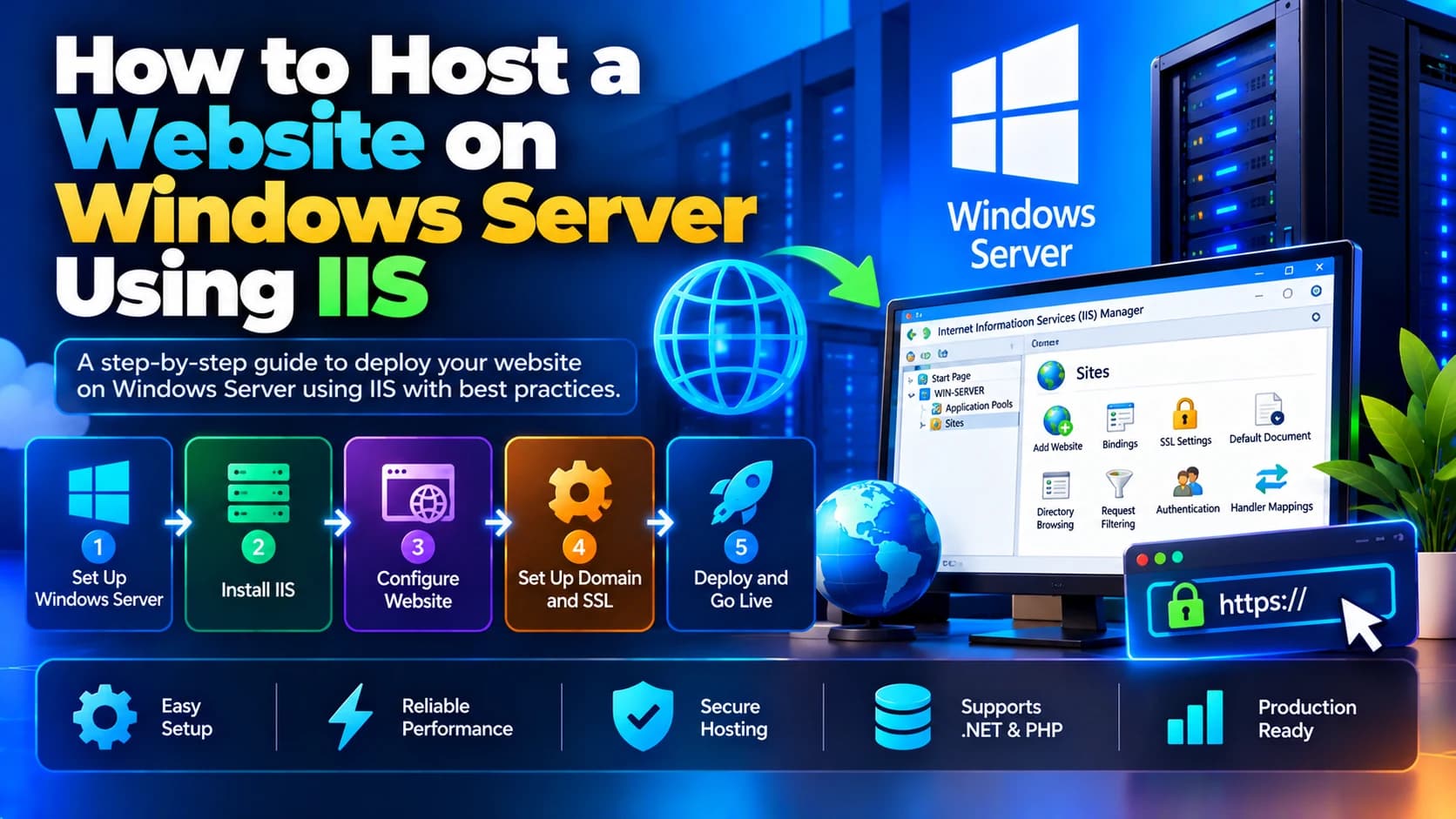
Hosting a website on Windows Server using Internet Information Services (IIS) is a practical option for businesses that use Microsoft technologies or need a Windows-based hosting environment. IIS is Microsoft's web server software that allows you to host websites, web applications, and APIs on a Windows server.
Whether you are deploying a static website, an ASP.NET application, or an internal business portal, IIS provides tools for configuring websites, managing application pools, setting up domains, and enabling HTTPS.
In this guide, we will explain how to host a website on Windows Server using IIS, from installing the web server role to configuring your domain, SSL certificate, and security settings.
What Is IIS?
Internet Information Services (IIS) is a web server developed by Microsoft for Windows. It receives requests from visitors' browsers and delivers website content or forwards requests to the relevant application.
IIS supports static HTML websites, ASP.NET applications, and other web applications that are compatible with the Windows hosting environment. It can also act as a reverse proxy for applications running on a separate process, when configured with the appropriate components.
Key Features of IIS
Website hosting: Serves HTML, CSS, JavaScript, images, and compatible web applications.
ASP.NET integration: Supports ASP.NET applications and Windows-based application workloads.
Application pools: Isolates applications and manages their worker processes.
HTTPS support: Enables encrypted connections using SSL/TLS certificates.
Authentication and authorization: Supports several access-control options.
Logging and monitoring: Records requests and helps administrators troubleshoot website issues.
Centralized management: Provides IIS Manager for configuring websites and server settings.
IIS is commonly used by businesses that deploy applications built with Microsoft's web development technologies.
Prerequisites for Hosting a Website on Windows Server
Before starting the deployment, make sure you have the following:
A Windows Server machine: A supported Windows Server version, either on a cloud platform or a physical server.
Administrator access: Permission to install roles and change server settings.
Website files: Your published website files or application deployment package.
A domain name: Optional for initial testing, but recommended for a public website.
Network access: Appropriate firewall and network rules for HTTP and HTTPS traffic.
An SSL/TLS certificate: Required for secure HTTPS access in production.
Application dependencies: Any required .NET runtime, hosting bundle, database connection, or other application components.
For an ASP.NET Core application hosted behind IIS, install the appropriate .NET Hosting Bundle for the application version. For a static website, the required setup is simpler.
Step 1: Connect to Your Windows Server
If your Windows Server is hosted on a cloud platform or remote machine, connect using Remote Desktop Protocol (RDP) or your provider's supported management method.
After connecting:
Sign in using an authorized administrator account.
Open Server Manager.
Confirm the server is running and has the required network access.
Install available security updates according to your maintenance process.
Avoid exposing RDP directly to the entire internet. Restrict access through a VPN, trusted IP addresses, or a secure remote-access solution wherever possible.
Step 2: Install IIS on Windows Server
The first major step is to install Internet Information Services.
Install IIS Using Server Manager
Open Server Manager.
Select Manage and then Add Roles and Features.
Choose Role-based or feature-based installation.
Select your target server.
Enable Web Server (IIS) under Server Roles.
Add the required features when prompted.
Review the selections and click Install.
Wait for the installation to finish.
Depending on your application, you may need additional IIS role services or components. Install only the modules required by your website.
Verify the Installation
Open a browser on the server and visit:
http://localhost
If IIS is installed and running, the default IIS welcome page should appear.
You can also open IIS Manager from the Start menu and verify that the server and its default website are listed.
Step 3: Publish Your Website Files
Prepare your website for deployment before copying it to the server.
For a static website, the deployment directory may contain files such as:
index.htmlCSS stylesheets
JavaScript files
Images and other assets
For an ASP.NET application, use the appropriate publish process so that the server receives the required application files and dependencies.
Create a directory for the website, for example:
C:\inetpub\wwwroot\MyWebsite
You can transfer the files using a secure method such as SFTP through an appropriate service, a controlled deployment pipeline, or another approved file-transfer mechanism.
Avoid copying development files, local secrets, temporary files, and unnecessary source-control directories to the production server.
Step 4: Create a Website in IIS Manager
Once your website files are ready, configure IIS to serve them.
Open IIS Manager.
Expand the server in the left-hand panel.
Right-click Sites.
Select Add Website.
Enter a website name, such as
MyWebsite.Set the physical path to your website directory.
Select the appropriate binding type and IP address.
Configure the port and hostname if needed.
Click OK.
For a basic HTTP website, the default port is 80. For HTTPS, the default port is 443.
If port 80 is already assigned to another website, configure the hostname binding carefully so IIS can distinguish between the sites.
Test the Website
From a browser, visit the server's IP address or use http://localhost from the server itself.
If you configured a custom port or hostname, use the corresponding address. Confirm that IIS serves the expected website rather than the default page.
Step 5: Configure the Application Pool
An IIS application pool provides an execution environment for a website or application.
To configure it:
Open IIS Manager.
Select Application Pools.
Create a dedicated application pool for your website if appropriate.
Choose the correct .NET CLR setting for the application type.
Assign the website to the application pool.
Review the pool's identity and process settings.
For a static website, a dedicated application pool may not be necessary, although IIS still associates websites with application pools.
For ASP.NET Core applications, IIS commonly uses the No Managed Code setting because the application runs on the ASP.NET Core hosting infrastructure rather than the classic ASP.NET CLR hosted inside IIS.
Do not change application pool settings without confirming the requirements of your application.
Step 6: Configure Website Permissions
IIS needs permission to read website files and, when required, write to specific directories.
For static content, grant the relevant IIS worker-process identity read and execute permissions on the website directory.
For applications that need to upload files or write logs, grant write permissions only to the specific directories that require them.
Avoid giving broad permissions such as Full Control to every user or to the entire website directory. Excessive permissions can expose your application to security risks.
For applications using databases or external services, configure credentials and access permissions separately.
Step 7: Configure Your Domain Name
To access the website using a domain such as example.com, you need to point the domain to your server.
Update DNS Records
At your domain registrar or DNS provider:
Create an A record pointing the domain to your server's public IPv4 address.
Configure an AAAA record only if your server is reachable through a correctly configured public IPv6 address.
Configure a
wwwhostname using an appropriate A or CNAME record.
DNS changes may take time to propagate, depending on the record's TTL and resolver caching.
Add the Hostname in IIS
Open IIS Manager.
Select your website.
Click Bindings.
Add or edit the HTTP binding.
Enter the hostname, such as
example.com.Save the configuration.
Repeat the process for www.example.com if you intend to support that hostname separately.
Before testing from outside the server, confirm that your firewall, cloud network security rules, and server network configuration allow incoming traffic on the required ports.
Step 8: Enable HTTPS With an SSL/TLS Certificate
HTTPS encrypts communication between the website and visitors' browsers. It is essential for production websites, especially those that process logins, personal information, or payments.
Install the Certificate
Obtain a certificate for your domain from a trusted certificate authority or an appropriate automated certificate service.
Then:
Install or import the certificate into the appropriate Windows certificate store.
Open IIS Manager.
Select your website and click Bindings.
Add an HTTPS binding on port
443.Select the correct SSL/TLS certificate.
Save the configuration.
Test the website using
https://example.com.
For multiple HTTPS websites on one server, configure hostnames and SNI appropriately.
Redirect HTTP to HTTPS
After HTTPS has been tested, configure HTTP-to-HTTPS redirection using an appropriate IIS URL Rewrite rule or another supported redirection method.
Verify that redirects do not create loops and that all required assets load securely.
Remember to renew certificates before they expire. Automated renewal is preferable when supported by your certificate solution.
Step 9: Configure Firewall and Network Security
A correctly configured IIS website should expose only the network services required for its operation.
For a typical public website:
Allow inbound HTTP traffic on port
80if needed for redirects or public HTTP access.Allow inbound HTTPS traffic on port
443.Restrict RDP access to authorized networks or trusted IP addresses.
Block unused inbound ports.
Keep Windows Server and IIS components updated.
Use strong authentication for administrative accounts.
Monitor Windows event logs and IIS access logs.
If your server is hosted on AWS, Azure, or another cloud provider, configure both the server's local firewall and the provider's network security controls.
Do not assume that configuring Windows Firewall alone is sufficient if the cloud network also has its own access rules.
Step 10: Test and Monitor Your Website
Before making the website available to customers, perform a complete deployment check.
Verify that:
The homepage loads correctly.
Navigation, forms, and important links work.
CSS, JavaScript, and images load without errors.
HTTPS works and the certificate is valid.
DNS resolves to the correct server.
The application can connect to its database and required APIs.
The website works on mobile and desktop browsers.
Error pages do not expose sensitive technical information.
Monitor IIS Logs
IIS logs can help identify failed requests, unexpected traffic, and application issues. The default log location is commonly under:
C:\inetpub\logs\LogFiles
You can also use Windows Event Viewer and application-specific monitoring tools to investigate errors.
For production websites, configure regular backups, uptime monitoring, log retention, and a documented recovery procedure.
Common IIS Hosting Problems and Their Solutions
1. HTTP Error 403 — Forbidden
This error may occur when the requested resource cannot be accessed due to permissions, authorization rules, or directory browsing settings.
Solution: Verify the requested file exists, review IIS authorization rules, and check the website directory permissions.
2. HTTP Error 404 — Not Found
A 404 error usually indicates that the requested resource could not be found or the routing configuration is incorrect.
Solution: Confirm the physical path, file names, default documents, and application routing configuration.
3. HTTP Error 500 — Internal Server Error
This error can result from application exceptions, missing dependencies, incorrect configuration, or permission problems.
Solution: Review IIS logs, Windows Event Viewer, and application logs. For ASP.NET Core, confirm that the required runtime and Hosting Bundle are installed.
4. Website Is Not Accessible From the Internet
The website may work locally but fail for external visitors because of DNS, firewall, network security rules, or incorrect bindings.
Solution: Verify the public IP address, DNS records, IIS bindings, and inbound access rules for the required ports.
5. HTTPS Is Not Working
Common causes include an expired certificate, incorrect hostname, missing certificate binding, or an incomplete certificate chain.
Solution: Verify the certificate's validity, domain coverage, certificate chain, and IIS HTTPS binding.
Best Practices for Hosting a Website on IIS
Follow these recommendations to keep your website reliable and secure:
Install only the IIS components your application requires.
Keep Windows Server, IIS, and application dependencies updated.
Use HTTPS for production traffic.
Apply least-privilege file and application permissions.
Store secrets securely rather than in publicly accessible website files.
Configure automated backups and periodically test restoration.
Monitor uptime, server resources, and application errors.
Use a dedicated application pool where appropriate.
Document deployment steps so updates can be repeated consistently.
Restrict remote administration and review access logs regularly.
For business-critical websites, consider a tested deployment pipeline and a rollback strategy so that failed releases can be recovered quickly.
Conclusion
Hosting a website on Windows Server using IIS involves installing the web server role, publishing your website files, configuring the website and application pool, setting up domain bindings, enabling HTTPS, and securing the server.
IIS is particularly useful for businesses running ASP.NET applications and other software that depends on Microsoft's hosting environment. With proper permissions, monitoring, backups, and deployment practices, it can provide a reliable foundation for business websites and web applications.
At Dotcube Technologies, selecting the right hosting environment is part of delivering secure, scalable, and maintainable web applications. If your business needs help deploying a website or configuring production hosting, evaluate your application's requirements before selecting the server architecture.
Frequently Asked Questions
1. Can I host a website on Windows Server for free?
IIS is included as a server role in Windows Server, but the operating system and hosting infrastructure may require paid licences or hosting fees. A static website can be hosted without a separate IIS software purchase if you already have a properly licensed Windows Server environment.
2. Is IIS better than Apache or Nginx?
IIS is a strong option for Windows-based applications and Microsoft technology stacks. Apache and Nginx are commonly used on Linux, but they can serve different types of applications. The right web server depends on compatibility, performance requirements, and the team's expertise.
3. Can I host multiple websites on one Windows Server?
Yes. IIS supports multiple websites on a single server using different IP addresses, ports, and hostname bindings. Ensure that each website's application configuration, permissions, and certificates are set up correctly.
4. How do I host an ASP.NET Core application on IIS?
Publish the application, install the compatible .NET Hosting Bundle, configure the IIS website and application pool, and set the required environment variables and permissions. Test the application and review logs before releasing it to production.
5. How do I make my IIS website accessible over the internet?
Configure a public IP address or suitable network endpoint, point your DNS records to it, configure IIS bindings, and allow the required ports through Windows Firewall and any cloud network security controls. Enable HTTPS before using the site for production traffic.
6. Do I need an SSL certificate for IIS hosting?
For a public production website, HTTPS is strongly recommended and is essential for many modern browser features and secure transactions. Install a trusted SSL/TLS certificate and configure an HTTPS binding in IIS.
7. How do I restart a website in IIS?
Open IIS Manager, select the website, and use the available Stop and Start controls. You can also recycle the associated application pool when appropriate. For production systems, investigate the cause of the issue before repeatedly restarting services.