How to Host a Node.js Application on AWS With Automatic Deployment
Deploying a Node.js application is only one part of launching a successful web application. Once your application is live, you also need a reliable way to…
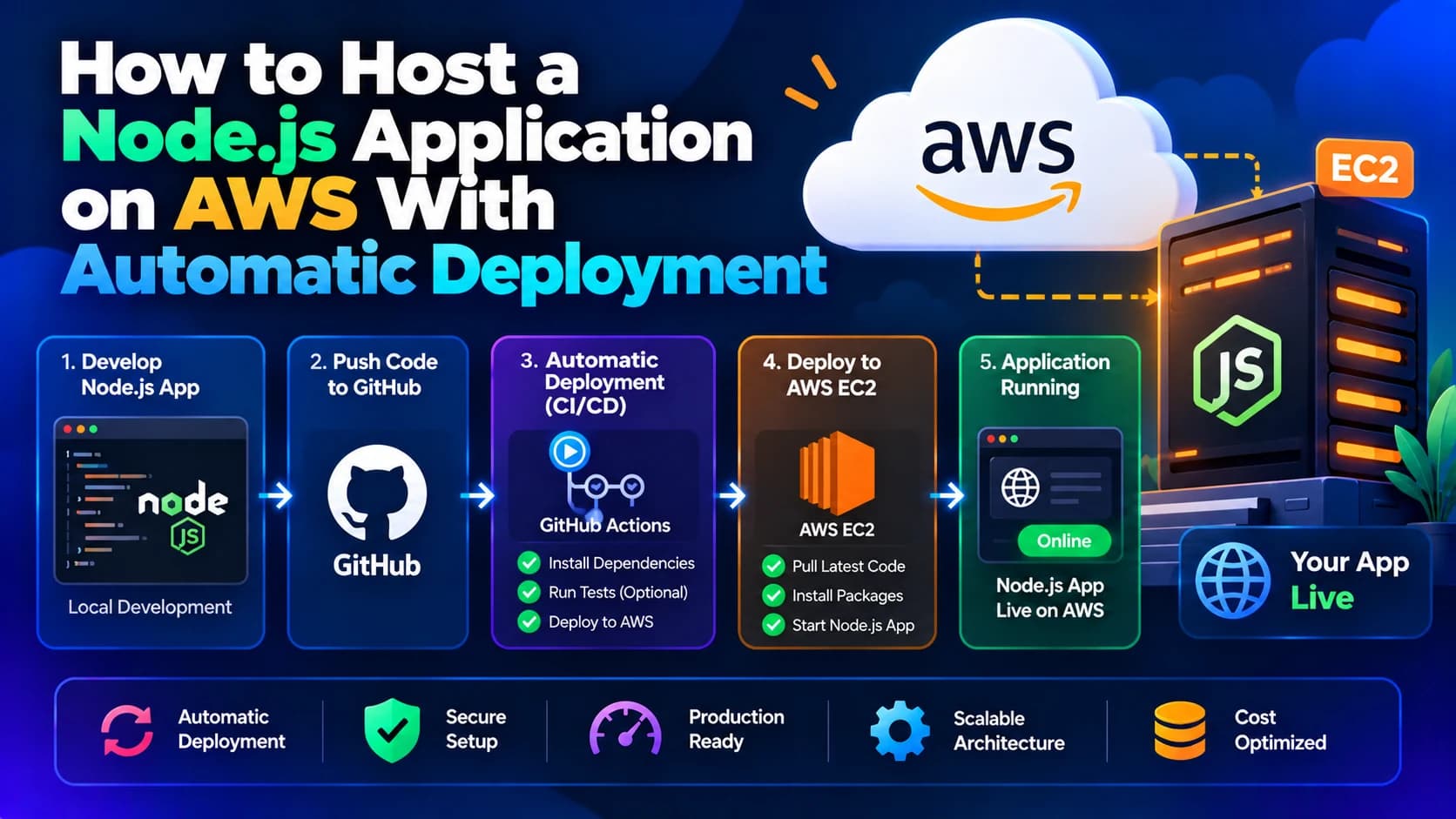
Deploying a Node.js application is only one part of launching a successful web application. Once your application is live, you also need a reliable way to deliver code updates, fix bugs, introduce new features, and maintain server stability without manually repeating the deployment process every time.
This is where automatic deployment on AWS becomes valuable.
By combining Amazon Web Services (AWS), GitHub, and a CI/CD pipeline, businesses can automate the process of testing and deploying Node.js applications whenever developers push new code to a repository.
Whether you are building a business website, REST API, SaaS platform, or mobile application backend, automated deployment can help reduce manual work, improve release consistency, and simplify application maintenance.
In this guide, we will explain how to host a Node.js application on AWS with automatic deployment using Amazon EC2 and GitHub Actions, including server setup, workflow configuration, process management, security, and common deployment issues.
What Is Automatic Deployment?
Automatic deployment is a process in which application updates are delivered to a hosting environment through a predefined workflow instead of being deployed manually.
For example, imagine that your development team updates an API endpoint in a Node.js application. Without automation, someone may need to connect to the server, download the latest code, install dependencies, restart the application, and check whether everything works.
With automatic deployment, these tasks can be handled by a CI/CD pipeline.
CI/CD stands for Continuous Integration and Continuous Delivery or Deployment.
Continuous Integration (CI): Automatically runs checks and tests when developers submit code changes.
Continuous Delivery: Prepares validated application changes for release, often with an approval step.
Continuous Deployment: Automatically releases changes to the target environment when the required checks pass.
A properly configured pipeline helps make application releases more consistent and reduces repetitive server administration.
Why Host a Node.js Application on AWS?
AWS provides multiple ways to host Node.js applications, including Amazon EC2, AWS Elastic Beanstalk, AWS App Runner, and container-based services.
Amazon EC2 is a suitable option when you need direct control over the server environment, installed software, reverse proxy, and deployment process.
Key benefits of AWS hosting
Flexible infrastructure: Select server resources based on your application's requirements.
Scalability: Increase capacity or add instances as traffic grows.
Integration with other AWS services: Connect your application to managed databases, object storage, monitoring, and other cloud services.
Automated deployment: Integrate GitHub Actions or AWS deployment services into your release process.
Custom server configuration: Configure Node.js, Nginx, process managers, and other required tools.
Monitoring and security: Use AWS services to monitor infrastructure and manage access.
For applications that do not require direct server administration, Elastic Beanstalk or App Runner may offer a simpler deployment experience.
Prerequisites
Before setting up automatic deployment, make sure you have:
An AWS account with permission to create and configure the required resources.
A Node.js application that runs successfully on your local machine.
A GitHub repository containing your application code.
An Amazon EC2 instance running a supported Linux distribution.
Basic knowledge of SSH, Git, and Linux commands.
A domain name if you want to serve the application through a custom domain.
A test suite or build command appropriate for your project.
In this tutorial, we will use the following technologies:
Technology | Purpose |
|---|---|
Amazon EC2 | Hosts the Node.js application |
Ubuntu | Provides the server operating system |
GitHub | Stores application source code |
GitHub Actions | Runs the automated deployment workflow |
PM2 | Manages the Node.js application process |
Nginx | Acts as a reverse proxy |
HTTPS certificate | Encrypts communication with the website |
The example uses a straightforward EC2-based deployment. For production environments with multiple instances or stricter availability requirements, a deployment service such as AWS CodeDeploy may be more appropriate.
Step 1: Create an AWS EC2 Instance
First, create the server that will host your Node.js application.
Sign in to the AWS Management Console.
Open the EC2 service.
Select Launch instances.
Enter a name, such as
nodejs-production-server.Select an Ubuntu Server AMI.
Choose an instance type appropriate for your workload.
Create or select an SSH key pair.
Configure the security group.
Launch the instance.
Configure the security group
For a typical website, the required inbound rules are:
Port | Protocol | Purpose |
|---|---|---|
22 | TCP | SSH administration |
80 | TCP | HTTP traffic |
443 | TCP | HTTPS traffic |
Restrict SSH access to trusted IP addresses or use an approved managed access method. Avoid exposing your application's internal port, such as 3000, directly to the internet when Nginx can proxy requests to it locally.
After the instance starts, note its public IP address or DNS name.
Step 2: Connect to the Server and Install Dependencies
Connect to the Ubuntu instance using SSH from your local terminal.
chmod 400 my-key.pem

ssh -i my-key.pem ubuntu@YOUR_EC2_PUBLIC_IP
Replace the key filename and public IP with your actual values.
Update the system packages:
sudo apt update
sudo apt upgrade -y
Install Git and other essential tools:
sudo apt install git curl -yInstall a Node.js version compatible with your application. For production, use an actively supported Node.js LTS release and follow the official installation instructions for your chosen operating system.
Verify that Node.js and npm are available:
node -v
npm -v
git --version
The exact installation steps may vary depending on the Linux distribution and Node.js version you choose.
Step 3: Prepare Your Node.js Application for Deployment
Your application should be organized so it can be installed, tested, and started consistently.
For example, a Node.js Express project may contain:
my-node-app/
├── src/
├── tests/
├── package.json
├── package-lock.json
├── .gitignore
└── README.md
The structure will differ depending on your framework and application requirements.
Configure package.json
Make sure your package.json includes the correct start command and, where appropriate, a test command.
For example:
{
  "scripts": {
    "start": "node src/server.js",
    "test": "node --test"
  }
}
This is an example for a project that uses Node.js's built-in test runner. Replace the commands with the actual entry point and test framework used by your application.
If your application requires a build step, include the relevant build command as well.
Configure environment variables
Production applications often require database credentials, API keys, application secrets, and other environment-specific configuration.
Keep these values outside your source code. Store sensitive values in an appropriate secret-management system or a securely configured server environment.
Do not commit production credentials or private keys to GitHub.
Step 4: Configure the Application Directory on EC2
On your EC2 server, create a directory for the application and assign ownership to the user responsible for deploying it.
For example:
sudo mkdir -p /var/www/my-node-app

sudo chown -R ubuntu:ubuntu /var/www/my-node-app
The deployment workflow will place application files in this directory.
For a simple single-server setup, the deployment process will:
Transfer the latest application files.
Install the required production dependencies.
Restart the Node.js application using PM2.
Verify that the application is responding.
For a more robust production environment, use release directories, health checks, and rollback procedures to avoid leaving the application in a partially deployed state.
Step 5: Install and Configure PM2
PM2 is a process manager that helps keep Node.js applications running after the terminal session ends. It can restart an application after a crash and restore saved processes after a configured server reboot.
Install PM2:
sudo npm install -g pm2Once your application has been deployed, start it using its configured npm script:
pm2 start npm --name "my-node-app" -- startCheck the process status:
pm2 listView logs:
pm2 logs my-node-appConfigure PM2 startup recovery:
pm2 startup
pm2 save
Follow the additional command printed by pm2 startup if it asks you to execute one with elevated permissions.
PM2 manages the application process, but it does not perform the code deployment itself. GitHub Actions will handle that part in this tutorial.
Step 6: Set Up Secure Deployment Access
GitHub Actions needs a secure way to access your EC2 server and deploy application updates.
There are multiple approaches, including a restricted SSH deployment account or AWS-native deployment services.
For a simple EC2 example, SSH can be used with a dedicated deployment key. Keep the private key in GitHub Actions secrets rather than storing it in your repository.
In your GitHub repository:
Open Settings.
Navigate to Secrets and variables.
Select Actions.
Add the secrets required by your workflow.
For the SSH example, these might include:
EC2_HOST: Your server's public IP address or hostname.EC2_USER: The deployment username.EC2_SSH_KEY: The private key used for deployment.EC2_SSH_KNOWN_HOSTS: The verified SSH host-key entry for your server.
Obtain the server's SSH host key through a trusted process and verify its fingerprint before adding it. Do not blindly trust a key retrieved during the deployment connection.
Use a dedicated deployment identity with only the permissions it needs. Avoid giving the deployment account unrestricted administrative access.
For larger production environments, consider AWS CodeDeploy and GitHub Actions using AWS IAM roles and OpenID Connect (OIDC), which can avoid storing long-lived AWS access keys in GitHub.
Step 7: Create a GitHub Actions Workflow
GitHub Actions allows you to automate tasks such as installing dependencies, running tests, building the application, and deploying the latest code.
Create this file in your repository:
.github/workflows/deploy.ymlAdd the following example workflow:
name: Deploy Node.js Application

on:
  push:
    branches:
      - main

permissions:
  contents: read

jobs:
  deploy:
    runs-on: ubuntu-latest

    steps:
      - name: Checkout repository
        uses: actions/checkout@v4

      - name: Set up Node.js
        uses: actions/setup-node@v4
        with:
          node-version: 22

      - name: Install dependencies
        run: npm ci

      - name: Run tests
        run: npm test

      - name: Deploy to EC2
        uses: appleboy/ssh-action@v1
        with:
          host: ${{ secrets.EC2_HOST }}
          username: ${{ secrets.EC2_USER }}
          key: ${{ secrets.EC2_SSH_KEY }}
          script: |
            cd /var/www/my-node-app
            git pull origin main
            npm ci --omit=dev
            pm2 restart my-node-app
Important: This is an illustrative workflow for a Git-based deployment, not a complete hardened production pipeline. It assumes the EC2 server already has the repository cloned, the correct Git access configured, PM2 managing an existing application, and a compatible Node.js version installed.
Before using it:
Match the Node.js version to the version supported by your application and server.
Make sure the
npm testscript exists and works.Configure private repository access securely if the server pulls code from GitHub.
Pin third-party GitHub Actions to reviewed commit SHAs in production.
Add deployment locking, health checks, and rollback handling where appropriate.
The example uses git pull on the server for simplicity. For stronger release control, consider building a deployment artifact in CI and transferring that exact artifact to the server, or using AWS CodeDeploy.
Step 8: Trigger Automatic Deployment
Once the workflow is configured, commit and push your changes to the main branch:
git add .
git commit -m "Configure automatic deployment"
git push origin main
GitHub Actions will detect the push and start the configured workflow.
To view the deployment:
Open your GitHub repository.
Select the Actions tab.
Open the latest workflow run.
Review the test and deployment logs.
Confirm that each step completed successfully.
When a developer pushes another change to the configured branch, the workflow will run again.
This allows your team to deliver updates without manually logging into the server for each release.
Step 9: Configure Nginx for Public Access
Your Node.js application can listen on a private local port, while Nginx receives public web requests and forwards them to the application.
Install Nginx:
sudo apt install nginx -y

sudo systemctl enable --now nginx
Create a site configuration:
sudo nano /etc/nginx/sites-available/my-node-appAdd an example reverse-proxy configuration:
server {
    listen 80;
    server_name example.com www.example.com;

    location / {
        proxy_pass http://127.0.0.1:3000;
        proxy_http_version 1.1;

        proxy_set_header Host $host;
        proxy_set_header X-Real-IP $remote_addr;
        proxy_set_header X-Forwarded-For $proxy_add_x_forwarded_for;
        proxy_set_header X-Forwarded-Proto $scheme;
    }
}
Replace the domain and port with your actual values. Enable the configuration and validate it:
sudo ln -s /etc/nginx/sites-available/my-node-app /etc/nginx/sites-enabled/

sudo nginx -t

sudo systemctl reload nginx
Make sure the Node.js application listens on the expected port. Nginx should be able to reach it locally.
Step 10: Connect Your Domain and Enable HTTPS
To make your application accessible through a custom domain, configure its DNS records to point to the EC2 server's public address.
An A record can point your domain to an IPv4 address. If you want the address to remain stable across supported instance stop-and-start operations, consider using an Elastic IP and review its current pricing.
Next, configure HTTPS using a trusted TLS certificate. For an Nginx server, Let's Encrypt with Certbot is one common option.
After installing Certbot using the recommended instructions for your operating system, a typical certificate command is:
sudo certbot --nginx -d example.com -d www.example.comReplace the example domains with your own. Ensure that DNS points to the server and that the required network ports are accessible for certificate validation.
Test the website over HTTPS and confirm that certificate renewal is configured correctly.
Step 11: Verify That Automatic Deployment Works
A successful workflow run is not enough to guarantee that your application works correctly.
After deployment, verify the application response:
curl http://127.0.0.1:3000Replace the port with your application's configured port.
Check the process manager:
pm2 status
pm2 logs my-node-app
Also verify:
The public website or API responds correctly.
Database connectivity works.
Required environment variables are available.
Authentication and important application functions work.
Logs do not contain unexpected errors.
A failed test prevents deployment.
The application recovers correctly after a server reboot.
A failed deployment can be rolled back.
For production, add a health-check endpoint and make the pipeline verify the deployed version before reporting success.
Best Practices for Automatic Node.js Deployment on AWS
To make the deployment process more reliable, follow these practices:
1. Run tests before deployment
Automated tests help detect problems before new code reaches production. Include unit tests, integration tests, and relevant build checks.
2. Protect production secrets
Store secrets securely, limit access to them, and rotate credentials when required. Avoid printing secret values in logs.
3. Use least-privilege access
Restrict SSH and AWS permissions to the operations required by the deployment process. For AWS-native deployment, consider short-lived credentials through OIDC instead of long-lived access keys.
4. Monitor application health
Use application logs, CloudWatch metrics, alarms, and health checks to detect failures and performance problems.
5. Implement rollback procedures
Maintain known-good release artifacts or versioned releases so a failed deployment can be reversed quickly.
6. Avoid deploying untested changes
Trigger production deployment only from the intended protected branch, and consider requiring review or approval for important releases.
7. Keep dependencies updated
Use a lockfile for reproducible dependency installation, review security advisories, and update Node.js and application packages regularly.
8. Plan for scaling
A single EC2 instance can be sufficient for a small application, but high-availability requirements may call for a load balancer, multiple instances, automated scaling, and a more robust deployment strategy.
Common Automatic Deployment Problems and Solutions
Deployment fails during dependency installation
Check the Node.js version, package lockfile, package registry access, and npm logs. Confirm that your CI and server environments are compatible.
GitHub Actions cannot connect to EC2
Verify the server address, SSH username, private key, host-key configuration, and security group rules. Make sure SSH is reachable from the deployment runner or use a managed deployment mechanism.
The workflow succeeds, but the application is not updated
Check that the workflow deploys the intended commit, that the correct application directory is used, and that PM2 is managing the expected process.
The website returns a 502 Bad Gateway error
Verify that the Node.js process is running and listening on the port configured in Nginx. Review both Nginx and application logs.
The application stops after a server restart
Check PM2 startup configuration and the saved process list. Confirm that the application starts with the required environment variables and permissions.
A deployment introduces a production bug
Add automated tests, post-deployment health checks, and a tested rollback procedure. For critical applications, use a staged or rolling deployment strategy instead of replacing a working release without validation.
Conclusion
Hosting a Node.js application on AWS with automatic deployment can make application releases more consistent, reduce repetitive server administration, and help development teams deliver updates more efficiently.
By combining Amazon EC2, GitHub Actions, PM2, and Nginx, businesses can build a deployment workflow that runs tests, deploys application changes, manages the Node.js process, and serves traffic through a web server.
However, a reliable production pipeline requires more than a successful Git push. Secure access, deployment validation, monitoring, rollback procedures, and appropriate scaling are essential for maintaining a dependable application.
For more complex workloads, AWS CodeDeploy, Elastic Beanstalk, or container-based services can provide a more managed deployment approach.
Need help automating your application's deployment?
Dotcube Technologies helps businesses develop web applications, APIs, mobile app backends, and AI-powered solutions. A well-designed CI/CD pipeline can help your team release features faster while maintaining application quality and reliability.
Contact a professional development team to discuss your AWS hosting and automated deployment requirements.