How to Deploy a Web Application on Microsoft Azure
IntroductionDeploying a web application requires more than writing code. Businesses also need reliable hosting, secure infrastructure, domain configuration,…
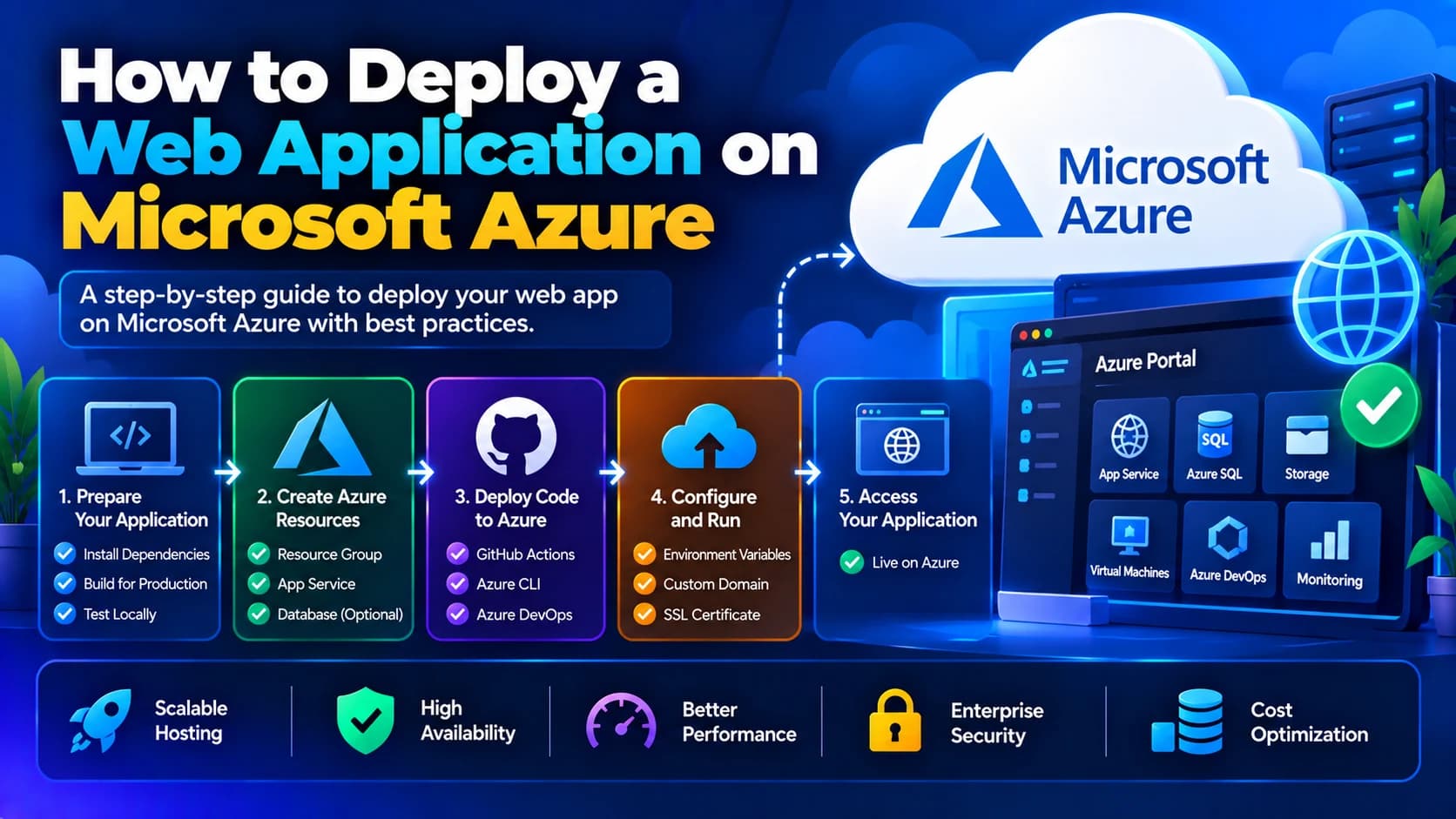
Introduction
Deploying a web application requires more than writing code. Businesses also need reliable hosting, secure infrastructure, domain configuration, monitoring, and a deployment process that supports future growth.
Microsoft Azure is a cloud computing platform that provides services for hosting websites, APIs, backend applications, databases, and enterprise software. It allows developers to deploy applications without maintaining all the underlying infrastructure themselves.
Whether you are building a Node.js application, a .NET website, a Python backend, or a PHP application, Azure offers different hosting options to suit your technical requirements and budget.
In this guide, we will explain how to deploy a web application on Microsoft Azure, choose the right hosting service, configure the application, connect a domain, enable HTTPS, and prepare the deployment for production.
1. Choose the Right Azure Hosting Service
Before deploying your application, select an Azure service that matches your application's technology, traffic, and infrastructure requirements.
Microsoft Azure offers several hosting options.
Azure service | Best suited for |
|---|---|
Azure App Service | Hosting web applications and APIs with managed infrastructure |
Azure Virtual Machines | Applications that require operating-system and server-level control |
Azure Static Web Apps | Static websites and supported frontend frameworks, with optional integrated API capabilities |
Azure Container Apps | Containerized applications and services that benefit from managed scaling |
Azure Kubernetes Service (AKS) | Containerized applications requiring Kubernetes orchestration |
Azure Functions | Event-driven functions and serverless backend operations |
For many standard web applications, Azure App Service is a convenient starting point because it handles much of the underlying server management.
If your application needs custom operating-system configuration or specialized server software, an Azure Virtual Machine may be more appropriate.
Choose your hosting service before configuring the deployment pipeline so that your infrastructure matches your application requirements.
2. Prepare Your Web Application
Before deploying your application, make sure it works correctly in a local or staging environment.
The preparation steps depend on the technology stack, but most web applications require the following:
Application source code.
Supported runtime and dependency versions.
Production environment variables.
Database connection settings.
API keys and other secrets.
A build or startup command.
Logging and error-handling configuration.
A clear deployment procedure.
For example, a Node.js application may require a production build command and a valid start script in package.json.
{
  "scripts": {
    "start": "node server.js"
  }
}
This example assumes your application starts from server.js. Replace it with the correct entry point for your project.
Before deployment, install dependencies, run tests, and verify that the application starts successfully in production mode.
Avoid storing database passwords, API keys, or other secrets directly in source code or committing them to a public repository.
3. Create a Microsoft Azure Account
To deploy your application, you need an Azure subscription with the appropriate permissions.
Follow these steps:
Sign in to the Microsoft Azure portal.
Create an Azure account or use your organization's existing account.
Select an appropriate subscription.
Review the subscription's billing configuration.
Open the Azure portal dashboard.
Azure services have different pricing models. Review the expected costs before creating resources, especially if the application needs a managed database, additional storage, or multiple application instances.
For business applications, use suitable access controls and separate development, testing, and production resources where practical.
4. Create an Azure Resource Group
A resource group provides a logical container for related Azure resources.
For example, a production web application might use a resource group containing its App Service, application-related resources, and other supporting services.
To create one:
Open the Azure portal.
Search for Resource groups.
Select Create.
Choose the appropriate subscription.
Enter a name, such as
webapp-production-rg.Select the required Azure Region.
Review the configuration and create the resource group.
Use consistent naming conventions and resource tags to make infrastructure easier to manage.
For larger projects, resource groups can help organize resources by application, environment, or lifecycle. Consider the lifecycle of each resource before grouping everything together.
5. Create an Azure App Service
For this example, we will deploy a web application using Azure App Service.
App Service provides managed hosting for supported web applications and APIs, reducing the need to configure and maintain an operating system manually.
Step 1: Open App Services
In the Azure portal, search for App Services and select the option to create a new web app.
Step 2: Configure the application
Provide the required settings:
Subscription: Select your Azure subscription.
Resource group: Choose the resource group you created.
Name: Enter a globally unique application name.
Publish: Select Code or Container, depending on your deployment method.
Runtime stack: Choose a supported runtime matching your application.
Operating system: Select the supported operating system appropriate for the runtime.
Region: Choose a suitable location for your users and dependencies.
App Service plan: Select an appropriate pricing and compute plan.
App Service plan features and scaling capabilities vary by tier. Confirm that the selected plan supports your expected workload, availability requirements, and deployment features.
Step 3: Review and create
Review the configuration, create the web app, and wait for the deployment to complete.
Your application will receive an Azure-hosted URL, generally in the form:
https://your-app-name.azurewebsites.net
The application may initially display a default page until you deploy your own code.
6. Deploy Your Application Code to Azure
Once the App Service is ready, deploy your application using a supported method.
Common options include:
GitHub Actions.
Azure DevOps Pipelines.
Azure deployment tools and command-line interfaces.
Supported ZIP deployment workflows.
Container image deployment for containerized applications.
The appropriate method depends on your runtime, repository structure, build process, and release requirements.
Option A: Deploy Using GitHub Actions
GitHub Actions can automate application builds and deployments whenever code is pushed to a specified branch.
A typical workflow includes:
Store your application code in a GitHub repository.
Configure the Azure App Service deployment integration.
Create the required deployment credentials or identity.
Add the required values to GitHub Actions secrets or configure an appropriate federated identity.
Define a workflow that installs dependencies, builds the application, runs tests, and deploys the approved artifact.
Push a change and verify that the workflow runs successfully.
For production applications, prefer securely configured authentication, such as OpenID Connect with Microsoft Entra ID where supported, instead of long-lived credentials.
Pin third-party actions to reviewed versions or commit SHAs, protect production deployment environments, and ensure that only approved changes can reach production.
Option B: Deploy Using Azure CLI
Azure CLI is useful for managing Azure resources and performing supported deployment operations from a terminal or automation pipeline.
After installing and authenticating with Azure CLI, you can inspect your App Service resources:
az login
az webapp list --output table
The first command starts the Azure authentication process. The second lists web apps accessible to your authenticated account.
The exact deployment command depends on your application's runtime and deployment package. For a production workflow, follow the current Azure App Service deployment guidance for your selected stack and package format.
Avoid assuming that a generic ZIP archive or source directory is ready to run without the required build output, dependencies, and startup configuration.
7. Configure Environment Variables and Application Settings
Applications commonly require environment-specific settings such as database URLs, API endpoints, feature flags, and third-party service credentials.
Configure these values through the App Service configuration settings or an appropriate secrets-management service.
For example, a Node.js application might require:
NODE_ENVDATABASE_URLAPI_BASE_URLPAYMENT_PROVIDER_KEY
These are illustrative names; configure the actual variables required by your application.
To manage settings in the Azure portal:
Open your App Service.
Navigate to the configuration or environment variables section.
Add the required application settings.
Save the configuration.
Restart the application if required.
Verify that the application loads its settings correctly.
For sensitive values, consider Azure Key Vault and a managed identity so the application can access secrets without embedding credentials in source code.
Do not display secret values in application logs or deployment output.
8. Connect Your Database
If your web application stores user accounts, transactions, product information, or other dynamic data, it will need a database.
Depending on your application, Azure offers managed database services such as Azure SQL Database and Azure Database for PostgreSQL.
The database setup process generally involves:
Selecting the appropriate database service.
Creating a database and configuring its capacity.
Setting up network access and firewall rules.
Creating an application identity or database credentials.
Configuring the application's database connection.
Running database migrations.
Testing reads, writes, and connection recovery.
Keep database access restricted to the required applications and networks. Avoid opening the database to all internet addresses.
For production systems, also configure backups, monitoring, and a recovery strategy. Consider connection pooling and query optimization if the application experiences high traffic.
9. Configure a Custom Domain
After deploying the application, you can connect your existing business domain.
For example, if your domain is example.com, you might want the application available at www.example.com or app.example.com.
A typical setup involves:
Open your App Service in the Azure portal.
Navigate to the custom domains section.
Add the domain name.
Verify domain ownership using the required DNS record.
Configure the appropriate DNS records at your DNS provider.
Complete the domain validation process.
Confirm that the domain resolves to the intended application.
The exact DNS records depend on the domain configuration and Azure hosting setup. For an apex domain, a supported alias or other appropriate DNS configuration may be required.
Keep existing email-related DNS records, such as MX, SPF, DKIM, and DMARC records, intact when making website DNS changes.
10. Enable HTTPS and SSL/TLS
HTTPS encrypts communication between visitors and your web application.
It helps protect login credentials, session cookies, form submissions, and other information exchanged with the website.
Azure App Service supports HTTPS configuration and managed certificate options for eligible custom-domain configurations. Other certificate approaches may be necessary depending on your domain and hosting plan.
To configure HTTPS:
Add and validate the custom domain.
Select an appropriate certificate option supported by your configuration.
Create or bind the certificate as required.
Verify that HTTPS works correctly.
Configure HTTPS-only access where appropriate.
Test redirects and application callback URLs.
Confirm certificate coverage for all required hostnames, including the root domain and www subdomain where applicable.
After enabling HTTPS, check for mixed-content warnings and ensure that cookies use suitable security settings.
11. Configure Logging and Application Monitoring
Deploying an application is only the first step. You also need to monitor its health after it goes live.
Azure provides monitoring capabilities through Azure Monitor and Application Insights, subject to the relevant configuration and service availability.
Useful monitoring areas include:
Application exceptions.
HTTP 4xx and 5xx errors.
Response times.
Request volume.
CPU and memory usage where available.
Database connection problems.
Failed background jobs.
Availability and dependency failures.
Enable the required application logging and monitoring integrations, then configure alerts for important failure conditions.
For example, repeated HTTP 500 errors may indicate an application exception, invalid environment variable, database connectivity problem, or dependency failure.
Review logs without exposing passwords, access tokens, personal information, or other sensitive data.
12. Scale Your Application as Traffic Grows
A web application may work well during initial deployment but struggle when more users begin accessing it.
Azure App Service provides scaling options based on the selected plan and application requirements.
Two common approaches are:
Scale up: Move to a larger pricing tier or compute configuration to obtain more resources or capabilities.
Scale out: Increase the number of application instances where supported.
Before scaling, examine application performance metrics and identify the actual bottleneck. A slow database query, inefficient API, or excessive file transfer may not be solved by adding more application instances.
For applications with variable traffic, evaluate supported autoscaling features. Load testing can help estimate capacity requirements before major launches or marketing campaigns.
Also confirm that your application can handle multiple instances correctly, especially if it stores sessions or uploaded files on local server storage.
13. Secure Your Azure Web Application
Security should be part of the deployment process rather than something added after launch.
Apply appropriate controls to protect the application, its data, and its cloud resources.
Recommended practices include:
Use Microsoft Entra ID and role-based access control where appropriate.
Apply least-privilege permissions.
Store secrets in a suitable secrets-management service.
Use managed identities when supported.
Keep application dependencies and runtimes updated.
Restrict database and administrative access.
Configure HTTPS.
Validate uploaded files and user input.
Monitor unusual activity and application errors.
Maintain tested backups and recovery procedures.
For sensitive business applications, also evaluate network isolation, a web application firewall, vulnerability scanning, and security logging according to the application's risk profile.
14. Test the Application Before Production Release
Before sharing the production URL with customers, complete a deployment validation checklist.
Verify that:
The homepage and key routes load correctly.
Authentication and authorization work.
Database operations succeed.
Forms and file uploads behave correctly.
External APIs are reachable.
Environment variables are correct.
HTTPS and domain redirects work.
Monitoring and alerts are active.
The application performs acceptably under expected traffic.
A rollback or recovery procedure is available.
Test the production build in a staging environment whenever possible. This helps uncover configuration issues before they affect real users.
For applications with continuous deployment, consider using deployment slots or another release strategy supported by your hosting configuration to validate new versions before switching production traffic.
Common Mistakes to Avoid
1. Selecting the wrong hosting plan
An undersized plan can lead to performance issues, while an oversized plan may waste money. Choose a plan based on measured requirements and expected growth.
2. Forgetting environment variables
An application that works locally may fail on Azure if its database URL, API keys, runtime settings, or startup configuration are missing.
3. Exposing database credentials
Hardcoding credentials in source code creates unnecessary security risks. Use protected application settings or a secrets-management solution.
4. Skipping application monitoring
Without logs and alerts, deployment failures and performance problems can remain undetected until users report them.
5. Changing DNS before validating the application
Test the Azure-hosted application before directing your production domain to it.
6. Ignoring backups and recovery
A successful deployment does not guarantee protection against data loss. Configure backups and test restoration procedures for critical resources.
Conclusion
Deploying a web application on Microsoft Azure involves selecting the right hosting service, preparing the application, configuring infrastructure, deploying code, connecting a database, and securing the production environment.
Azure App Service provides a straightforward option for many web applications, while Virtual Machines, Static Web Apps, Container Apps, and AKS support different technical requirements.
A reliable deployment also includes monitoring, performance testing, secure configuration, backups, and a repeatable release process.
At Dotcube Technologies, businesses can get support with Azure cloud deployment, web application development, CI/CD automation, cloud migration, and infrastructure optimization. A well-planned Azure deployment helps businesses launch applications with a foundation for performance, security, and future growth.
Frequently Asked Questions
1. What is the easiest way to deploy a web application on Microsoft Azure?
For many standard web applications, Azure App Service is a convenient option because it provides managed hosting and supports several common application runtimes and deployment workflows.
2. Can I deploy a Node.js application on Azure?
Yes. You can deploy a compatible Node.js application to Azure App Service or use another appropriate Azure hosting option. Make sure the selected runtime, application startup command, dependencies, and environment variables are configured correctly.
3. Is Microsoft Azure suitable for small businesses?
Yes. Azure offers hosting and database options for small websites as well as larger applications. Choose services based on actual requirements and review pricing, scaling, and operational needs before deployment.
4. Can I deploy a web application from GitHub to Azure automatically?
Yes. GitHub Actions can build, test, and deploy an application to supported Azure hosting services. Secure the workflow using appropriate identity configuration, protected secrets, and production approval controls.
5. How do I connect my domain to an Azure web application?
Add and verify your custom domain in the Azure service, configure the required DNS records with your domain provider, and set up HTTPS for the validated hostname.
6. Does Azure support automatic scaling?
Azure supports scaling options across various services. The available automatic scaling features depend on the hosting service, pricing tier, and configuration.
7. How much does it cost to host a web application on Azure?
Costs depend on the hosting plan, compute requirements, database, storage, network traffic, monitoring, and other services. Review the current Azure pricing for your intended configuration before deploying.