How to Deploy a React or Next.js Application on Vercel
Deploying a React or Next.js application on Vercel is a straightforward way to make your website accessible online without managing servers manually. Vercel…
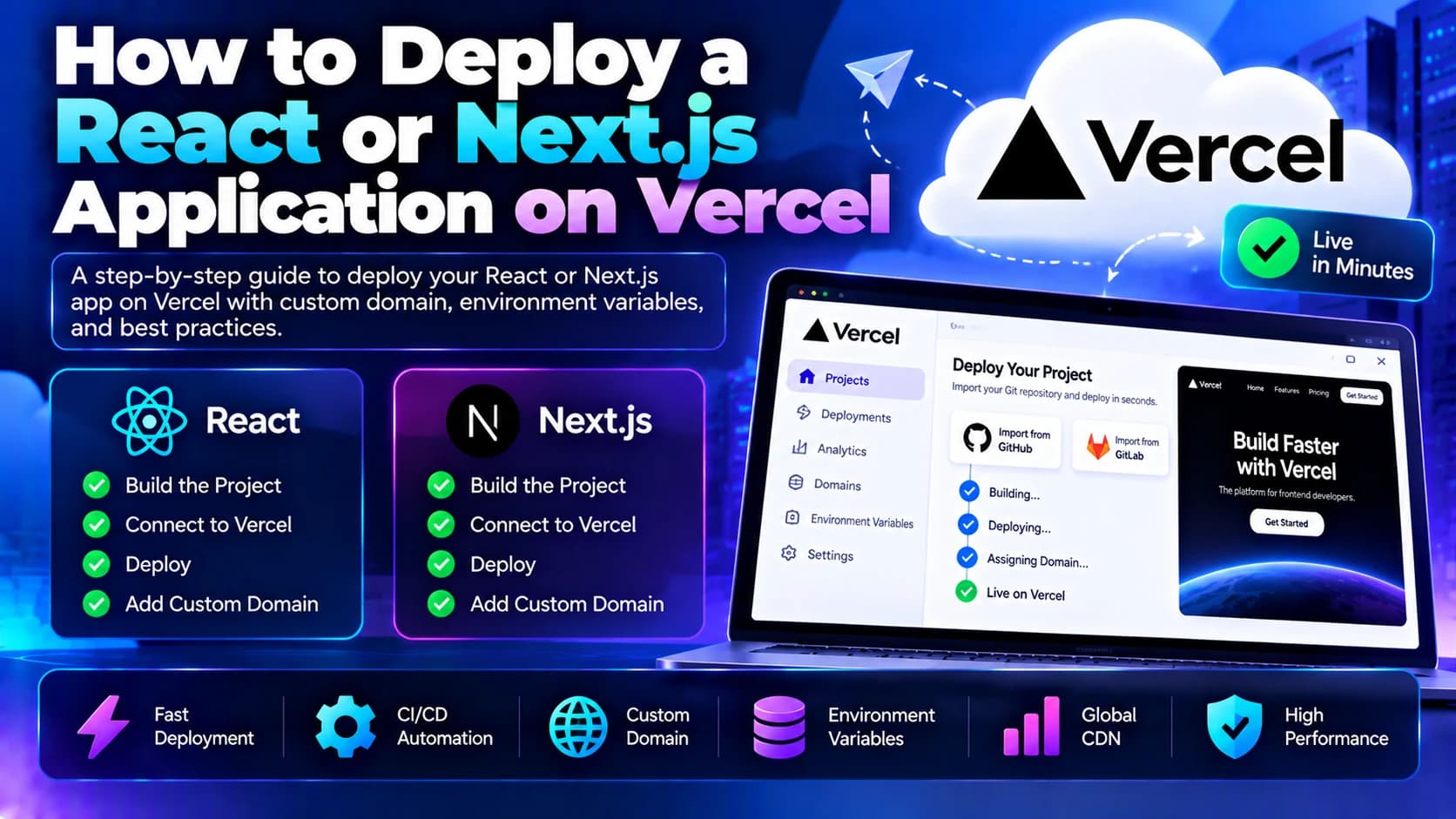
Deploying a React or Next.js application on Vercel is a straightforward way to make your website accessible online without managing servers manually. Vercel provides automated deployments, HTTPS, CDN-based content delivery, preview environments, and integration with Git repositories.
Whether you are building a business website, landing page, portfolio, or full-stack web application, Vercel offers a convenient deployment workflow for React and Next.js projects.
In this guide, we will explain how to deploy a React or Next.js application on Vercel, configure environment variables, connect a custom domain, and manage future updates.
What Is Vercel?
Vercel is a cloud platform designed for deploying and hosting frontend applications and supported full-stack frameworks. It is particularly well suited to React and Next.js projects.
Some key features include:
Git integration: Automatically deploy your application when you push code changes.
Global content delivery: Deliver static assets through a distributed network.
Preview deployments: Test changes using separate deployment URLs before releasing them to production.
HTTPS support: Secure your website with SSL/TLS certificates.
Custom domains: Connect your own domain to your deployed application.
Next.js support: Run supported Next.js features, including server-side rendering and API routes, according to the framework and deployment configuration.
Environment variables: Manage configuration values separately from application code.
These features make Vercel a practical option for developers and businesses that want to launch and maintain modern web applications.
Prerequisites for Deploying a React or Next.js Application
Before deploying your project, make sure you have the following:
A React or Next.js application that runs locally.
A GitHub, GitLab, or supported Git repository containing your project.
A Vercel account.
Node.js and a package manager installed for local development.
Any required environment variables, API URLs, and service credentials.
You should also test your application locally and resolve build errors before starting the deployment process.
Step 1: Prepare Your Application
First, open your project in your code editor and confirm that the application builds successfully.
For a React application created with Vite, run:
npm install
npm run build
For a Next.js application, run:
npm install
npm run build
Both projects commonly use npm run build, although the exact scripts depend on the project's package.json file.
If the build fails, resolve the errors before deploying. Check missing dependencies, incorrect imports, TypeScript errors, and environment variables.
Important: Never commit API secrets, private keys, database passwords, or other sensitive credentials to your Git repository.
Step 2: Push Your Project to GitHub
Vercel can deploy applications directly from supported Git repositories. Connecting your repository makes future updates easier.
If your project is not already using Git, initialize a repository:
git init
git add .
git commit -m "Prepare application for deployment"
Create a repository on GitHub and connect it to your local project:
git remote add origin YOUR_REPOSITORY_URL
git branch -M main
git push -u origin main
Replace YOUR_REPOSITORY_URL with your actual repository URL.
Before pushing, confirm that your .gitignore excludes folders such as node_modules and local environment files such as .env.
Step 3: Import Your Project Into Vercel
Once your code is available in a Git repository, you can import it into Vercel.
Follow these steps:
Sign in to your Vercel account.
Open the dashboard.
Select the option to add a new project.
Connect your Git provider if it is not already connected.
Select the repository containing your React or Next.js application.
Review the project configuration.
Start the deployment.
Vercel generally detects popular frameworks automatically. However, you should verify the framework preset, build command, and output settings before deploying.
Step 4: Configure the Build Settings
Vercel usually identifies the correct build settings automatically, but you may need to adjust them for custom project structures or monorepositories.
Setting | React with Vite | Next.js |
|---|---|---|
Framework preset | Vite | Next.js |
Build command |
|
|
Output directory |
| Usually managed by Vercel |
Install command |
|
|
Root directory | Project folder | Project folder |
These are common defaults rather than universal requirements. Create React App and other React setups may use different output directories.
For a Next.js application, avoid manually overriding the output directory unless your deployment setup specifically requires it. Vercel normally handles the framework's build output.
If your application is inside a subfolder, set the correct root directory so Vercel can locate its package.json file.
Step 5: Configure Environment Variables
Many applications depend on environment variables to communicate with backend APIs, authentication providers, analytics services, or other external systems.
For example, a React application using Vite might use:
VITE_API_URL=https://api.example.comA Next.js application might use:
NEXT_PUBLIC_API_URL=https://api.example.comThese variable names are framework-specific. Vite exposes variables prefixed with VITE_, while Next.js exposes variables prefixed with NEXT_PUBLIC_ to browser-side code.
To configure variables in Vercel:
Open your project in the Vercel dashboard.
Navigate to the project settings.
Open the environment variables section.
Add the required variable names and values.
Select the appropriate environments, such as Production, Preview, or Development.
Save the changes and redeploy if necessary.
Security tip: Variables exposed to browser-side code are not secret. Keep private API keys, database credentials, and authentication secrets on the server side.
Step 6: Deploy Your Application
After checking the configuration, start the deployment.
Vercel installs the dependencies, builds your application, and prepares the deployment. You can monitor the build logs in the dashboard to identify errors.
When deployment succeeds, Vercel provides a URL where you can access your application.
Open the URL and test the following:
The homepage loads correctly.
Navigation and internal links work.
Images, fonts, and other assets load.
API requests return the expected results.
Authentication and protected routes work correctly.
Responsive layouts display properly on mobile and desktop.
Forms and other interactive components behave as expected.
If you encounter a deployment error, review the build logs and verify your project settings and environment variables.
Step 7: Connect a Custom Domain
A Vercel deployment usually comes with a platform-provided domain. For a business website, you may prefer to use your own domain.
To connect a custom domain:
Open your project in Vercel.
Navigate to the domain settings.
Add your domain name.
Follow the DNS instructions provided by Vercel.
Update the DNS records at your domain registrar.
Wait for DNS propagation and verify the domain.
Confirm that HTTPS is active.
The exact DNS records depend on whether you are connecting an apex domain, such as example.com, or a subdomain, such as www.example.com.
Once configuration is complete, test the domain and check that visitors reach the correct deployment.
Step 8: Enable Automatic Deployments
One of Vercel's main advantages is its Git-based deployment workflow.
After connecting a repository, Vercel can create deployments when code is pushed to configured branches.
A typical workflow looks like this:
A developer makes changes locally.
The developer commits and pushes the code.
Vercel detects the update.
Vercel builds and deploys the application.
The team tests the preview or production deployment, depending on the branch and configuration.
For example, changes pushed to a feature branch can be reviewed through a preview deployment before being merged into the production branch.
This workflow reduces repetitive manual deployment steps and makes collaboration easier.
Step 9: Deploy Future Updates Safely
After the first deployment, your application will likely need regular updates, bug fixes, and new features.
To maintain a reliable deployment process:
Test changes locally before pushing them.
Review preview deployments before production releases.
Check build logs after each deployment.
Verify environment variables across environments.
Monitor application errors and API failures.
Test important user journeys after significant updates.
Keep dependencies and frameworks updated.
Maintain a rollback plan for production issues.
For larger applications, automated testing and code review can help prevent defects from reaching production.
Common Problems When Deploying React or Next.js on Vercel
Even though Vercel automates much of the deployment process, some issues can still occur.
1. Build Failures
Builds can fail because of missing dependencies, type errors, incorrect scripts, or incompatible package versions.
Solution: Run the production build locally and compare the errors with Vercel's build logs.
2. Environment Variables Not Working
Variables may be missing, incorrectly named, or assigned to the wrong environment.
Solution: Check the variable name and environment settings. Redeploy after changing variables when required.
3. API Requests Failing
An application may work locally but fail after deployment because the API URL is incorrect, the backend is unavailable, or CORS is misconfigured.
Solution: Check the browser console, network requests, backend logs, API URL, and CORS configuration.
4. Page Refresh Produces a 404 Error
This can happen when a React single-page application uses client-side routing and the hosting configuration does not route requests correctly.
Solution: Verify the framework configuration and use the appropriate routing or rewrite settings. Vercel's framework integrations may handle this automatically when the project is configured correctly.
5. Next.js Server Features Do Not Work as Expected
Server-side rendering, route handlers, middleware, and other framework features depend on compatible configuration and runtime support.
Solution: Confirm that your Next.js version and application features are supported by your deployment setup, then review the build and runtime logs.
6. Custom Domain Is Not Working
Incorrect DNS records, incomplete verification, or propagation delays can prevent a domain from resolving correctly.
Solution: Follow the DNS values shown in your Vercel dashboard and verify the domain status.
Is Vercel Suitable for Production Applications?
Vercel can be an excellent option for production React and Next.js applications, including marketing websites, content platforms, dashboards, and supported full-stack applications.
However, the right platform depends on your application's architecture and operational needs.
Consider the following before choosing Vercel:
Application requirements: Confirm that your backend, runtime, and background-processing requirements are supported.
Pricing: Review current plan limits and usage-based charges as traffic increases.
Database connectivity: Choose a suitable database provider and configure secure access.
Scalability: Evaluate performance, caching, runtime limits, and resource requirements.
Security: Protect secrets, validate inputs, and secure authentication and APIs.
Monitoring: Set up appropriate error tracking and application monitoring.
Applications that require long-running processes, persistent server processes, or specialized infrastructure may need a separate backend or another hosting solution.
Conclusion
Deploying a React or Next.js application on Vercel involves preparing your project, connecting a Git repository, configuring build settings and environment variables, and deploying the application. You can then connect a custom domain and use automatic deployments to publish future updates.
Vercel simplifies many deployment tasks, allowing development teams to focus more on building and improving their applications rather than managing hosting infrastructure.
For businesses building customer portals, SaaS platforms, e-commerce websites, or custom web applications, choosing the right deployment architecture is an important part of long-term performance and maintainability.
Need help deploying or optimizing your web application? Dotcube Technologies can help businesses build, deploy, and maintain modern web applications based on their technical and business requirements.