How to Deploy a Node.js Application on Windows Server
Deploying a Node.js application on Windows Server allows businesses to run web applications, REST APIs, internal tools, and backend services within a…
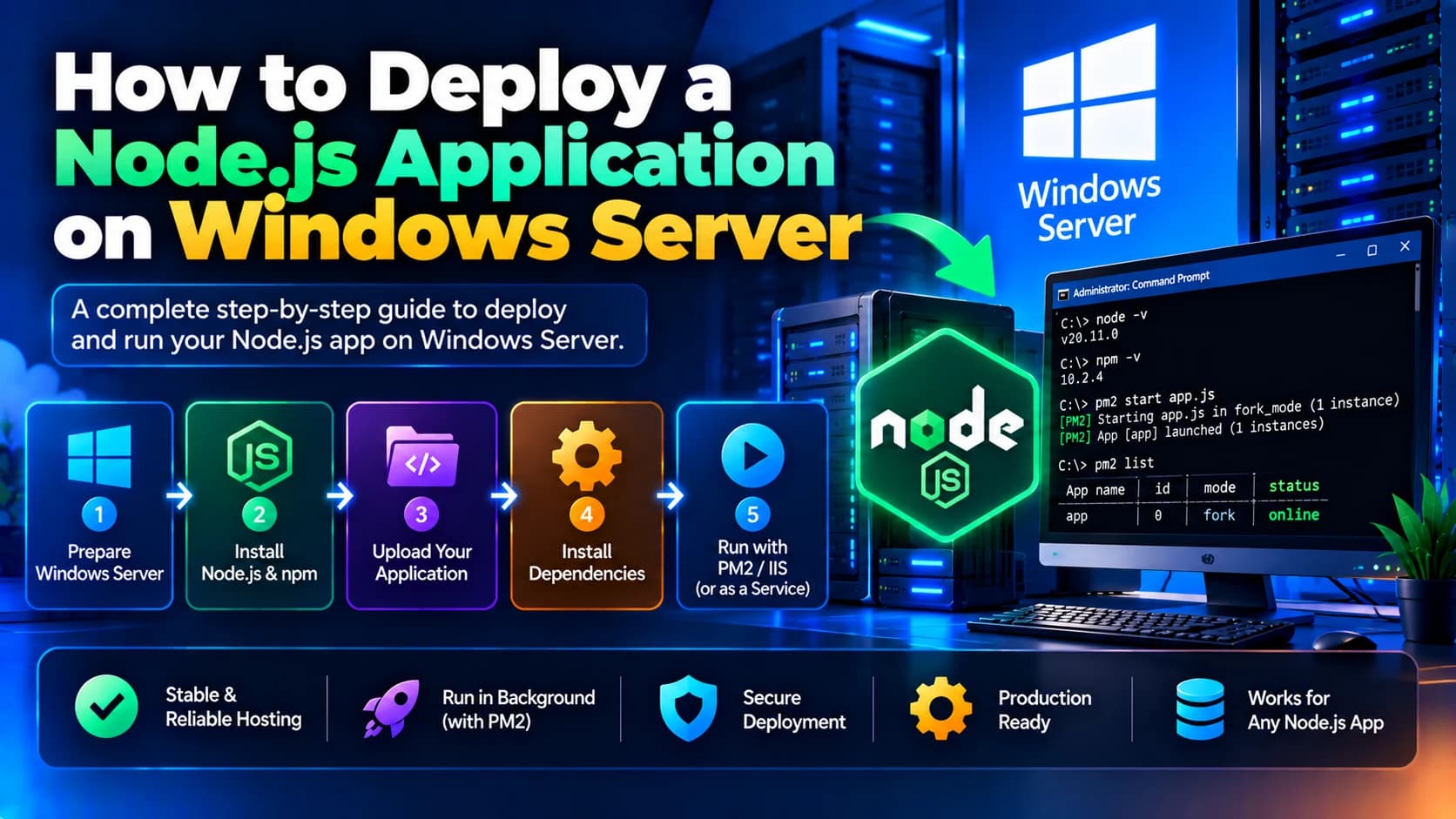
Deploying a Node.js application on Windows Server allows businesses to run web applications, REST APIs, internal tools, and backend services within a Windows-based hosting environment. It is a useful option for organizations that already use Microsoft infrastructure or need to integrate Node.js applications with Windows-based systems.
Although Node.js is commonly deployed on Linux servers, it also runs on Windows Server. With the right configuration, you can install Node.js, transfer your application, configure environment variables, manage the application process, and make your website accessible through a domain name.
In this guide, we will explain how to deploy a Node.js application on Windows Server step by step, including production process management, IIS reverse proxy configuration, HTTPS, security, and troubleshooting.
Why Deploy a Node.js Application on Windows Server?
Windows Server can host Node.js applications that use Express.js, NestJS, Fastify, and other Node.js frameworks.
Businesses may choose Windows Server when they already have Windows infrastructure, need to integrate with existing Microsoft services, or want to run Node.js alongside other Windows-based applications.
Some common use cases include:
Hosting Node.js REST APIs.
Running Express.js or NestJS applications.
Hosting backend services for web and mobile applications.
Integrating Node.js with Microsoft SQL Server or other databases.
Deploying internal business applications.
Running scheduled tasks and background workers.
However, Windows Server is not always the most cost-effective or convenient choice. For applications without Windows-specific dependencies, Linux may offer a simpler deployment workflow. Choose the environment based on your technical requirements and team's expertise.
Prerequisites for Node.js Deployment
Before starting, prepare the following:
Windows Server: A supported Windows Server machine with administrator access.
Node.js: A supported Node.js LTS release compatible with your application.
Application source code: Your Node.js project, including
package.jsonand the required source files.Database access: Connection details for your database, if the application uses one.
Domain name: Optional for initial testing but recommended for production.
Network access: Firewall and network rules for the required ports.
Process management: A way to keep the application running and recover it after a restart.
HTTPS configuration: A trusted TLS certificate for a production domain.
For production use, avoid relying on a terminal window that remains open. The application should run under a service-management approach that supports startup, recovery, and logging.
Step 1: Connect to Your Windows Server
Connect to your Windows Server using Remote Desktop Protocol (RDP) or your hosting provider's supported administration method.
After connecting:
Sign in with an authorized administrator account.
Open Server Manager.
Confirm that the server has network connectivity.
Apply the necessary security updates.
Check available disk space and memory.
For a public production server, restrict RDP access to trusted IP addresses or use a VPN or secure remote-access solution. Avoid exposing administrative access unnecessarily.
Step 2: Install Node.js on Windows Server
Node.js provides the runtime required to execute JavaScript outside the browser.
Download and Install Node.js
Open the official Node.js website: https://nodejs.org/
Download a supported LTS release compatible with your application.
Run the Windows installer.
Follow the installation instructions.
Ensure the option to add Node.js to the system PATH is enabled, if offered.
Finish the installation.
After installation, open PowerShell or Command Prompt and run:
node -v
npm -v
Both commands should display version numbers. If the commands are not recognized, check the installation path and system PATH configuration.
For production servers, use a supported Node.js release and plan regular updates.
Step 3: Upload Your Node.js Application
Next, transfer your application files to the Windows Server.
You can use a secure deployment pipeline, an approved file-transfer mechanism, or a private source-control repository.
Create a directory for your application, for example:
C:\apps\my-node-appYour project may contain files such as:
my-node-app/
├── src/
├── package.json
├── package-lock.json
├── .env
└── server.js
The exact structure depends on your project.
Do not copy the .env file from development automatically if it contains local credentials. Configure production secrets securely on the server instead. Also exclude development-only files and unnecessary source-control data from production deployments.
Step 4: Install Application Dependencies
Open PowerShell and move to your application directory:
cd C:\apps\my-node-appIf your project includes a package-lock.json file, install the dependencies with:
npm ci --omit=devThis installs the dependencies specified by the lockfile without installing development dependencies.
If your production build requires development tools, build the application in your CI/CD pipeline and deploy the resulting production artifacts. Do not omit packages that your runtime genuinely needs.
For applications written in TypeScript, run the appropriate build command in the deployment pipeline or install the necessary build dependencies before producing the production output.
Step 5: Configure Environment Variables
Most Node.js applications require environment variables for configuration, such as the port, database connection, API keys, and authentication secrets.
For example, your application may use:
NODE_ENV=production
PORT=3000
DATABASE_URL=your-production-database-connection
These are illustrative values. Use your actual production configuration and store credentials securely.
Your application can read variables through process.env:
const port = process.env.PORT || 3000;

app.listen(port, () => {
  console.log(`Server is running on port ${port}`);
});
Do not hardcode production credentials in your source code or commit secrets to a public repository.
You can configure environment variables through Windows system settings, a service manager, or your deployment platform. Restart the application after changing its environment.
Step 6: Start and Test the Node.js Application
Before configuring a public domain, confirm that the application starts successfully.
If your package.json defines a suitable start script, run:
npm startAlternatively, run your application's entry point, for example:
node server.jsOpen another PowerShell window and test the local endpoint:
Invoke-WebRequest http://localhost:3000Replace port 3000 with the port configured in your application.
If the request succeeds, the application is responding locally. If it fails, inspect the terminal output, verify the configured port, and check whether the application requires a database or other external service.
This manual start is useful for testing, but it should not be the final production process-management solution.
Step 7: Keep the Node.js Application Running
A production application should continue running after you close your remote session and should recover automatically after an unexpected failure or server restart.
Windows Server does not include PM2 by default, so you need to choose a process-management solution.
Common approaches include:
Running the application as a Windows service using a suitable service wrapper.
Using a process manager that explicitly supports your chosen Windows environment.
Using a deployment or hosting platform that manages application processes.
Example: Using PM2
PM2 is commonly used to manage Node.js processes, particularly on Linux. Windows support and behavior can vary by version and setup, so verify compatibility before choosing it for production.
If you have confirmed that your environment supports your intended PM2 setup, install it with:
npm install -g pm2Then start your application:
pm2 start server.js --name my-node-appCheck the process:
pm2 statusOn Windows, do not assume that saving a PM2 process list alone guarantees automatic recovery after a reboot. Configure and test a supported startup mechanism or use a Windows service solution designed for this purpose.
For critical workloads, verify application restart behavior, logging, and recovery after an actual controlled server reboot.
Step 8: Configure IIS as a Reverse Proxy (Optional)
If you want to serve your Node.js application through IIS, you can configure IIS as a reverse proxy.
In this architecture, IIS receives requests from visitors and forwards them to the Node.js application running on a local port.
For example:
IIS accepts public requests on ports
80and443.Node.js listens on
localhost:3000.IIS forwards the requests to the Node.js service.
This approach lets IIS handle public HTTP/HTTPS bindings while the Node.js application remains behind the web server.
Configure IIS
Install the Web Server (IIS) role through Server Manager.
Install the IIS URL Rewrite module.
Install and configure Application Request Routing (ARR).
Enable the reverse proxy functionality in ARR.
Create an IIS website and configure the domain binding.
Add a rewrite rule that forwards incoming requests to your Node.js application's local address.
Test the application through IIS.
A simplified rewrite rule for an application listening on port 3000 could look like this:
<configuration>
  <system.webServer>
    <rewrite>
      <rules>
        <rule name="Node.js Reverse Proxy" stopProcessing="true">
          <match url="(.*)" />
          <action type="Rewrite"
                  url="http://localhost:3000/{R:1}" />
        </rule>
      </rules>
    </rewrite>
  </system.webServer>
</configuration>
Use this as a starting example, not a complete production configuration. Adapt it to your website, test routing behavior, and ensure WebSocket connections and forwarded headers are handled correctly if your application needs them.
Keep the Node.js port private to the server whenever possible. IIS should be the public entry point when you use this architecture.
Step 9: Configure Your Domain Name
To access the application through a domain such as example.com, point the domain to the server's public IP address.
Update DNS Records
At your DNS provider:
Create an A record pointing to your server's public IPv4 address.
Configure an AAAA record only if public IPv6 connectivity is properly supported.
Add a
wwwrecord if you want to supportwww.example.com.
Then configure the hostname binding in IIS if you are using IIS as a reverse proxy.
If you are exposing Node.js directly instead, you need an appropriate network and TLS setup for that deployment model.
DNS propagation depends on the record TTL and resolver caching. Verify that the domain resolves to the expected endpoint before troubleshooting the application itself.
Step 10: Enable HTTPS
HTTPS protects data transmitted between visitors and your website. It is strongly recommended for all public production applications.
When using IIS as a reverse proxy:
Obtain a trusted TLS certificate for your domain.
Install the certificate in the appropriate Windows certificate store.
Open IIS Manager and select your website.
Open Bindings.
Add an HTTPS binding on port
443.Select the correct certificate and hostname.
Test the application using
https://example.com.Configure HTTP-to-HTTPS redirection after confirming HTTPS works.
Ensure the certificate is renewed before expiry.
If Node.js is exposed directly rather than through IIS, configure TLS using an appropriate supported approach, such as a reverse proxy or a suitable hosting service. Avoid sending sensitive traffic over plain HTTP in production.
Step 11: Configure Firewall and Server Security
Secure the server before making your application available to the public.
Recommended measures include:
Allow public inbound traffic only on the required ports, commonly
80and443.Keep the Node.js application port private when IIS is the public reverse proxy.
Restrict RDP access to authorized users and networks.
Apply Windows Server and Node.js security updates.
Use least-privilege permissions for application files and service accounts.
Store database credentials and API secrets securely.
Validate incoming requests and handle errors without exposing internal details.
Configure backups and monitoring.
Review IIS, Windows, and application logs regularly.
If the server is hosted on AWS, Azure, or another cloud platform, review both Windows Firewall and the provider's network security rules.
Step 12: Set Up Automatic Deployment
Manually copying files and restarting applications can become difficult as your project grows. A CI/CD pipeline can make deployments more consistent.
For example, you can use GitHub Actions or another CI/CD system to:
Run tests when code changes.
Build the application.
Package the production files.
Transfer the artifacts through a secure deployment channel.
Install or verify the required dependencies.
Restart or update the application service.
Run a health check.
Roll back if the deployment fails.
Store deployment credentials in your CI/CD platform's secrets manager. Use a restricted deployment account rather than sharing the server administrator's credentials with the pipeline.
For a production application, deploy in a way that minimizes downtime and allows you to return to a known-good version if a release fails.
Common Problems When Deploying Node.js on Windows Server
1. Node.js Is Not Recognized
Cause: Node.js may not be installed correctly, or its directory may be missing from the system PATH.
Solution: Verify the installation and PATH configuration, then reopen PowerShell and run node -v again.
2. The Application Stops After Closing RDP
Cause: The application was started manually in an interactive terminal.
Solution: Configure a suitable service or process manager and test it independently of your remote session.
3. The Website Is Not Accessible Externally
Cause: The application may be listening only on a local port, DNS may be incorrect, or firewall rules may block incoming requests.
Solution: Check the local endpoint, DNS records, IIS bindings, reverse proxy configuration, and network access rules.
4. IIS Returns a 502 or 500 Error
Cause: IIS may be unable to reach the Node.js process, or a rewrite rule, application configuration, or dependency may be incorrect.
Solution: Test the Node.js endpoint locally, inspect IIS logs and application logs, and verify the reverse proxy settings.
5. The Application Cannot Connect to Its Database
Cause: Incorrect production credentials, firewall restrictions, DNS resolution problems, or missing database permissions.
Solution: Verify the connection string, network connectivity, database availability, and credentials without exposing secrets in logs.
6. The Application Does Not Restart After a Reboot
Cause: The application has no correctly configured startup mechanism, or the service is failing during initialization.
Solution: Configure a supported Windows service or process-management solution, check startup logs, and test recovery after a controlled reboot.
Conclusion
Deploying a Node.js application on Windows Server involves preparing the server, installing Node.js, transferring the application, installing dependencies, configuring environment variables, and ensuring the application stays running.
For public websites, you can configure IIS as a reverse proxy to manage domain bindings and HTTPS while keeping the Node.js process on a private local port. Proper service management, firewall configuration, monitoring, backups, and automated deployment help make the environment more reliable.
At Dotcube Technologies, choosing the right hosting and deployment architecture is an important part of delivering secure and scalable web applications. Before deploying to production, evaluate application requirements, expected traffic, maintenance needs, and the team's experience with Windows-based infrastructure.
Frequently Asked Questions
1. Can Node.js run on Windows Server?
Yes. Node.js supports Windows, and compatible applications can run on Windows Server. Verify the Node.js version and any native dependencies required by your application.
2. Do I need IIS to host a Node.js application on Windows Server?
No. IIS is optional. You can run Node.js directly with an appropriate network and TLS configuration, or use IIS as a reverse proxy to manage public HTTP/HTTPS traffic.
3. How do I keep a Node.js application running after a server restart?
Use a supported Windows service or process-management solution configured to start automatically. Test recovery after a controlled reboot instead of assuming the application will restart by itself.
4. Which port does a Node.js application use?
Node.js applications can use any available port configured by the application. Port 3000 is a common example, but it is not a requirement. With IIS reverse proxying, the application can listen on a private port while IIS handles public ports 80 and 443.
5. Can I deploy an Express.js application on Windows Server?
Yes. Express.js applications can run on Windows Server when Node.js and the application's dependencies are installed correctly. The deployment process is similar to that of other Node.js applications.
6. Is Windows Server suitable for production Node.js applications?
Yes, when the environment is configured, secured, monitored, and maintained appropriately. Linux is another common choice, so compare compatibility, operational complexity, and hosting costs before making a decision.
7. How can I deploy Node.js automatically to Windows Server?
Use a CI/CD pipeline such as GitHub Actions to test and build the application, securely transfer production artifacts, restart the application service, and verify deployment health. Configure credentials and permissions carefully.