How to Deploy a Full-Stack Application on Render
Deploying a full-stack application involves more than hosting a frontend. You also need to configure the backend API, connect the database, manage environment…
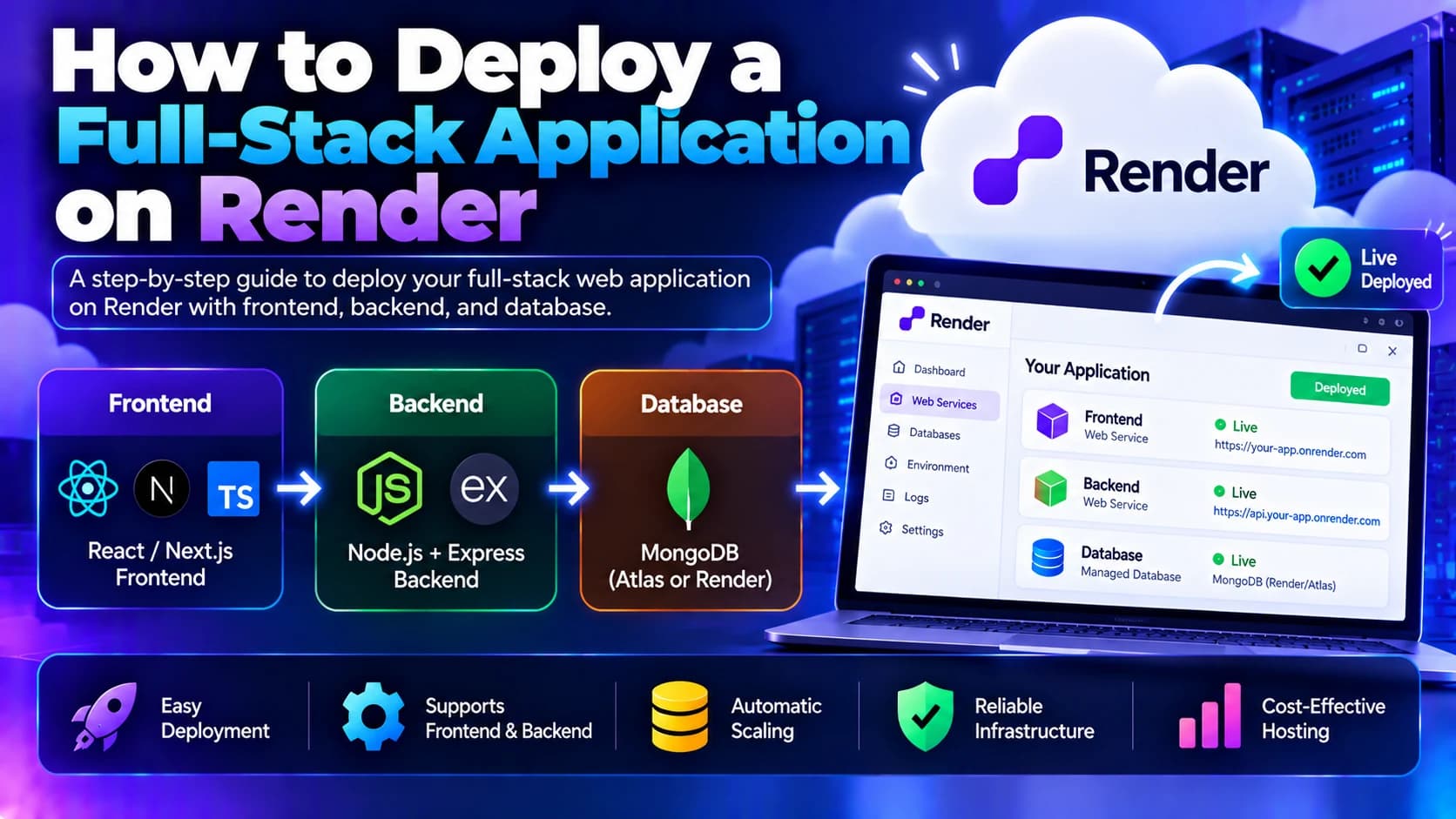
Deploying a full-stack application involves more than hosting a frontend. You also need to configure the backend API, connect the database, manage environment variables, and ensure that all components communicate securely.
Render is a cloud hosting platform that simplifies this process by providing services for web applications, static sites, background workers, and supported databases. Developers can connect their Git repositories, configure deployment settings, and publish applications without managing a traditional server manually.
Whether you are building a React frontend with a Node.js backend or a full-stack application using another supported technology, Render can help simplify deployment and ongoing maintenance.
In this guide, we will explain how to deploy a full-stack application on Render, configure its frontend and backend, connect a database, and prepare the application for production.
1. Understand the Architecture of Your Full-Stack Application
Before deployment, identify the components of your application and how they communicate.
For example, a typical full-stack application may use the following architecture:
<box border radius="lg" padding={3} align="center" gap={2}> <box background="surface-secondary" radius="md" padding={3} width="85%" align="center" gap={1}> <icon name="monitor" size="xl" /> Frontend <text color="secondary" size="sm">React, Vue, or another frontend framework</text> </box> <icon name="arrow-down-up" size="lg" color="secondary" /> <box background="surface" border radius="md" padding={3} width="85%" align="center" gap={1}> <icon name="server" size="xl" /> Backend API <text color="secondary" size="sm">Node.js, Express, or another supported backend</text> </box> <icon name="arrow-down-up" size="lg" color="secondary" /> <box background="surface-secondary" radius="md" padding={3} width="85%" align="center" gap={1}> <icon name="database" size="xl" /> Database <text color="secondary" size="sm">PostgreSQL or another supported database hosted separately</text> </box> </box>
In this example:
The frontend displays the user interface.
The backend processes requests and implements business logic.
The database stores application data.
The frontend communicates with the backend through HTTP APIs.
The backend connects to the database using secure connection settings.
Render can host these components using separate services. Keeping the frontend, backend, and database logically separated makes it easier to configure deployments and manage each component independently.
2. Prepare Your Application for Deployment
Before creating Render services, make sure your application runs correctly in your local environment.
For a typical React and Node.js application, your project structure might look like this:
my-fullstack-app/
├── client/
│   ├── src/
│   ├── package.json
│   └── ...
├── server/
│   ├── src/
│   ├── package.json
│   └── ...
└── README.md
Your project may use a different structure depending on whether it is a monorepo, a framework-based application, or a separate frontend and backend repository.
Check the Frontend
Verify that:
The frontend builds successfully.
API requests use a configurable backend URL.
Production settings do not reference
localhost.Private API keys are not included in browser-side code.
The build output directory is correctly identified.
For a Vite-based React application, the production build command is commonly:
npm run buildThe output directory is usually dist, unless you have changed the configuration.
Check the Backend
Verify that:
The backend starts using the configured production command.
Required dependencies are listed in
package.json.Database credentials are supplied through environment variables.
The application listens on the port provided by Render.
A health-check endpoint is available, if appropriate.
For example, an Express application can listen on a configurable port:
const port = process.env.PORT || 3000;

app.listen(port, "0.0.0.0", () => {
  console.log(`Server listening on port ${port}`);
});
Using process.env.PORT allows the service to use the port provided by the hosting environment. Binding to 0.0.0.0 makes the server accessible through the container or service network.
3. Push Your Code to a Git Repository
Render can deploy applications from supported Git providers. Store your application code in a repository before configuring the deployment.
If your frontend and backend are in the same repository, you can configure separate Render services using different root directories. If they are in separate repositories, connect each repository to its corresponding service.
A typical workflow is:
Commit your application code.
Push it to GitHub or another supported Git provider.
Verify that the repository contains the correct production configuration.
Ensure that secrets and
.envfiles are excluded from version control.Confirm that the build and start commands work locally.
Once the code is available in your repository, you can configure Render to build and deploy the application.
4. Deploy the Backend API on Render
The backend should generally be deployed before the frontend so you can configure the correct API URL.
Step 1: Create a Web Service
Sign in to Render and create a new Web Service. Connect the repository that contains your backend application.
If your backend is in the server directory of a monorepo, configure that directory as the service's root directory.
Step 2: Configure the Build and Start Commands
For a typical Node.js backend, the settings might be:
Setting | Example |
|---|---|
Root directory |
|
Build command |
|
Start command |
|
Runtime | Node.js |
Use the commands appropriate for your project. If you compile TypeScript, for example, your build command may need to compile the source code before the application starts.
Your backend's package.json should define a valid production start script, such as:
{
  "scripts": {
    "start": "node src/index.js"
  }
}
The filename should match your actual application entry point.
Step 3: Configure Environment Variables
Add the environment variables your backend needs through the Render service settings.
For example:
NODE_ENV=production
DATABASE_URL=your_database_connection_string
FRONTEND_URL=https://your-frontend-domain
Replace the example values with the actual configuration. Store credentials securely in Render's environment settings or an appropriate secrets-management system. Do not commit database passwords or private keys to Git.
Step 4: Deploy the Backend
Start the deployment and inspect the build and runtime logs.
Check that:
Dependencies install successfully.
The application starts without errors.
The server listens on the assigned port.
Database connections succeed.
The API returns the expected response.
You can create a simple health-check endpoint in Express:
app.get("/health", (req, res) => {
  res.status(200).json({ status: "ok" });
});
After deployment, open the endpoint using your service's Render URL, such as:
https://your-backend-service.onrender.com/healthReplace the sample hostname with the URL assigned to your service.
5. Set Up the Database
Your backend needs a database if the application stores user accounts, orders, products, transactions, or other persistent information.
For applications using PostgreSQL, you can provision a supported Render PostgreSQL database or use an external database provider.
Steps to Configure the Database
Create the database using your selected provider.
Choose a suitable region and database configuration.
Configure credentials and access permissions.
Set the backend's database connection string.
Run the application's database migrations.
Verify that the backend can read and write data.
For a PostgreSQL database, the backend might use a connection string stored in DATABASE_URL.
const connectionString = process.env.DATABASE_URL;

if (!connectionString) {
  throw new Error("DATABASE_URL is required");
}
Use a database client or ORM compatible with your application to establish the connection.
Important: Use the appropriate internal connection URL when your services are configured to communicate privately within Render. Keep the database credentials secret and avoid exposing the database directly to public access unless necessary and properly secured.
Before deploying schema changes to production, take appropriate backups and test migrations. For an existing application, migrate its data using a planned process instead of assuming that a newly created database contains the required records.
6. Deploy the Frontend on Render
After confirming that the backend works, deploy the frontend.
For a static React application, you can create a Static Site in Render and connect the repository containing the frontend.
Step 1: Configure the Frontend Build
For a Vite-based React application, typical settings are:
Setting | Example |
|---|---|
Root directory |
|
Build command |
|
Publish directory |
|
For other frameworks, use the appropriate build command and output directory. Frameworks that require a server-side runtime may need a Web Service rather than a Static Site.
Step 2: Configure the Backend API URL
The frontend must send requests to the deployed backend rather than to a local development server.
For Vite, you can configure an environment variable such as:
VITE_API_URL=https://your-backend-service.onrender.comThen use it in the frontend:
const API_URL = import.meta.env.VITE_API_URL;

fetch(`${API_URL}/api/products`)
  .then((response) => {
    if (!response.ok) {
      throw new Error("Failed to fetch products");
    }

    return response.json();
  })
  .then((data) => {
    console.log(data);
  })
  .catch((error) => {
    console.error(error);
  });
Replace the sample endpoint with your actual API route.
Remember that variables prefixed with VITE_ are exposed to frontend code. Do not store passwords, private API keys, or database credentials in them.
Step 3: Configure Single-Page Application Routing
If your React application uses client-side routing, configure a rewrite so that supported frontend routes return the application's entry point.
For example, a React Router route such as /dashboard may need to serve index.html when a visitor opens the URL directly.
Configure the appropriate rewrite in Render's redirect and rewrite settings. Make sure API paths are not incorrectly rewritten to the frontend.
Step 4: Deploy the Frontend
Trigger the deployment and open the generated URL.
Verify that the home page loads, assets are available, routes work correctly, and API requests reach the backend.
7. Configure CORS Between the Frontend and Backend
If your frontend and backend use different origins, the backend may need Cross-Origin Resource Sharing (CORS) configuration.
For example, the frontend may be hosted at one Render URL while the backend uses another. The backend should allow requests from the intended frontend origin.
With Express and the cors package, a basic configuration might look like this:
const cors = require("cors");

app.use(cors({
  origin: process.env.FRONTEND_URL
}));
Use the syntax appropriate for your module system and configure the allowed origin carefully.
For production applications:
Allow only the origins your application requires.
Configure credentialed requests correctly if cookies or session authentication are used.
Do not assume CORS replaces authentication or authorization.
Test preflight requests and any custom headers used by your frontend.
If you add a custom domain later, update the allowed origin to match the production domain.
8. Configure Custom Domains and HTTPS
Render provides domain configuration and HTTPS support for supported services.
Using a custom domain makes the application easier for customers to recognize and can provide a more professional experience.
A typical configuration may use:
www.example.comfor the frontend.api.example.comfor the backend.
The exact DNS records depend on the domain configuration instructions Render provides for each service.
After configuring DNS:
Verify the domain in Render.
Apply the required DNS records.
Wait for DNS changes to propagate.
Confirm that the HTTPS certificate is issued.
Test frontend-to-backend requests over HTTPS.
Update CORS, authentication callback URLs, and webhook URLs as necessary.
Avoid hardcoding service URLs throughout your application. Centralized environment configuration makes it easier to change domains without editing multiple source files.
9. Test the Full-Stack Application
A successful deployment does not automatically mean the complete application is working correctly.
Test the entire user journey to confirm that the frontend, backend, and database work together.
Frontend Testing
Confirm that pages load correctly.
Check client-side navigation.
Verify forms and validation.
Test mobile and desktop layouts.
Confirm that images and other assets load.
Backend Testing
Verify API endpoints.
Check authentication and authorization.
Test request validation and error responses.
Confirm that protected endpoints reject unauthorized requests.
Review application logs.
Database Testing
Verify that records can be created, retrieved, updated, and deleted as intended.
Test database migrations.
Check connection failures and error handling.
Confirm that important data persists across deployments.
Integration Testing
Test login and registration.
Submit forms and verify the stored data.
Confirm that the frontend displays backend responses.
Test file uploads and third-party integrations, if applicable.
Verify that production URLs and environment variables are correct.
Testing should include realistic failure scenarios, not only the happy path.
10. Configure Automatic Deployments
One advantage of using Render is that deployments can be connected to your Git workflow.
When automatic deployment is enabled, changes pushed to the configured branch can trigger a new build and deployment.
A typical workflow is:
Developers create a feature branch.
Code is reviewed and tested.
Changes are merged into the deployment branch.
Render builds and deploys the application.
The team verifies the release through logs and application checks.
For more controlled production releases, use the available deployment settings and your team's review process to decide when changes should reach production.
If frontend and backend services are deployed independently, coordinate changes to API contracts so that one service does not break while the other is being updated.
11. Monitor Application Performance and Errors
After deployment, monitor the application to identify issues before they affect users.
Review:
Backend errors and failed requests.
API response times.
Database connection failures.
Build and deployment logs.
Memory and CPU consumption where available.
External API failures.
Authentication and authorization issues.
Configure suitable health checks and alerts using the monitoring features available to your services and plan.
For business-critical applications, also define a backup policy, test recovery procedures, and decide how to roll back an unsuccessful deployment.
Keep in mind that a hosting platform's availability features do not eliminate the need for application-level monitoring and recovery planning.
12. Common Problems When Deploying on Render
Some deployment problems are caused by configuration differences between local development and production.
Application Fails to Start
Check the start command, runtime version, dependencies, and logs. Ensure that the application listens on the port provided by the platform.
Frontend Cannot Connect to the Backend
Verify the configured API URL, CORS settings, HTTPS configuration, and backend availability. Make sure production builds are using the intended environment variables.
Database Connection Fails
Check the connection string, database permissions, network configuration, credentials, and migration status.
Frontend Routes Return 404 Errors
For a single-page application, review the rewrite rules and ensure that frontend routes serve the correct entry point without intercepting API requests.
Application Becomes Slow
Review database queries, API response times, resource limits, caching, and external dependencies. Also understand any service-specific scaling or idle behavior that may affect response times.
Environment Variables Do Not Take Effect
Verify that the variables are configured on the correct service and that the application has been rebuilt or restarted as required. Frontend build-time variables often require a new build to appear in the generated assets.
Conclusion
Deploying a full-stack application on Render involves preparing your code, deploying the backend, connecting the database, publishing the frontend, and configuring communication between the components.
By setting environment variables correctly, securing database access, configuring CORS, testing production workflows, and monitoring application performance, you can create a reliable deployment process without managing a traditional server manually.
Render can be a practical option for developers and businesses that want to simplify web application hosting. Before going live, review the current service limits, pricing, backup options, and availability requirements to ensure that the setup meets your application's needs.
If your business needs help building, deploying, or maintaining a full-stack web application, Dotcube Technologies can help you select an appropriate hosting architecture and develop a solution that supports your business requirements.