How to Configure Remote Desktop and Secure Access on Windows Server
Managing a Windows Server remotely is essential for businesses that host websites, web applications, databases, and internal business systems. Remote Desktop…
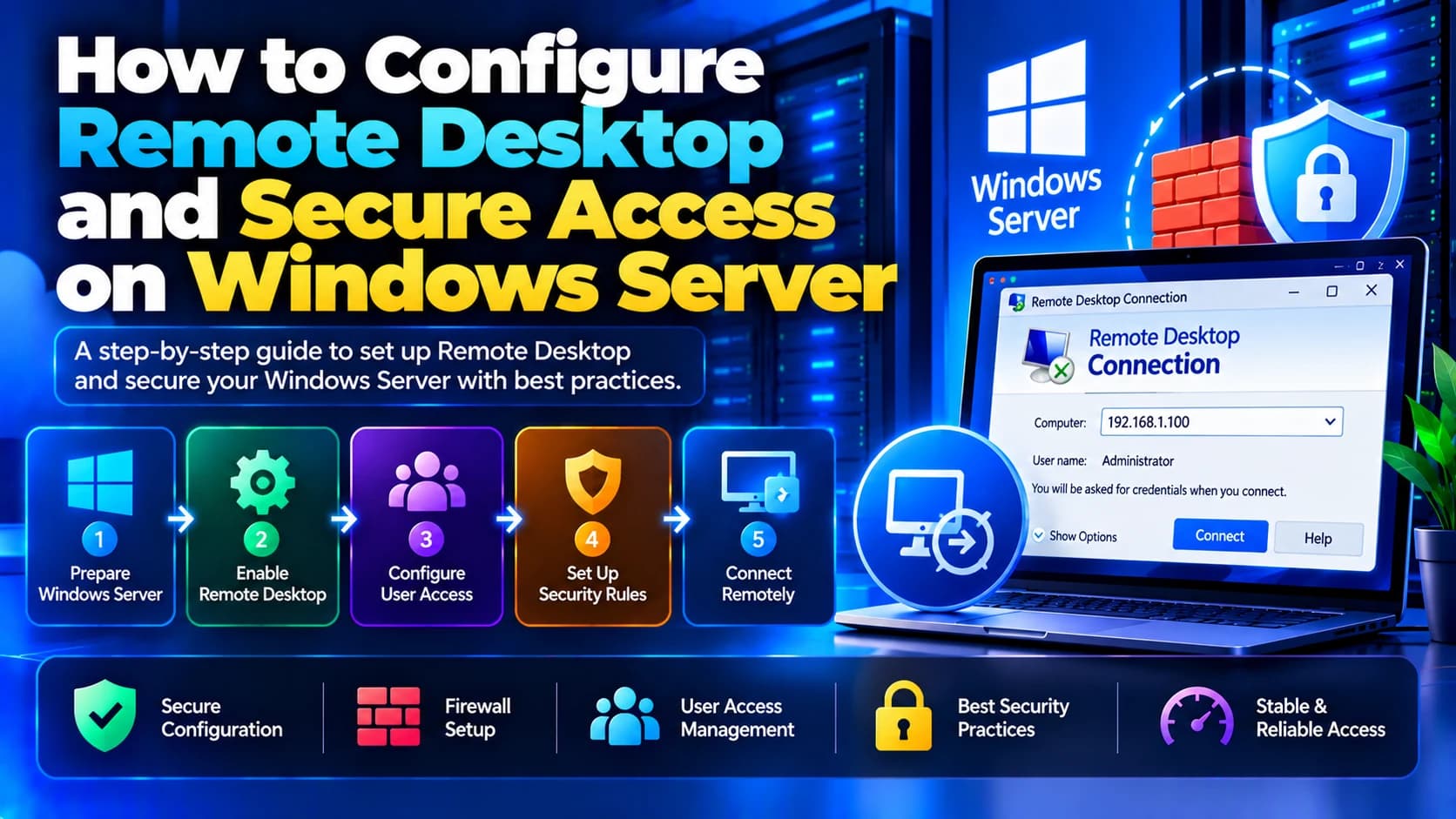
Managing a Windows Server remotely is essential for businesses that host websites, web applications, databases, and internal business systems. Remote Desktop Protocol (RDP) allows administrators to connect to a Windows Server from another computer and manage it without being physically present at the server.
However, enabling remote access without proper security can expose a server to unauthorized login attempts, brute-force attacks, and other security threats. Businesses should configure Remote Desktop carefully and combine it with strong authentication, firewall rules, network restrictions, and regular security updates.
In this guide, we will explain how to configure Remote Desktop on Windows Server, connect to the server remotely, and apply practical security measures to protect administrative access.
What Is Remote Desktop Protocol (RDP)?
Remote Desktop Protocol (RDP) is a Microsoft protocol that allows users to access and interact with a remote Windows computer through a graphical desktop interface.
When RDP is enabled, an authorized user can connect from another computer, sign in, open applications, manage files, install software, and perform administrative tasks.
RDP is commonly used for:
Managing Windows Server infrastructure.
Deploying websites and web applications.
Configuring Internet Information Services (IIS).
Installing and maintaining software.
Troubleshooting production issues.
Managing databases and internal applications.
Performing routine server maintenance.
RDP typically uses TCP port 3389, although deployments may use different configurations. Exposing this port directly to the public internet increases risk, so administrators should restrict access wherever possible.
Prerequisites for Configuring Remote Desktop
Before configuring remote access, make sure you have the following:
A Windows Server machine: A supported version of Windows Server.
Administrator access: Permission to change remote-access settings.
A remote computer: A Windows, macOS, or other compatible device with an RDP client.
Network connectivity: A private network connection, VPN, or appropriately secured remote-access path.
An authorized account: A user account permitted to connect through Remote Desktop.
Firewall access: Network rules that allow connections from approved sources.
A security plan: Strong authentication, restricted access, and monitoring.
If your server is hosted on AWS, Microsoft Azure, or another cloud platform, you may also need to configure the provider's network firewall or security rules.
Step 1: Enable Remote Desktop on Windows Server
The first step is to enable Remote Desktop on the Windows Server machine.
Enable RDP Through Server Settings
Sign in to Windows Server using an authorized account.
Open Server Manager.
Select Local Server.
Find the Remote Desktop setting.
Click the current status, which may show as Disabled.
Select the option to allow remote connections to the computer.
Apply the changes.
Depending on your Windows Server version, you can also access Remote Desktop settings through the system properties interface.
Enable Network Level Authentication
When available, keep Network Level Authentication (NLA) enabled. NLA requires users to authenticate before a full remote desktop session is established, providing an additional layer of protection.
Use compatible clients and avoid disabling NLA simply to make an outdated client work. Resolve client compatibility issues or use an approved alternative.
Step 2: Allow Authorized Users to Connect
Not every user should have remote administrative access to a production server.
Windows Server generally permits members of the Administrators group and authorized members of the Remote Desktop Users group to connect, subject to local or domain policies.
To add an authorized user:
Open System Properties.
Select the Remote tab.
Click Select Users under Remote Desktop.
Choose Add.
Enter the relevant user or domain account.
Confirm the selection.
The exact interface can vary by Windows Server version.
Follow the Principle of Least Privilege
Grant access only to users who genuinely need it.
For example, a developer who needs to inspect application logs may not need full administrator privileges. Separate administrative accounts from ordinary user accounts where practical, and remove access when it is no longer required.
Step 3: Configure Windows Firewall
Windows Firewall helps control which devices can connect to the server.
When Remote Desktop is enabled through Windows settings, Windows may enable the corresponding firewall rules. However, administrators should verify the rules rather than assuming the configuration is correct.
Check Remote Desktop Firewall Rules
Open Windows Defender Firewall with Advanced Security.
Select Inbound Rules.
Find the Remote Desktop rules.
Confirm that the required rules are enabled for the appropriate network profiles.
Review the allowed remote addresses and ports.
If possible, restrict the inbound RDP rule to a trusted management network or specific administrator IP addresses.
Do not create a broad rule that allows RDP from every internet address unless there is a compelling, controlled reason. A VPN or private access gateway is generally preferable.
Step 4: Connect to Windows Server Using Remote Desktop
After enabling RDP and configuring the required access rules, connect from your remote computer.
Connect From Windows
Press
Win + R.Enter
mstscand press Enter.Enter the server's IP address or hostname.
Click Connect.
Enter the authorized credentials when prompted.
Verify the server identity before accepting any certificate or trust warning.
If the server is on a private network, connect to the approved VPN or private-access solution first.
Connect From macOS
Install a compatible Microsoft Remote Desktop client or another trusted RDP client available for your macOS version.
Enter the server address, configure the appropriate connection settings, and sign in using your authorized account.
Important Connection Note
If the server is hosted in the cloud, its private IP address may not be reachable directly from your computer. Use the access method supported by your cloud provider, such as a VPN, bastion host, or managed remote-access service.
Step 5: Secure Remote Desktop With Strong Authentication
Strong authentication is one of the most important ways to protect remote administrative access.
Use Strong Passwords
Create unique passwords for administrative accounts. Avoid default passwords, reused credentials, and predictable patterns.
Where supported, use a password manager to manage administrator credentials securely.
Enable Multi-Factor Authentication
Use multi-factor authentication (MFA) for remote administration wherever your identity provider or remote-access architecture supports it.
Native RDP does not automatically provide MFA in every configuration. MFA may require integration with an identity platform, VPN, Remote Desktop Gateway, or another supported security solution.
Avoid Shared Administrator Accounts
Assign individual accounts to administrators where practical. Individual accounts improve accountability and make it easier to revoke access when a team member leaves.
Protect Privileged Accounts
Use separate administrator accounts for administrative work and ordinary accounts for daily tasks. Limit who can sign in with highly privileged accounts and review those permissions regularly.
Step 6: Restrict RDP Access to Trusted IP Addresses
One effective security measure is to restrict RDP connections to trusted networks or administrator IP addresses.
For example, if your organization has a fixed public IP address for its office, you can configure the relevant firewall rule to accept RDP traffic only from that address.
Configure Remote Address Restrictions
Open Windows Defender Firewall with Advanced Security.
Select Inbound Rules.
Open the relevant Remote Desktop rule.
Select the Scope tab.
Under Remote IP address, choose the option to allow only specified IP addresses.
Add the approved management IP addresses or network ranges.
Apply the change and test access from an authorized connection.
Be careful when applying these restrictions remotely. Confirm that your current management connection will remain permitted, and maintain an approved recovery method to avoid locking yourself out.
If administrators work from changing locations, a VPN or identity-aware access gateway may be more practical than repeatedly changing firewall rules.
Step 7: Use a VPN or Remote Desktop Gateway
Avoid exposing RDP directly to the public internet whenever possible.
Two common options are a VPN and Remote Desktop Gateway.
Option A: VPN Access
A VPN creates an authenticated connection to a private network. Administrators can connect to the VPN first and then access the server through its private IP address.
Benefits include:
Reduced direct exposure of RDP to the internet.
Centralized access control.
Support for private network addressing.
Easier restriction of administrative connections.
Use strong VPN authentication and keep the VPN service updated.
Option B: Remote Desktop Gateway
Remote Desktop Gateway can provide a controlled way to access internal RDP resources over an encrypted HTTPS connection.
It supports centralized connection policies and can reduce the need to expose RDP directly to external networks.
A gateway requires appropriate deployment, certificate management, access policies, and maintenance. Choose the architecture that fits your organization's security requirements.
Step 8: Keep Windows Server Updated
Unpatched operating systems and remote-access components can expose a server to known vulnerabilities.
Create a regular patch-management process that includes:
Windows Server security updates.
RDP-related security updates.
Network and security software updates.
Application and database patches.
Reboots when required to complete updates.
For production systems, schedule maintenance windows and test important updates where practical.
Keep backups and a recovery plan available before applying major changes. Do not postpone critical security updates indefinitely simply to avoid a maintenance window.
Step 9: Configure Account Lockout and Login Policies
Repeated failed login attempts may indicate a brute-force attack or a user experiencing authentication problems.
Windows security policies can help manage these risks.
Consider configuring:
Account lockout thresholds.
Account lockout duration.
Password policies.
Appropriate sign-in restrictions.
Auditing for failed and successful logins.
The appropriate values depend on your organization's security policy and account-management setup. Excessively aggressive lockout policies can also create denial-of-service opportunities by allowing attackers to lock out legitimate users.
For domain-joined servers, coordinate these settings with your organization's Group Policy and identity-management policies.
Step 10: Monitor Remote Desktop Activity
Monitoring helps administrators identify suspicious access attempts and investigate security incidents.
Review Windows Event Logs
Open Event Viewer and review the relevant Windows security and Remote Desktop logs.
Look for:
Repeated failed authentication attempts.
Successful logins from unexpected locations.
Unusual login times.
New or unexpected administrator accounts.
Changes to firewall or remote-access settings.
Unexpected remote sessions.
Windows security event IDs can help with investigation, but the available events depend on auditing configuration, Windows version, and authentication method.
For larger environments, forward relevant logs to a centralized monitoring platform or security information and event management (SIEM) system.
Configure alerting for suspicious activity and retain logs according to your organization's security and compliance requirements.
Step 11: Secure Remote Desktop on AWS or Azure
If your Windows Server is hosted on a cloud platform, secure access at both the operating-system and cloud-network levels.
On AWS
For a Windows Server instance hosted on Amazon EC2:
Review the EC2 security group's inbound rules.
Avoid allowing RDP from
0.0.0.0/0.Restrict access to trusted addresses or a private management network.
Consider AWS Systems Manager or another supported management approach that avoids direct public RDP access.
Review instance permissions, credentials, logging, and backup configuration.
On Microsoft Azure
For a Windows Server virtual machine hosted on Azure:
Review the network security group rules.
Restrict RDP to approved sources.
Consider Azure Bastion or a private VPN connection.
Use supported identity and authentication controls.
Review activity logs, monitoring, and backup policies.
Cloud network rules do not replace Windows Firewall. Both layers should be configured according to the intended access architecture.
Step 12: Test Your Remote Access Configuration
After applying the security settings, test the complete configuration.
Confirm that:
Authorized administrators can connect successfully.
Unauthorized source addresses cannot reach the RDP service.
NLA and required authentication controls are enabled.
The VPN or gateway works as intended, if used.
Failed login attempts are logged.
Administrative accounts have only the necessary permissions.
Recovery access is available if a firewall or authentication change fails.
Server updates and backups are being managed appropriately.
Perform these tests from approved systems and networks. Avoid making security changes on a critical production server without a recovery plan.
Common Remote Desktop Problems and Solutions
1. Remote Desktop Is Not Connecting
Possible causes: RDP is disabled, the server is unreachable, the firewall is blocking access, or the address is incorrect.
Solution: Verify the server address, network connectivity, Remote Desktop settings, and firewall rules. If the server is hosted in the cloud, review its network security rules.
2. The User Is Not Authorized to Sign In
Possible causes: The user is not permitted to connect through Remote Desktop, or a local or domain policy denies the login.
Solution: Check the user's group membership and the applicable user-rights assignment policies. Confirm that the account is active and permitted to access the server.
3. The Connection Times Out
Possible causes: A VPN is disconnected, the public IP address changed, a network firewall is blocking traffic, or the server is unavailable.
Solution: Verify network connectivity, DNS or IP address configuration, firewall rules, and server health.
4. The Server Is Receiving Repeated Login Attempts
Possible causes: The RDP endpoint is reachable by untrusted internet hosts, or an account is being targeted.
Solution: Restrict RDP access, use a VPN or gateway, enforce strong authentication, review logs, and investigate suspicious attempts. Do not rely on changing the default port as the primary security measure.
5. Remote Desktop Stops Working After a Firewall Change
Possible causes: The current management IP address was not included in the allowed sources, or the relevant firewall rule was disabled.
Solution: Use an approved out-of-band management or cloud console method to restore access. Confirm the correct allowed sources before applying the change again.
Best Practices for Secure Windows Server Remote Access
For a safer production environment, follow these practices:
Avoid exposing RDP directly to the public internet wherever possible.
Prefer a VPN, Remote Desktop Gateway, bastion host, or supported private-access service.
Enable Network Level Authentication when supported.
Use strong, unique credentials and MFA where available.
Restrict RDP access to authorized users and trusted networks.
Keep Windows Server and remote-access components updated.
Monitor authentication events and investigate suspicious activity.
Limit administrator privileges and remove unnecessary accounts.
Maintain backups and test your recovery procedures.
Document access rules and review them regularly.
Security is an ongoing process. Regularly reviewing remote access, authentication, and monitoring settings helps reduce the risk of unauthorized server access.
Conclusion
Configuring Remote Desktop on Windows Server allows administrators to manage servers remotely, deploy applications, and troubleshoot production issues. However, enabling RDP is only the first step; securing the connection is equally important.
By restricting network access, enabling strong authentication, keeping the server updated, monitoring login activity, and using a VPN or secure gateway, businesses can significantly improve the security of their Windows Server environment.
At Dotcube Technologies, secure infrastructure management is an important part of delivering reliable web applications and digital services. A well-planned remote-access strategy helps teams maintain servers efficiently while reducing unnecessary exposure to security threats.
Frequently Asked Questions
1. What port does Windows Remote Desktop use?
RDP commonly uses TCP port 3389. The actual configuration may vary, and administrators should avoid exposing the service broadly to the internet.
2. Is it safe to enable Remote Desktop on Windows Server?
It can be safe when configured correctly, but direct public exposure increases risk. Use restricted network access, strong authentication, NLA, updates, and monitoring. A VPN or secure gateway is generally preferable.
3. How do I allow only specific IP addresses to access RDP?
Open Windows Defender Firewall with Advanced Security, edit the relevant Remote Desktop inbound rule, and specify approved remote IP addresses under the Scope settings. Also check cloud network rules if applicable.
4. Do I need a VPN to connect to Windows Server remotely?
A VPN is not always mandatory, but it is often a good option for private administrative access. Alternatives include a properly configured Remote Desktop Gateway, bastion host, or supported managed remote-access service.
5. How can I protect RDP from brute-force attacks?
Restrict network exposure, use strong credentials and MFA where supported, enable appropriate account policies, keep the server updated, and monitor authentication logs. Changing the default port alone is not sufficient protection.
6. Can I use Remote Desktop to manage a Windows Server hosted on AWS or Azure?
Yes. Both platforms support Windows Server remote administration. Configure the cloud network rules and Windows Firewall carefully, and consider provider-supported private-access or bastion services.
7. What should I do if I lose Remote Desktop access after changing firewall settings?
Use an approved recovery method, such as the cloud provider's management console or out-of-band access, to review and correct the configuration. Always verify recovery access before applying restrictive firewall changes.